Automotive / Dash Cams
User Guide for DDPAI Mini Dashcam
A comprehensive user guide for the DDPAI Mini Dashcam. Includes instructions for installation, LED indicator status, app pairing, and video playback.
Table of contents
Quick guide from the manual
The DDPAI Mini Dashcam is designed for easy installation and operation. Before using, ensure you have a TF card (up to 128GB) inserted. The device is powered via a 5V 2A USB car charger. Key operations involve installing the camera on the windshield, pairing it with the DDPAI App via Wi-Fi, and using the app to preview, playback, and download recordings.
Product Overview
The device features the following components:
- Micro USB Port: For power connection.
- Reset Key: To reset the device.
- SD Card Slot: Supports TF cards up to 128GB.
- Mounting Bracket: For windshield attachment.
- LED Indicator: Displays operational status.
- Rotating Shaft: Allows lens angle adjustment.
- MIC & Loudspeaker: For audio recording and alerts.
LED Indicator Status
The LED indicator provides visual feedback on the camera's status:
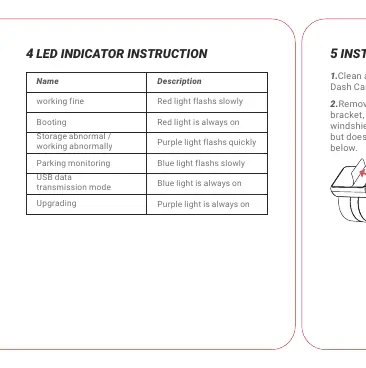
- Working fine: Red light flashes slowly.
- Booting: Red light is always on.
- Storage abnormal / working abnormally: Purple light flashes quickly.
- Parking monitoring: Blue light flashes slowly.
- USB data transmission mode: Blue light is always on.
- Upgrading: Purple light is always on.
Installation
- Clean the windshield area where the camera will be mounted to ensure proper adhesion.
- Remove the protective film from the bracket and attach the adhesive side to the windshield, ensuring an unobstructed view.
- Use the provided installation tool to tuck the power cable into the windshield molding.
- Connect the Dash Cam to the car charger.
- Turn on the engine to power up the device.
- Adjust the lens angle by rotating the camera. It is recommended to point the lens slightly downwards (approximately 10 degrees below horizontal) for a 6:4 road-to-background ratio.
App Setup and Operation
To access advanced features, download the DDPAI App:
- Pairing: Keep your phone within 2.5 meters of the Dash Cam. Launch the app, go to 'Device > Connect new devices', and select your camera. The default Wi-Fi name is DDPAI_mini_XXXX and the default password is 1234567890.
- Preview: Use the 'Entering' tab to view the live feed. Rotate your phone to landscape mode for a better view.
- Playback & Download: Use the timeline bar at the bottom of the screen to select the recording time. Tap the thumbnail to preview or download the video.
Contact Information
For more information and FAQs, visit en.ddpai.com or contact [email protected]. The company is located at Floor 12, Yihua finance building, Software park, Yuehai Sub district, Nanshan district, Shenzhen.
Official resources from the manual
Practical help
Common problems
Purple light flashes quickly
This indicates storage is abnormal or working abnormally. Check if the TF card is inserted correctly or if it needs formatting/replacement.
Cannot connect to App
Ensure your phone is within 2.5 meters of the Dash Cam. For iOS, ensure WLAN is turned on in Settings. Use the default password '1234567890' if prompted.
Before use
- Insert a TF card (up to 128GB) into the SD card slot.
- Clean the windshield area thoroughly for better adhesive grip.
- Download the DDPAI App from the App Store or Google Play.
- Ensure the car charger is plugged into the cigarette lighter socket.
- Adjust the lens angle while looking at the app preview screen.
Specs in practice
- Storage: TF card up to 128GB
- The camera supports loop recording on microSD cards up to 128GB capacity.
Images and diagrams
- The installation diagram shows the ideal mount area on the windshield and how to use the installation tool to tuck the cable into the molding.
- The LED indicator table clarifies the meaning of different light colors and patterns (Red, Purple, Blue).
Model compatibility
- Supports TF cards up to 128GB.
- Requires DDPAI App for full functionality and video management.

Manual page author
David Miller
Documentation analyst
Organizes user manual content into clear summaries, with attention to model details, product context, and everyday usability.