Electronics / Security Cameras
Cobra CDR 875 G Dash Cam
Quick start guide for the Cobra CDR 875 G dash cam. Learn how to install the device, pair it with the iRadar app, manage storage, and view recordings on your computer.
Table of contents
Manual images
Click an image to enlargeQuick guide from the manual
The Cobra CDR 875 G is a dash cam designed for vehicle recording with GPS and Bluetooth connectivity. To begin, mount the device to your windshield, connect it to your vehicle's power outlet, and it will automatically start recording when power is applied. Use the Cobra iRadar app for driver awareness alerts and the Drive HD Player software on your computer to view video files with embedded GPS and G-Sensor data.
Controls and connections
The device features several physical controls and ports:
- Buttons 1-4: Functions change depending on the state of the unit; icons above the buttons indicate current functions.
- Emergency Recording Button: Press to create a recording that will not be overwritten by continuous loop recording.
- Power/Volume Button: Used for power control and screen toggling.
- Ports: Includes a Micro USB port for data/power, HDMI output, and a Micro SD card slot.
- GPS: The GPS chip is located in the mount; ensure the GPS cable is plugged into the dash cam.
Installation

- Mount: Screw the suction cup into the mount, slide the mount into the camera, and press the lever to secure it to the windshield. Connect the GPS cable from the mount to the dash cam.
- Power: Plug the unit into the vehicle's cigarette lighter plug.
- Drive: The unit automatically turns on and starts recording when power is applied.
iRadar app connection
The dash cam uses Bluetooth Smart to connect to the Cobra iRadar app for driver awareness alerts (Red Light Cameras, Live Police, Speed Cameras, Caution Areas, Speed Traps).
- iPhone 4s and later: Power on the dash cam. Ensure iPhone Bluetooth is ON. Do not pair via the iPhone Bluetooth Settings Menu. Open the Cobra iRadar App, go to Menu > Devices, and follow the instructions. A chime will sound and the Bluetooth icon will turn white on the dash cam display when connected.
- Android devices: Power on the dash cam. Enter the Android Bluetooth Settings Menu, scan for devices, and select 'Drive HD' to pair. Open the Cobra iRadar App to complete the connection.
Computer connection
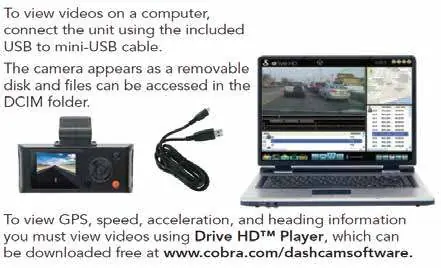
To view videos on a computer, connect the dash cam using the included USB cable. Select 'Connect to Computer' on the dash cam screen. The device will appear as a removable drive named 'DriveHD'. Video clips and photos are located in the DCIM folder. To view embedded GPS, speed, heading, and G-Sensor information, you must use the Cobra Drive HD Player, which can be downloaded for free at www.cobra.com/dashcamsoftware.
Storage
The dash cam comes with an 8GB MicroSD card installed. It supports cards up to 32GB, provided they are Class IV or higher.
Official resources from the manual
Manufacturer information
Cobra Electronics
Practical help
Common problems
Dash cam does not appear in iPhone Bluetooth settings menu
This is normal. Do not pair via the iPhone Bluetooth menu; pair directly through the Cobra iRadar App.
Cannot see GPS, speed, or G-Sensor data in video files
You must view the video files using the Cobra Drive HD Player software on your computer, not a standard media player.
Before use
- Ensure the MicroSD card is Class IV or higher (up to 32GB supported).
- Download the Cobra iRadar app on your smartphone.
- Secure the mount to the windshield and attach the dash cam.
- Connect the GPS cable from the mount to the dash cam.
- Plug the power cable into the vehicle's cigarette lighter.
Specs in practice
- Connectivity
- Bluetooth Smart for smartphone app integration; Micro USB for computer connection.
- Video Format
- Files are saved as .MOV format.
Images and diagrams
- The controls diagram identifies the GPS chip, suction cup lever, quick release mount, emergency recording button, and various ports (Micro USB, HDMI, Micro SD).
- The screen interface shows recording status, GPS status, and button functions.
Model compatibility
- Compatible with iPhone 4s and later (Bluetooth Smart).
- Compatible with Android devices (Bluetooth Smart).

Manual page author
David Miller
Documentation analyst
Organizes user manual content into clear summaries, with attention to model details, product context, and everyday usability.