HVAC / Air Conditioners
User Manual for Della Mini-Split Air Conditioner (Wi-Fi Module)
A comprehensive guide for setting up and operating the Wi-Fi module for Della Mini-Split Air Conditioners. Includes instructions for app installation, device pairing (EZ and AP modes), control interface navigation, advanced features like...
Table of contents
Manual images
Click an image to enlargeQuick Start Guide
To begin using the smart features of your Della Mini-Split Air Conditioner, you must first install the DELLA+ app on your smartphone. Ensure your phone is connected to a 2.4GHz Wi-Fi network, as 5GHz networks are not supported. During installation, grant the app permissions for Storage, Location, and Camera to ensure proper functionality.
Wi-Fi Module Specifications
The Wi-Fi module operates on the 2.400 - 2.500GHz frequency band. It supports IEEE 802.11 b/g/n standards (channels 1-14) and security protocols including WEP, WPA, WPA2, and AES128. The module supports IPv4/IPv6/TCP/UDP/HTTPS/TLS/MulticastDNS protocols.
Adding Device to App
There are two modes for adding your air conditioner to the app:
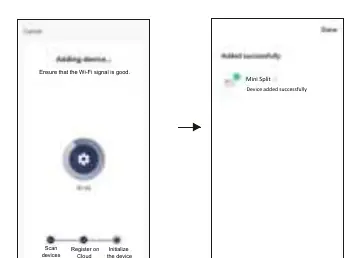
- EZ Mode (Quick Connection): Power on the unit. In the app, select 'Add device'. Reset the Wi-Fi module by pressing the 'DISPLAY' button on the remote controller 6 times (or use the reset button on the unit) until 'CF' appears on the indoor display. Follow the app prompts to complete the connection.
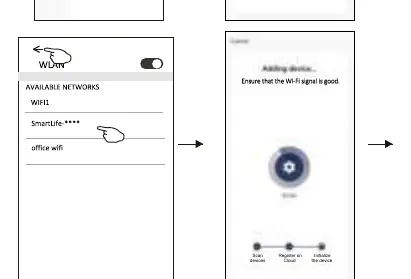
- AP Mode: If EZ mode fails, use AP mode. Reset the Wi-Fi module until 'AP' appears on the indoor display. In the app, select 'AP Mode'. Connect your phone to the 'SmartLife-****' Wi-Fi network in your phone's settings, then return to the app to finish the setup.
Air Conditioner Control
The app provides two control interfaces (Control Form 1 and Control Form 2) depending on the firmware. Both allow you to:
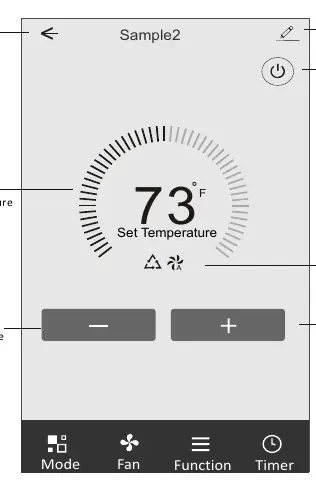
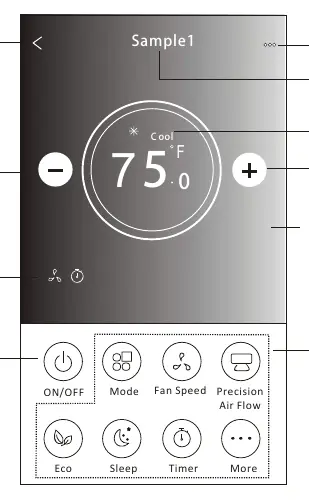
- Power: Turn the unit ON/OFF.
- Mode: Select between Feel, Cool, Heat, Dry, and Fan modes.
- Fan Speed: Adjust speed (High, Med, Low, Auto). Note that fan speed may be restricted in Dry mode.
- Temperature: Increase or decrease the set temperature.
- Air Flow: Adjust swing directions (Up-Down, Left-Right).
Advanced Functions
Depending on your specific model, the 'More' menu provides access to additional features:
- GEN Mode: Allows you to limit the current levels (30%, 50%, 80%) to save energy.
- Electricity Monitoring: View daily, monthly, or yearly energy consumption statistics.
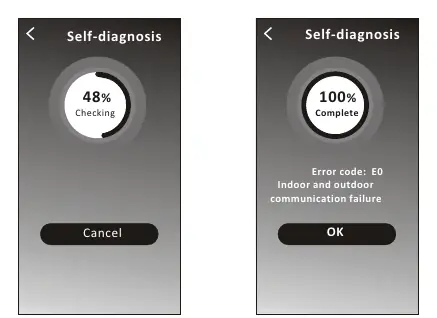
- Self-diagnosis: Automatically checks the system and displays error codes (e.g., E0 for communication failure).
- Anti-Mildew: Dries the unit after turning it off to prevent mold.
- Health: Activates the antibacterial ionizer (if equipped).
- Reservation: Set specific times for the unit to reach desired settings.
Troubleshooting
If you encounter issues, check the following:
- Configuration Failure: Verify Wi-Fi password, ensure the unit is in configuration status ('CF' or 'AP'), and check for firewall restrictions.
- Control Issues: If the app shows 'Identification failed', the unit may have been reset. Reconnect the Wi-Fi to restore permissions.
- Device Offline: Ensure the unit has power, the router is working, and the signal strength is sufficient.
Manufacturer information
Della
Practical help
Common problems
Air conditioner cannot be configured successfully
Verify the Wi-Fi password, ensure the unit is in configuration status (displaying 'CF'), check for firewall restrictions, and ensure the router is working within signal range.
Mobile cannot control the air conditioner
If 'Identification failed' appears, the unit was likely reset. Reconnect the Wi-Fi to restore permissions or delete the device from the app and re-add it.
Mobile cannot find the air conditioner
Check if the unit is powered on, the router is active, and the mobile device is connected to the same network. Ensure the unit is not out of range.
Before use
- Ensure your smartphone is connected to a 2.4GHz Wi-Fi network (5GHz is not supported).
- Download the 'DELLA+' app from the Google Play Store or Apple App Store.
- Enable Storage, Location, and Camera permissions for the app during installation.
- Power on the indoor unit.
- Ensure the Wi-Fi signal is strong.
Specs in practice
- Network frequency
- 2.400 - 2.500GHz; required for Wi-Fi connectivity.
- Standards of WLAN
- IEEE 802.11 b/g/n (channels 1-14).
- Security support
- WEP/WPA/WPA2/AES128 encryption protocols.
Images and diagrams
- EZ Mode: Press 'DISPLAY' on the remote 6 times until 'CF' appears on the indoor display.
- AP Mode: Press 'DISPLAY' on the remote 6 times until 'AP' appears on the indoor display.
Model compatibility
- Requires Android 5.0 or higher.
- Requires iOS 9.0 or higher.
- 5GHz Wi-Fi networks are not supported.

Manual page author
Emily Carter
User documentation editor
Prepares concise manual descriptions and highlights the most useful setup, operation, and maintenance information for readers.