Electronics / Networking
Digitus 10/100base-TX to 100base-FX Media Converter
Quick installation and configuration guide for the Digitus 10/100base-TX to 100base-FX Media Converter. Includes setup instructions, DIP switch settings, LED status indicators, and troubleshooting steps.
Table of contents
Manual images
Click an image to enlargeQuick guide from the manual
The Digitus 10/100base-TX to 100base-FX Media Converter is designed to bridge two types of network segments. Before installation, ensure the package contains the converter, the appropriate power adapter (or power cord for internal models), and this manual. The device can be used as a standalone unit or as a slide-in module in a 19-inch converter rack chassis.
Installation
Standalone unit
- Verify the AC-DC adapter matches your country's power requirements.
- Insert the power plug.
- Connect the media cable for network connection.
Slide-in unit
- Ensure the converter and rack chassis are from the same source to match dimensions and power requirements.
- Turn off the 19-inch converter rack power.
- Ensure there is no network activity.
- Locate the +5V DC power jack on the back of the converter.
- Carefully slide the unit into the rack and plug it into the +5V DC power receptacle.
- Connect the media cable.
- Turn on the rack power; the Power LED should light up.
DIP Switch Settings
The converter features DIP switches on the back panel to configure specific operational modes:
- LFP (1): ON for Link fault passthrough, OFF to disable.
- Direct Wire (2): ON for Pure converter mode, OFF for Store and Forward Switch.
- Fast FWD (3): ON to disable Fast Forward, OFF to enable.
- TP-Force (4): ON to force TP speed, OFF for 10/100M Auto negotiation.
- IEEE 802.3x (5): ON to disable IEEE802.3x, OFF to enable.
- Speed_Mode (6): ON for 10M, OFF for 100M.
- Duplex_Mode (7): ON for TP Port half duplex, OFF for TP Port full duplex.
- FX-Full (8): ON for Fiber Port half duplex, OFF for Fiber Port full duplex.
LED Indicators
- FX Link/Act: ON indicates correct Fiber link; Blink indicates active packet transmission.
- TX Link/Act: ON indicates correct electric link; Blink indicates active packet transmission.
- FDX: ON for full duplex mode, OFF for half duplex.
- PWR: ON indicates power is normal.
- SD: ON indicates fiber signal is detected.
- 100M: ON for 100Mbps, OFF for 10Mbps.
Troubleshooting
If the converter fails, follow these steps:
- Power LED off: Check if the power adapter is the correct voltage/frequency and properly installed.
- Duplex/Link LED off: Check copper cables for proper connection. If the mode is incorrect, disconnect and reconnect the cable to restart initialization.
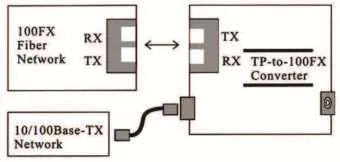
- Link action LED off (Fiber): Check fiber cables. Verify TX and RX cables are connected to the correct RX and TX ports on the 100Base-FX device.
- Speed LED off: Check copper cables. Disconnect and reconnect to restart initialization if the speed is incorrect.
Technical Specifications
- Standards: IEEE802.3, IEEE802.3U, 10/100Base-TX, 100Base-FX.
- Data Forward Rate: 10Mbps/100Mbps.
- Power Supply: 5VDC or 110-260VAC or 48VDC.
- Power Consumption: 2.5W.
- Operating Temperature: 0°C to 60°C.
- Relative Humidity: 5% to 80% (non-condensation).
Practical help
Common problems
Power LED is not illuminated
Verify the power adapter voltage and frequency match your outlet. Ensure the adapter is securely connected to both the device and the wall outlet.
Duplex/Link LED is not illuminated
Check copper cables for proper connection. Disconnect and reconnect the twisted pair cable to restart the initialization process.
Link action LED is not illuminated on fiber port
Check fiber cables for proper connection. Ensure TX and RX cables are swapped if necessary (TX to RX, RX to TX).
Before use
- Verify package contains the TP-Fiber Converter, power adapter/cord, and manual.
- For slide-in units, ensure the rack chassis and converter are from the same source.
- Turn off rack power before installing slide-in units.
- Ensure there is no network activity before installing slide-in units.
Specs in practice
- Data Forward Rate
- Supports 10Mbps or 100Mbps network speeds.
- Operating Temperature
- Device must be operated between 0°C and 60°C.
- Relative Humidity
- Operate in environments with 5% to 80% non-condensing humidity.
Images and diagrams
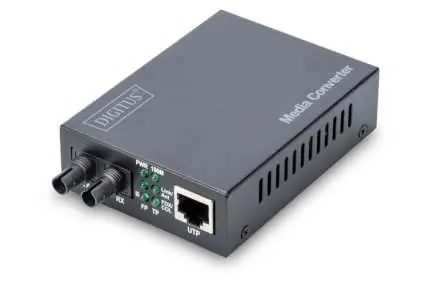
- The front panel contains the fiber ports (TX/RX) and the UTP port, along with status LEDs.
- The back panel contains the power input and the 8-position DIP switch for configuration.
- The network connection diagram illustrates the correct pairing of TX and RX fiber cables between the fiber network and the converter.
Model compatibility
- Supports 10Base-T (Cat 3, 4, 5) and 100Base-TX (Cat 5) UTP/STP cables.
- Fiber support: Multi-mode (50/125µm, 62.5/125µm) and Single-mode (9/125µm).
- Compatible with 19-inch converter rack chassis.

Manual page author
David Miller
Documentation analyst
Organizes user manual content into clear summaries, with attention to model details, product context, and everyday usability.