Home Appliances / Space Heaters
User Manual for Dreo Smart 2-in-1 Tower Fan MC710S
Quick guide for the Dreo Smart 2-in-1 Tower Fan MC710S. Learn how to set up, operate, clean, and troubleshoot your device, including app connectivity and filter maintenance.
Quick answers from the manual
Quick answer
- The Dreo Smart 2-in-1 Tower Fan MC710S is a dual-function device that combines air circulation and purification. It features multiple modes (Normal, Auto, Sleep, Breeze), app connectivity, and a replaceable HEPA filter. p. 1, 7
Key actions
- Filter Installation p. 8
- WiFi Pairing p. 11
- Reset Filter Reminder p. 18
First start
- Remove filter packaging, place on flat surface, plug in, and wait 10s for sensor warm-up. p. 8
Problems and fixes
Fan not working
Check power connection, ensure filter packaging is removed, and verify the outlet is powered.
p. 21
Filter reminder on
Reset by holding Info button for 5s.
p. 21Maintenance and reset
- Hold Info button for 5 seconds to reset filter reminder. p. 18
Technical specifications
| Parameter | Value | Meaning | Pages |
|---|---|---|---|
| Rated Power | 50W | Power consumption | p. 6 |
| Input | 120V-60Hz | Voltage requirements | p. 6 |
| Battery Type | CR2025 3V | Remote control battery | p. 6 |
Where to find it in the PDF
- Safety Instructions p. 5, 6
- Getting Started p. 8
- Control Panel p. 9, 10
- Cleaning and Maintenance p. 16, 17, 18, 19
- Troubleshooting p. 21, 22
Table of contents
Manual images
Click an image to enlargeQuick guide from the manual
The Dreo Smart 2-in-1 Tower Fan MC710S combines air circulation and purification. Before first use, you must remove the plastic packaging from the internal filter. The device features multiple operating modes, app connectivity for smart control, and a replaceable HEPA filter. Ensure the unit is placed on a flat, stable surface with at least 15 inches of clearance for optimal airflow.
Safety Instructions
General Safety:
- Do not allow children to play with the appliance.
- Place on a flat, dry surface.
- Do not immerse in water or liquids.
- Do not insert fingers or objects into the grilles.
- Do not dismantle or modify the unit.
Electrical Safety:
- Ensure supply voltage matches the appliance rating.
- Unplug before cleaning or long-term storage.
- Do not operate with a damaged cord or plug.
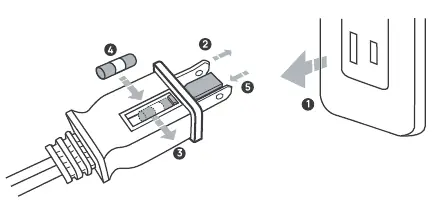
- This appliance uses a polarized plug; if it does not fit, contact a qualified electrician.
Getting Started
Follow these steps to prepare your fan:
- Locate the back handle and pull to remove the back cover.
- Remove the filter from its plastic packaging.
- Reinstall the filter, ensuring straps are pointing outwards.
- Align the back cover tabs and close the cover.
- Place the fan on a flat surface and plug it in.
Control Panel and Modes
The control panel allows you to manage the fan and purification settings:
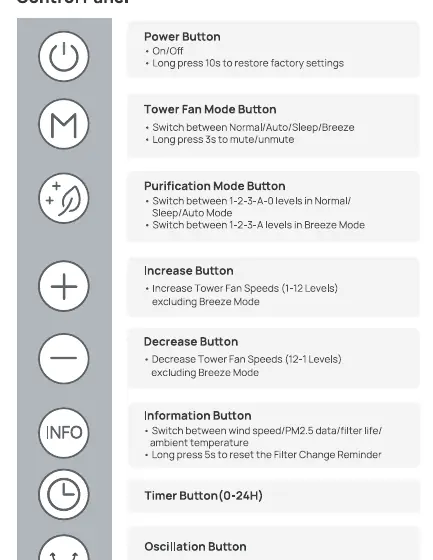
- Power Button: On/Off. Long press 10s to restore factory settings.
- Tower Fan Mode: Switch between Normal, Auto, Sleep, and Breeze modes. Long press 3s to mute/unmute.
- Purification Mode: Adjust purification levels.
- Oscillation: Set angle (30/60/90/120 degrees). Long press 5s for WiFi pairing.
- Timer: Set auto-off from 1 to 24 hours.
App Connectivity
You can control the fan via the Dreo app and integrate it with Amazon Alexa or Google Assistant. To connect:
- Download the Dreo app and create an account.
- Enable Bluetooth on your mobile device.
- Hold the Oscillation button for 5 seconds until the WiFi icon flashes.
- Follow in-app instructions to add the device.
Cleaning and Maintenance
Monthly Cleaning:
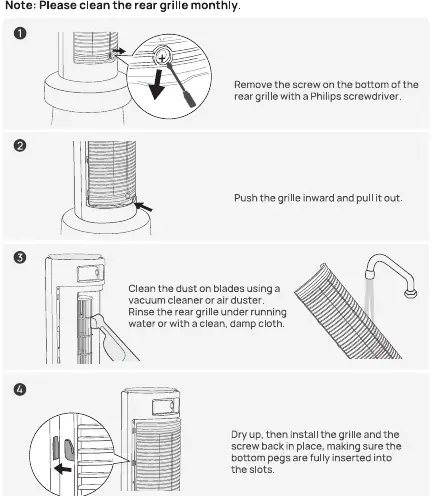
- Unplug the unit before cleaning.
- Remove the rear grille screw, push the grille inward, and pull it out.
- Clean dust from blades using a vacuum or air duster.
- Rinse the grille with water or a damp cloth, dry thoroughly, and reinstall.
Filter Replacement:
- Replace the filter every 6-8 months or when the reminder flashes.
- Remove the back cover, pull out the old filter, and insert the new one.
- After replacing, hold the Info button for 5 seconds to reset the filter reminder.
Troubleshooting
If you encounter issues:
- Fan not working: Check power connection, ensure filter packaging is removed, and verify the outlet is powered.
- Air quality not improving: Close windows, remove obstructions, or replace a clogged filter.
- Loud noise: Switch to a lower speed or Sleep mode.
- Air quality indicator always red: Clean the sensor on the back with a vacuum.
Practical help
Common problems
Fan not working
Check power connection, ensure filter packaging is removed, and verify the outlet is powered.
Air quality not improving
Close windows, remove obstructions, or replace a clogged filter.
Loud noise
Switch to a lower speed or Sleep mode.
Air quality indicator always red
Clean the sensor on the back with a vacuum; avoid using humidifiers nearby.
Before use
- Remove filter from plastic packaging
- Place on flat, stable surface
- Ensure 15 inches clearance around the unit
- Check power supply voltage
- Install back cover correctly
Specs in practice
- Battery Type
- CR2025 3V (for remote)
Images and diagrams
- Control panel buttons and LED display indicators
- Filter installation and removal steps
- Rear grille cleaning procedure
- Fuse replacement in the power plug
Model compatibility
- Requires Dreo App for smart features
- Compatible with Amazon Alexa and Google Assistant

Manual page author
David Miller
Documentation analyst
Organizes user manual content into clear summaries, with attention to model details, product context, and everyday usability.