Power / Solar Accessories
EPEVER WiFi 2.4G RJ45 D Adapter User Manual
Quick guide for the EPEVER WiFi 2.4G RJ45 D adapter. Learn how to connect your solar controller or inverter to the Solar Guardian app, configure local or cloud monitoring, and understand LED status indicators.
Quick answers from the manual
Quick answer
- The EPEVER WiFi 2.4G RJ45 D adapter connects EPEVER solar controllers and inverters to the Solar Guardian app for remote monitoring via a 2.4G WiFi network or local connection. p. 1
Key actions
- Connect the adapter to the RJ45 port of the solar controller or inverter. p. 1
- Download the Solar Guardian app and scan the QR code on the adapter to add the gateway. p. 1, 2
First start
- Power on the device via the RS485 port, then use the Solar Guardian app to configure the network or local connection. p. 1, 2
Problems and fixes
Gateway already exists error
Contact technical support.
p. 2Technical specifications
| Parameter | Value | Meaning | Pages |
|---|---|---|---|
| Working voltage | 5V ± 0.5V | Powered by RS485 com. port | p. 1 |
| Work frequency | 2.4 to 2.4835GHz | WiFi frequency band | p. 1 |
Where to find it in the PDF
- Overview and Specifications p. 1
- App Configuration p. 2
Table of contents
Quick Guide
The EPEVER WiFi 2.4G RJ45 D adapter allows you to transmit operational data from EPEVER solar controllers, inverters, or inverter/chargers to the EPEVER cloud server or local mobile app. It supports a communication distance of up to 20 meters and is powered directly by the communication port.
Appearance and LED Indicators
The adapter features an RJ45 connector and an LED indicator to show the connection status:
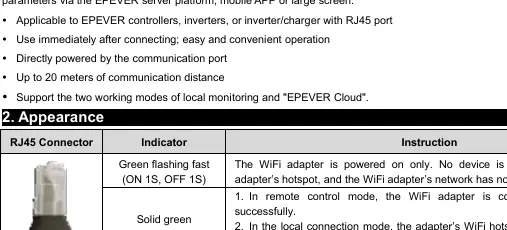
- Green flashing fast (1s on, 1s off): Powered on, no device connected to hotspot, network not configured.
- Solid green: Connected to router (remote mode) or connected to APP (local mode).
- Green flashing fast (100ms): Connected to device.
- Green flashing slowly (1s on, 3s off): Connected to server (remote monitoring mode).
System Connection
Connect the WiFi adapter directly to the RJ45 communication port of your controller or inverter. If your device does not have an RJ45 port, a supporting communication cable or adapter is required. Warning: The working voltage is 4.5V–5.5V. Exceeding this range may damage the adapter.
App Operation
The adapter works exclusively with the Solar Guardian app. You can monitor devices and set parameters via the app or the PC platform (https://gl.mysolarguardian.com/).
Configuration with WiFi (Cloud)
- Log in to the Solar Guardian app and enter the "Site" page.
- Click "Add" to create a new site.
- Use "One Click Add" to add a new gateway and device.
- Scan the QR code on the gateway sticker or enter the 22-digit SN manually.
- Enter the device name and communication ID (Default: 3 for inverters, 10 for Inverter/Charger or MT80, 1 for others).
- Follow the prompts to configure the local WiFi network.
- Switch your phone back to the WiFi or 4G network to complete the setup.
Configuration without WiFi (Local)
- Click "Local Connection" in the app.
- Select the adapter type (WIFI adapter) and click "Add".
- Enter the device name and communication ID.
- Connect your mobile phone to the WiFi hotspot of the adapter (Name: HN_EPxxx, Password: 12345678).
- Return to the app and click "Confirm" to access real-time data.
Specifications
- Working voltage: 5V ± 0.5V (Powered by RS485 port)
- Power consumption: Peak 150mA, Idle 310uA
- Communication method: RS485
- Work frequency: 2.4 to 2.4835GHz
- Work temperature: -40°C to 85°C
- Dimensions: 63mm x 19mm x 13.8mm
- Weight: 7.7g
Official resources from the manual
Practical help
Common problems
Gateway already exists
Contact technical support as the gateway is already added to the production management system.
Confirm button is grayed out
Verify that all required fields are filled and the information provided is correct.
Device not connecting
Ensure the device is powered (4.5V-5.5V) and the RS485 connection is secure.
Before use
- Ensure your EPEVER device has an RJ45 communication port.
- Download the Solar Guardian app.
- Verify you have a 2.4G WiFi network available for cloud monitoring.
- Identify the correct communication ID for your device (Default: 3 for inverters, 10 for Inverter/Charger or MT80, 1 for others).
Specs in practice
- Working voltage
- Must be 4.5V-5.5V; powered by the RS485 port.
- Communication distance
- Maximum range is 20 meters.
- Work temperature
- Operating range is -40°C to 85°C.
Images and diagrams
- RJ45 Pinout: Pins 1-2 are +5VDC, Pins 3-4 are RS485-B, Pins 5-6 are RS485-A, Pins 7-8 are GND.
Model compatibility
- Not waterproof or dustproof; avoid humid or corrosive environments.
- Only supports Solar Guardian app.
- Requires 2.4G WiFi network for cloud data upload.

Manual page author
Emily Carter
User documentation editor
Prepares concise manual descriptions and highlights the most useful setup, operation, and maintenance information for readers.