Computers / Tablet Accessories
User Manual for ESR iPad 10th Generation Keyboard Case
Quick guide for the ESR iPad 10th Generation Keyboard Case. Learn how to connect via Bluetooth, use touchpad gestures, adjust backlighting, charge the device, and troubleshoot common pairing issues.
Table of contents
Manual images
Click an image to enlargeQuick guide from the manual
This document provides essential instructions for setting up and using your ESR iPad 10th Generation Keyboard Case. For optimal performance, ensure your iPad is updated to the latest iOS version (13.4.1 or above is recommended). Before first use, charge the keyboard for at least 3 hours.
Connection Instructions
To connect the keyboard to your iPad:
- Push the power switch button to the ON position.
- Press the Fn and C keys simultaneously to enter pairing mode.
- Open the iPad Settings menu.
- Turn on Bluetooth on your iPad and search for the device.
- Select the keyboard from the list to complete the connection.
Installation and Removal
To install or remove the iPad from the case:
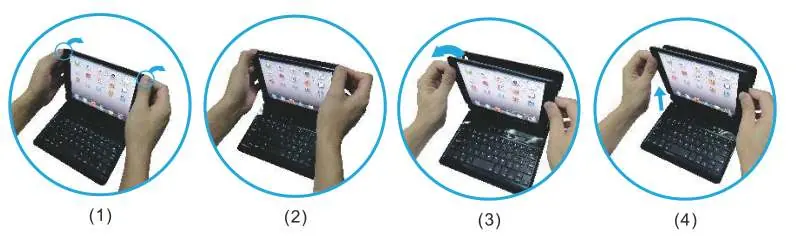
- Removal: Hold the iPad on both sides and use your thumbs to gently push off the back cover. The cover is held in place by two tabs. Peel the cover away from the iPad and take the iPad out upwards.
Keyboard Overview and Backlight
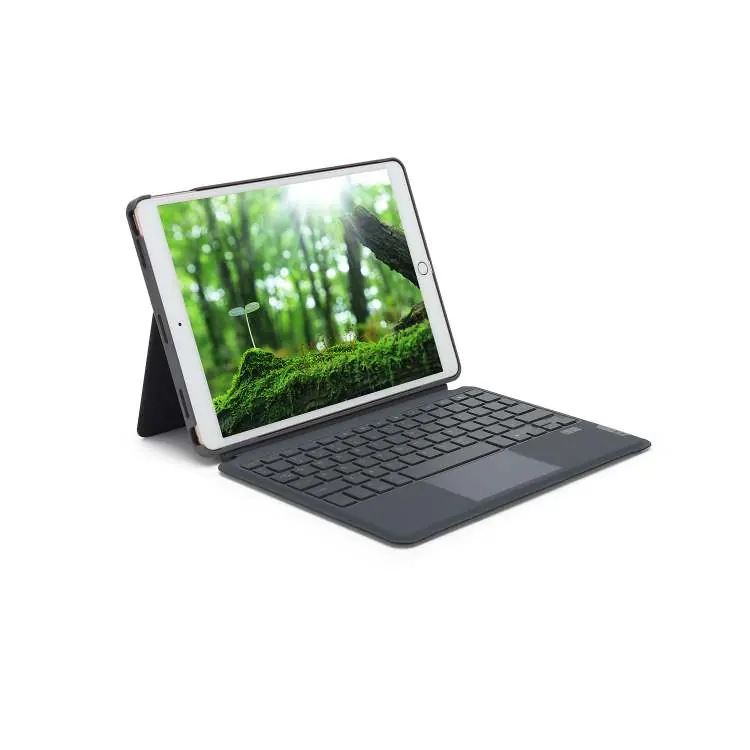
The keyboard features a dedicated touchpad, power switch, and various function keys. You can adjust the backlight brightness by pressing the designated backlight key. To switch between seven different backlight colors, press the Fn key and the backlight key simultaneously.
Touchpad Functions
The touchpad supports various iOS gestures to enhance navigation:
- Single Click: Press with one finger until you feel a click.
- Scroll: Swipe up, down, left, or right with two fingers.
- Zoom: Place two fingers near each other and spread them apart or bring them closer together.
- Go Home: Swipe up with three fingers.
- App Switcher: Swipe up with three fingers and pause.
- Control Center: Move the pointer to the top-right corner and click or swipe up.
Charging
The keyboard uses a Type-C charging port. Do not exceed DC-5V input voltage. Charge for at least 3 hours before the first use. A green indicator light flashing indicates low battery. Ensure the charging port is powered normally during charging.
Technical Specifications
- Operating voltage: 3.0-4.2V
- Battery capacity: About 500 mAh
- Connection distance: Up to 10m
- Charging port: Type-C
- Charging time: 2-3 hours
- Stand-by time: Up to 180 days
Safety Caution
- Keep the item away from sharp objects.
- Do not place heavy objects on the keyboard.
- Keep away from microwave items, oil, chemicals, or organic liquids.
- Do not force or distort the keyboard.
Manufacturer information
ESR
Practical help
Common problems
LED indicator does not light up when turned on
The battery is empty. Charge the keyboard according to the charging instructions.
Tablet does not find the keyboard
Ensure you have pressed the Connect button and see a flashing blue LED. If not flashing, the keyboard is not visible.
Pairing failed
Turn off the keyboard, delete it from the tablet's Bluetooth list, and restart the pairing process.
Keys do not work after pairing
Check the input settings on your tablet to ensure all settings are enabled.
Typing is delayed or characters are wrong
Delete all Bluetooth devices on the tablet, switch off Bluetooth, reboot the tablet, then switch Bluetooth back on and pair again.
Before use
- Charge the keyboard for at least 3 hours before first use.
- Ensure iPad is updated to the latest iOS (13.4.1 or above).
- Verify the power switch is in the ON position.
- Ensure Bluetooth is enabled on the iPad.
Specs in practice
- Operating voltage
- 3.0-4.2V; do not exceed 5V input.
- Connection distance
- Up to 10 meters.
- Charging time
- 2-3 hours for a full charge.
- Stand-by time
- Up to 180 days.
Images and diagrams
- Connection steps: Power on -> Fn+C -> Bluetooth settings -> Connect.
- Installation: Push off back cover tabs to remove iPad.
- Touchpad gestures: Multi-finger swipes for iOS navigation.
Model compatibility
- Designed for iPad 10th Generation.
- Requires iOS 13.4.1 or above for full touchpad functionality.

Manual page author
David Miller
Documentation analyst
Organizes user manual content into clear summaries, with attention to model details, product context, and everyday usability.