Home Appliances / Space Heaters
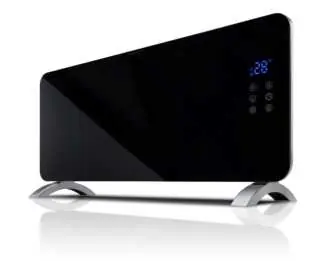
User Manual for Goldair 2000W Glass Panel Heater with WiFi GPPH220
Quick guide for the Goldair 2000W Glass Panel Heater (GPPH220). Learn how to set up the Goldair app, pair your device via WiFi, configure smart scenes, and control your heater using voice commands with Alexa or Google Home.
Quick answers from the manual
Quick answer
- This manual covers the WiFi setup, app operation, and smart features for the Goldair GPPH220 heater. p. 1, 2, 3
Key actions
- Pairing via EZ Mode p. 4
- Pairing via AP Mode p. 5
First start
- Download the Goldair app, register an account, and follow the in-app instructions to pair your device to a 2.4GHz WiFi network. p. 2, 3
Problems and fixes
WiFi pairing issues
Ensure you are using a 2.4GHz network. If using dual-band, split the networks or contact your ISP.
p. 2, 3Maintenance and reset
- Hold down the 'heat setting' button for 5 seconds to reset WiFi pairing mode. p. 4, 5
Technical specifications
| Parameter | Value | Meaning | Pages |
|---|---|---|---|
| Temperature Range | 15-35°C | Adjustable heating range | p. 6 |
Where to find it in the PDF
- App Setup p. 2
- Operation p. 6, 7
- Smart Scenes p. 8, 9
- Voice Control p. 12, 13, 14, 15
Table of contents
Manual images
Click an image to enlargeQuick Guide from the Manual
This document provides instructions for setting up and operating the Goldair 2000W Glass Panel Heater with WiFi (Model GPPH220). The heater is designed to be controlled via the Goldair mobile app, which supports 2.4GHz WiFi networks only. Ensure your smartphone is connected to a 2.4GHz network before starting the pairing process.
App Setup and Registration
To begin using the smart features, download the Goldair app from the App Store or Google Play. Register an account using your email address and follow the in-app prompts to verify your account and create a password.
Pairing the Device
The heater supports two pairing modes. Ensure the device is plugged in and powered on before starting.
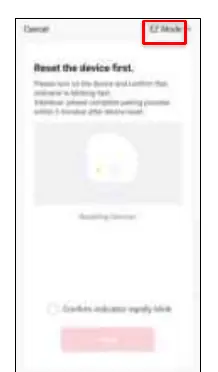

- EZ Mode: The default mode. Ensure the WiFi LED is flashing rapidly. If not, hold the 'heat setting' button for 5 seconds until it flashes. Select 'Confirm indicator rapidly blink' in the app.
- AP Mode: Use this if EZ Mode fails. Change the mode in the app to 'AP Mode'. Ensure the WiFi LED is flashing slowly. Connect your phone to the device's hotspot (e.g., 'SmartLife-XXXX') and return to the app.
Operating the Heater
Once paired, you can control the heater via the app interface:
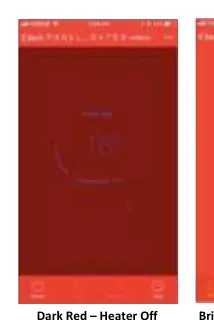
- Power: Tap the power icon to toggle between Standby (dark red screen) and On (bright red screen).
- Temperature: Set the desired temperature between 15°C and 35°C using the '+' or '-' buttons. The heater will activate when the set temperature is higher than the ambient temperature.
- Heat Settings: Switch between High and Low heat settings.
- Child Lock: Use the padlock icon to lock/unlock the controls.
- Auto Off Timer: Set a timer (1-24 hours) for the heater to turn off automatically.
Smart Scenes and Automation
You can create automated tasks in the 'Smart' section of the app:
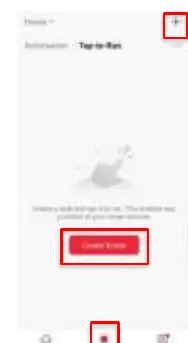
- Tap-To-Run: Create shortcuts for specific settings.
- Weather/Schedule/Status: Automate the heater based on local weather, specific times, or changes in device status.
Voice Control
The heater is compatible with Amazon Alexa and Google Home. After setting up the device in the Goldair app, link your account in the Alexa or Google Home app to enable voice commands for turning the device on/off and adjusting settings.
Manufacturer information
Goldair
Practical help
Common problems
WiFi pairing fails
Ensure your phone is connected to a 2.4GHz network. 5GHz networks are not supported. If you have a dual-band router, you may need to split the networks or contact your internet provider.
Device offline
Check your WiFi connection and ensure the device is powered on.
Before use
- Download the Goldair app from the App Store or Google Play.
- Ensure your smartphone is connected to a 2.4GHz WiFi network.
- Have your WiFi password ready.
- Ensure the heater is plugged in and powered on.
Specs in practice
- Temperature Range
- Adjustable heating range from 15°C to 35°C.
- WiFi Frequency
- Requires 2.4GHz WiFi connection.
Images and diagrams
- EZ Mode: WiFi LED flashes rapidly.
- AP Mode: WiFi LED flashes slowly.
Model compatibility
- Supports Amazon Alexa voice control.
- Supports Google Home voice control.

Manual page author
David Miller
Documentation analyst
Organizes user manual content into clear summaries, with attention to model details, product context, and everyday usability.