Mobile / Smartphones
User Guide for Google Nest Cam Indoor 1st Generation
Quick setup guide and user manual for the Google Nest Cam Indoor 1st Generation. Learn how to install, understand status lights, and configure alerts.
Quick answers from the manual
Quick answer
- To set up your Nest Cam, plug it into a power outlet, download the Nest app on your mobile device, and follow the in-app instructions to connect it to your Wi-Fi. p. 1
Key actions
- Check status lights to verify connection and activity. p. 3
- Configure alerts in the app settings. p. 5
First start
- Plug the device into a power source and use the Nest app to complete the setup. p. 1
Problems and fixes
Yellow light
The connection is spotty.
p. 3Where to find it in the PDF
- Quick Start p. 1
- Status Lights and Features p. 3
- Nest Aware Features p. 4
- Warranty Information p. 6, 7
Table of contents
Manual images
Click an image to enlargeQuick Start Guide
To set up your Nest Cam Indoor, follow these simple steps:
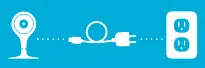
- Pick a spot: Choose a location for your camera.
- Plug it in: Connect the camera to a power outlet.
- Download the app: Install the Nest app on your Android or iOS device.
- Follow instructions: Open the app and follow the on-screen setup instructions to connect the camera to your Wi-Fi network.
Understanding Status Lights
The light on the front of your Nest Cam indicates its current status:
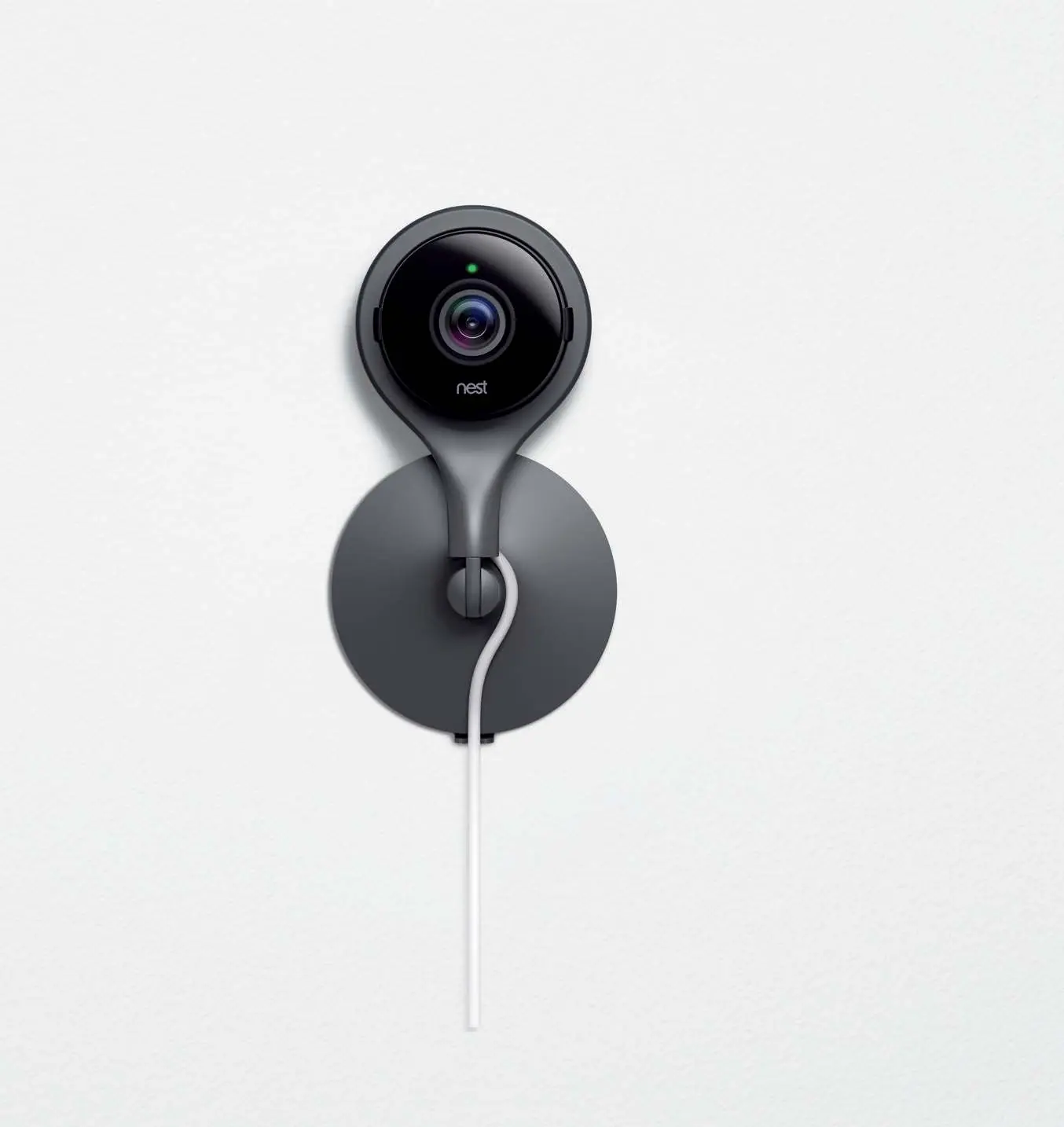
- Steady Green: Nest Cam is on.
- Steady Blue: Connecting to Wi-Fi.
- Steady Yellow: The connection is spotty.
- Blinking Green: Someone is watching the live feed.
- Blinking Blue: Someone is talking through the camera speaker.
Features and Usage
Your Nest Cam includes several features to help you monitor your home:
- Live View: Access a wide-angle view of the room through the Nest app. You can zoom in for a closer look.
- Talk and Listen: The camera features a built-in microphone and speaker, allowing you to hear what is happening and speak through the app.
- Motion and Sound Detection: The camera monitors for motion and sound and sends alerts to your phone or tablet. You can customize these alerts in the Settings menu.
Placement Tips
For optimal performance, ensure there is no wall or object limiting the camera's view. Obstructions can negatively affect exposure, focus, and Night Vision capabilities.
Nest Aware
Nest Aware is an optional paid service that enhances your camera's capabilities, including:
- Video History: Records up to 30 days of video in the cloud.
- Activity Zones: Allows you to define specific areas (like a doorway) to monitor for activity.
- Clips and Timelapses: Save and share video clips or create timelapse videos of your footage.
Manufacturer information
Google LLC
Practical help
Common problems
Yellow status light
This indicates a spotty Wi-Fi connection. Check your router and network stability.
Camera view is blurry or dark
Ensure there are no walls or objects immediately in front of the camera lens that might interfere with focus or exposure.
Before use
- Download the Nest app on your smartphone or tablet.
- Ensure you have a stable Wi-Fi connection.
- Select a location with a clear view of the area you wish to monitor.
- Ensure a power outlet is accessible near the chosen location.
Images and diagrams
- The status light on the front of the camera provides visual feedback on connectivity and activity status.
- The camera lens provides a wide-angle view and supports digital zoom.
Model compatibility
- Compatible with Android and iOS devices via the Nest app.

Manual page author
David Miller
Documentation analyst
Organizes user manual content into clear summaries, with attention to model details, product context, and everyday usability.