Electronics / Security Systems
User Manual for ANNKE Crater 2-2K Smart Security Camera
Comprehensive user guide for the ANNKE Crater 2-2K WiFi Pan Tilt Smart Security Camera. Includes setup instructions, app configuration, SD card installation, recording settings, and troubleshooting steps.
Quick answers from the manual
Quick answer
- To set up the ANNKE Crater 2-2K, download the ANNKE Smart App, register, and use the 'Add Device' function. Ensure your WiFi is 2.4 GHz. You can configure the camera via QR Code mode or AP mode. p. 4, 5, 6, 7
Key actions
- Install Micro SD Card p. 11
- Reset the Camera p. 6
First start
- Download the ANNKE Smart App, create an account, and follow the in-app instructions to add the device. p. 4, 5
Problems and fixes
Camera is Offline
Ensure the camera is in range of the WiFi connection.
p. 14Maintenance and reset
- Press and hold the Reset button located under the camera lens. p. 6
Technical specifications
| Parameter | Value | Meaning | Pages |
|---|---|---|---|
| WiFi Frequency | 2.4 GHz | Required network frequency. | p. 5 |
| Max SD Card Capacity | 128 GB | Maximum storage supported. | p. 11 |
Where to find it in the PDF
- Settings p. 9, 10, 11, 12
Table of contents
Manual images
Click an image to enlargeQuick guide from the manual
The ANNKE Crater 2-2K is a smart security camera designed for indoor use. To get started, download the ANNKE Smart app, register an account, and ensure your WiFi router is set to 2.4 GHz (5 GHz is not supported). The camera supports local storage via a Micro SD card (up to 128 GB).
What's in the Box
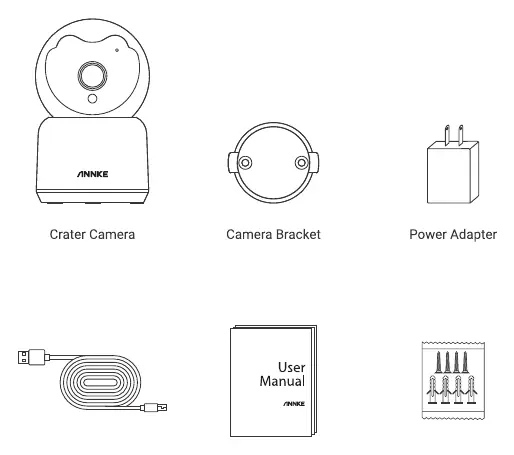
- Crater Camera
- Camera Bracket
- Power Adapter
- Micro USB Cable
- Quick Start Guide
- Screw Pack
Product Introduction
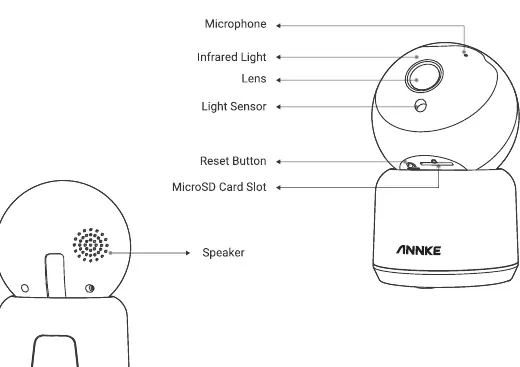
The camera features a rotatable lens. By rolling the lens up, you can access the Reset Button and the MicroSD Card Slot. The rear of the base contains the Speaker and Power Port.
Set up Your Camera
1. Download the App: Search for 'ANNKE Smart' in the Apple Store or Google Play and install it.
2. WiFi Requirements: Ensure your router is 2.4 GHz and DHCP is enabled. WiFi passwords should not contain special characters.
3. Configuration (QR Code Mode):
- Tap '+' or 'Add Device' in the app and select 'Smart Camera'.
- Follow the app prompts to connect to your 2.4 GHz WiFi.
- Hold your phone 15-20 cm away from the camera lens to scan the QR code displayed on your phone.
- Wait for the 'QR code scanned successfully' prompt.
4. Configuration (AP Mode): Use this if the QR code method fails or for specific network setups. Select 'AP Mode' in the app, connect your phone to the camera's hotspot (named 'SmartLife-XXXX'), and return to the app to complete the connection.
Micro SD Card Setting
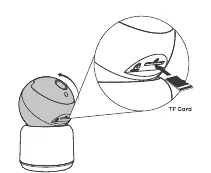
To install a card, roll the camera lens up to reveal the slot. Insert the card following the signs. To format, go to the app, access the live view, tap the '...' icon, go to 'Storage Settings', and select 'Format'.
Recording and Audio Settings
Recording: In 'Storage Settings', enable 'Local Recording'. You can choose between 'Event Recording' or 'Non-stop Recording' and set a schedule.
Audio: Go to 'Basic Function Settings' > 'Talk Mode' to select between 'One-Way Communication' or 'Two-Way Talk'.
Warning Setting
Access 'Detection Alarm Settings' to enable 'Motion Detection Alarm'. You can adjust sensitivity, set activity areas, and enable human detection or human tracking for more precise alerts.
Troubleshooting
- Camera not working: Check the power adapter connection. Try a different adapter if necessary.
- Camera offline: Ensure the camera is within range of the WiFi router.
- Fail to receive notifications: Enable 'App Notification' in the ANNKE Smart App settings.
- Fail to record: Ensure the SD card is inserted correctly, formatted, and has sufficient free space.
Safety and Maintenance
The camera is for indoor use only. Do not expose it to extreme heat, cold, or dust. Keep the lens clean using a soft cloth with a bit of ethanol. Ensure the power supply meets the SELV and Limited Power Source requirements.
Manufacturer information
ANNKE
Practical help
Common problems
Camera is offline
Ensure the camera is within range of the WiFi connection. Check router signal strength.
Fail to receive notifications
Check the 'App Notification' settings within the ANNKE Smart App.
Fail to record or playback
Check if the Micro SD card is inserted correctly, formatted, and has enough free space.
Camera not working
Verify the power adapter is connected. Try a different power adapter.
Before use
- Ensure your WiFi router is 2.4 GHz (5 GHz is not supported).
- Download the ANNKE Smart App.
- Ensure WiFi password does not contain special characters.
- Prepare a Micro SD card (max 128 GB) if local storage is required.
- Ensure the camera is placed indoors.
Specs in practice
- 2.4 GHz WiFi
- The camera only supports 2.4 GHz networks; 5 GHz networks will not work.
Images and diagrams
- Reset Button: Located under the lens; press and hold to reset the camera.
- MicroSD Card Slot: Located under the lens; accessible by rolling the lens up.
Model compatibility
- Supports 2.4 GHz WiFi only.
- Indoor use only.
- Supports Micro SD cards up to 128 GB.

Manual page author
David Miller
Documentation analyst
Organizes user manual content into clear summaries, with attention to model details, product context, and everyday usability.