Power / Solar Panels
Growatt ShineWiFi-F WiFi Datalogger User Manual
Quick installation and setup guide for the Growatt ShineWiFi-F datalogger. Learn how to connect the module, configure the ShinePhone app, reset to factory settings, and troubleshoot LED status indicators.
Table of contents
Manual images
Click an image to enlargeQuick guide from the manual
The ShineWiFi-F is a WiFi datalogger designed to connect your Growatt inverter to the ShineServer monitoring platform. This guide covers the physical installation, app configuration, and troubleshooting steps required to get your system online.
Installation
To install the ShineWiFi-F module:
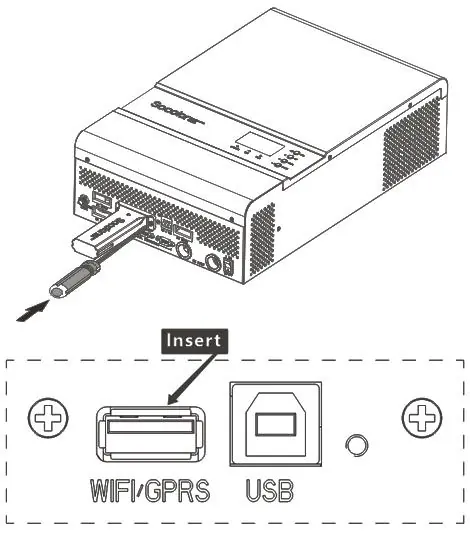
- Locate the WiFi/GPRS port on your inverter.
- Plug the ShineWiFi module directly into this port.
- Turn on the inverter and observe the LED status to confirm communication.
LED Status Indicators
The LEDs on the module indicate the current connection status:
- All three LEDs off: Datalogger is not connected properly to the inverter's WiFi/GPRS port.
- Only Red LED flashes: ShineWiFi is communicating with the inverter, but cannot connect to the home router.
- Only Green LED flashes: ShineWiFi is connected to the router, but not to the Growatt ShineServer.
- Only Blue LED flashes: Normal working state; communication with inverter, router, and server is successful.
- Red LED always ON: Module error; replacement may be required.
- Blue LED always ON: Module is in AP mode (debug mode).
Registration and Device Setup
Follow these steps to configure the device using the ShinePhone app:
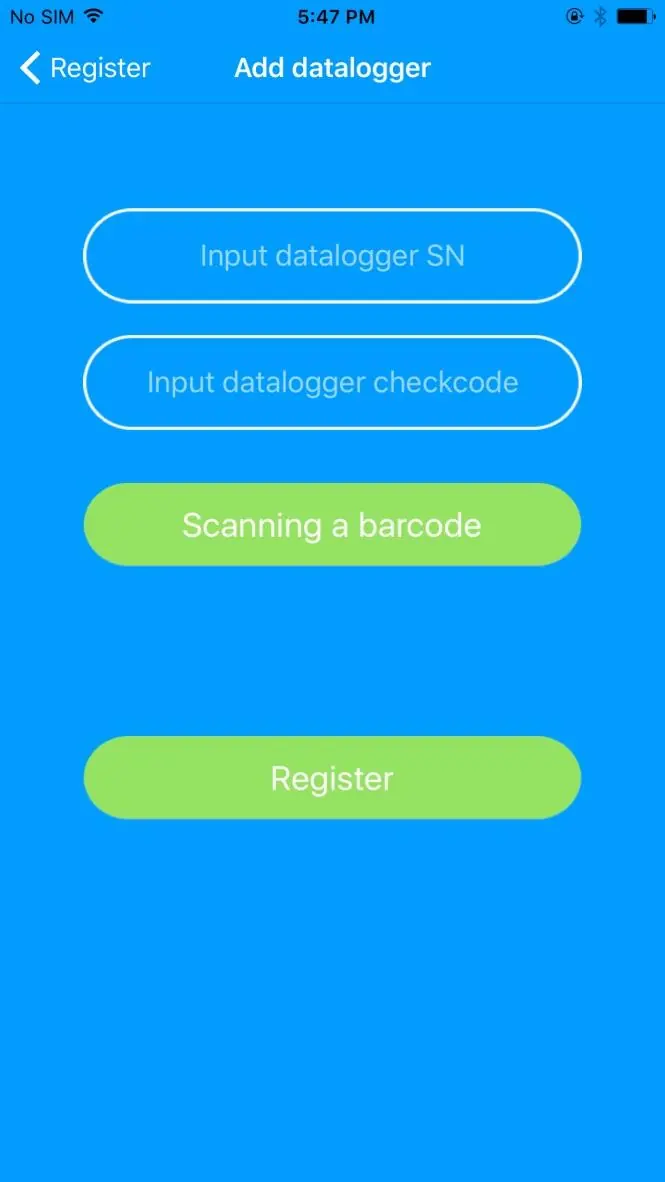
- Download the ShinePhone app from the iOS or Google Play Store.
- Connect your mobile phone to the WiFi network you intend to use for the ShineWiFi module.
- Open the app and register an account.
- Select your country and city.
- Fill in the required information to reach the Add datalogger page.
- Scan the barcode on the ShineWiFi module or manually input the serial number and checkcode.
- Enter your WiFi network name and password to begin the configuration process.
- Once configured, the app will confirm success, and you can view your device in the my plant page.
Factory Reset
If you change your router password or install a new router, you must reset the ShineWiFi module:
- Remove the rubber plug on the module.
- Press and hold the KEY button for more than 6 seconds until all three LEDs light up.
- Log in to your ShinePhone account, click the '+' icon, and reconfigure the datalogger using the serial number.
Troubleshooting
If the configuration fails or the device goes offline, check the following:
- Ensure the router name contains only English letters and numbers (no special symbols).
- Use an encrypted wireless network; public networks with secondary authentication are not supported.
- Ensure the router is connected to the internet.
- Check if the router firewall allows traffic on ports 5279 and 5280.
- Verify that the DIP switch beside the inverter's WiFi/GPRS port is switched to the ON position.
Manufacturer information
Growatt New Energy
Practical help
Common problems
All three LEDs are dark
The datalogger is not connected well with the inverter. Check if the DIP switch beside the inverter's WiFi/GPRS port is switched to 'ON'.
Only Red LED flashes after configuration
The module cannot connect to the home router. Verify the router name and password. Ensure the router name has no special symbols and the network is encrypted.
Only Green LED flashes after configuration
The module is connected to the router but not the Growatt ShineServer. Check if the router has internet access and if the firewall allows ports 5279 and 5280.
Before use
- Ensure the router name consists only of English letters and numbers.
- Use an encrypted wireless network.
- Do not use a public network that requires secondary authentication.
- Do not use a bridge network.
- Download the latest version of the ShinePhone app.
- Ensure the inverter is powered on.
Images and diagrams
- The installation diagram shows the ShineWiFi module being inserted into the WiFi/GPRS port on the side of the inverter.
Model compatibility
- Requires a 2.4GHz WiFi network.
- Not compatible with networks requiring secondary authentication (e.g., hotel or public WiFi portals).

Manual page author
David Miller
Documentation analyst
Organizes user manual content into clear summaries, with attention to model details, product context, and everyday usability.