Automotive / Car Audio
User Manual for Harman SPACE 4 BASE 1.1A / 1.1R Automotive Head Unit
Quick guide for the Harman SPACE 4 BASE 1.1A and 1.1R automotive head unit. Includes startup procedures, WLAN and Bluetooth configuration, GNSS setup, and engineering menu access.
Table of contents
Manual images
Click an image to enlargeQuick guide from the manual
This document provides operational instructions for the Harman SPACE 4 BASE 1.1A and 1.1R head units. Key procedures include initial startup, wireless connectivity (WLAN/Bluetooth), GNSS configuration, and accessing the engineering menu for advanced settings.
Intended usage
The SPACE4 head unit is designed for automotive use in various road vehicles, agricultural vehicles, and motorbikes. It is intended for factory installation by customers and is not sold directly to end consumers. Service is handled by professional service stations.
Operational description
Start up
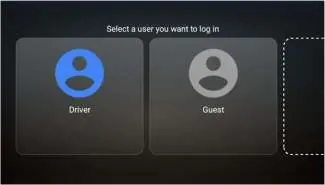
Connect the device to a 12V power supply using the designated power ports: VBATT(M1)/L3 12V and M2 GND. The unit will start up and display the login screen. Power consumption is approximately 850mA for the head unit alone, or 1.25A when connected with the Remote Tuner Module (RTM).
WLAN
To initiate a connection:
- Navigate to Settings >> WLAN.
- If WLAN is off, perform a short press on the WiFi icon to switch it on.
- Perform a long press on WiFi to search for available networks.
- Select and connect to the desired network.
Bluetooth (BT)
To add a new device:
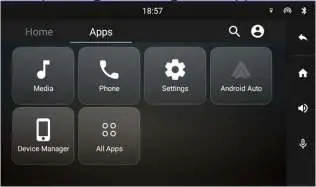
- Press the 4 squares icon on the right menu bar.
- Navigate to Settings >> BT >> Add new device.
- Follow the on-screen prompts to connect.
Note: In 'car mode', only the combined chip is used for Bluetooth. To use the second or third BT chip, you must code the unit to 'bike-mode'.
GNSS
The head unit includes a GNSS receiver. Ensure the GNSS antenna is connected. To configure, open the Engineeringmenu app, then navigate to Navsens >> GPS.
Connect external devices
The Remote Tuner Module (RTM), which includes an external tuner and amplifier, connects via A2B.
Engineering menu and adb shell
To access the engineering menu and activate the adb shell:
- Open the Engineeringmenu app.
- Navigate to All Apps >> systems >> Logging.
- Select ADB Enable/Disable to toggle the setting.
Practical help
Common problems
WLAN not connecting
Ensure WLAN is enabled in Settings (short press on WiFi icon), then perform a long press to search for networks.
Cannot use second/third Bluetooth chip
The unit is likely in 'car mode'. You must code the unit to 'bike-mode' to enable additional BT chips.
Need to enable ADB shell
Access the Engineering menu via All Apps -> systems -> Logging -> ADB Enable/Disable.
Before use
- Connect to 12V power supply (VBATT(M1)/L3 12V; M2 GND).
- Ensure GNSS antenna is connected for location services.
- Verify if the unit is in 'car mode' or 'bike mode' based on your vehicle type.
- Ensure companion device is ready for pairing (WPA2 for WLAN).
Specs in practice
- Power Consumption
- Approx. 850mA for Head Unit only; 1.25A when combined with RTM.
- WLAN Frequency
- Supports 2.4 GHz (2400-2483.5 MHz) and 5 GHz (5150-5250 MHz, 5725-5875 MHz) bands.
- GNSS Frequency
- 1575.42 MHz +/- 2 MHz (Receiving only).
Model compatibility
- Designed for automotive usage in road vehicles, agricultural vehicles, and motorbikes.
- Not for direct sale to end customers; factory installation required.

Manual page author
Emily Carter
User documentation editor
Prepares concise manual descriptions and highlights the most useful setup, operation, and maintenance information for readers.