Computers / Laptops
User Guide for HP 14-db0000 Chromebook
Quick guide for the HP 14-db0000 Chromebook. Learn about hardware components, network connections, power management, system maintenance, and security features.
Table of contents
Manual images
Click an image to enlargeQuick guide from the manual
This guide provides essential information for operating your HP 14-db0000 Chromebook. Key best practices include backing up your hard drive by creating recovery media, connecting to a network, and keeping your antivirus software updated. For quick support, use the HP Support Assistant app by typing support in the taskbar search box.
Getting to know your computer
The computer features various ports and components to enhance functionality:
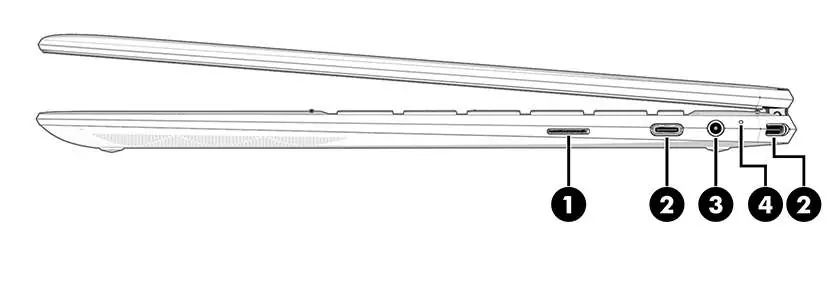
- Right side: Includes a microSD memory card reader, USB Type-C power connector and Thunderbolt ports (with HP Sleep and Charge), and an audio-out/audio-in combo jack.
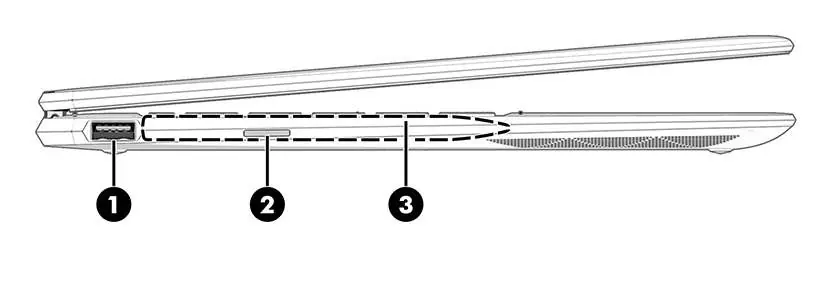
- Left side: Features a USB port with HP Sleep and Charge, a Nano SIM card slot (select models), and a magnetic pen attachment area.
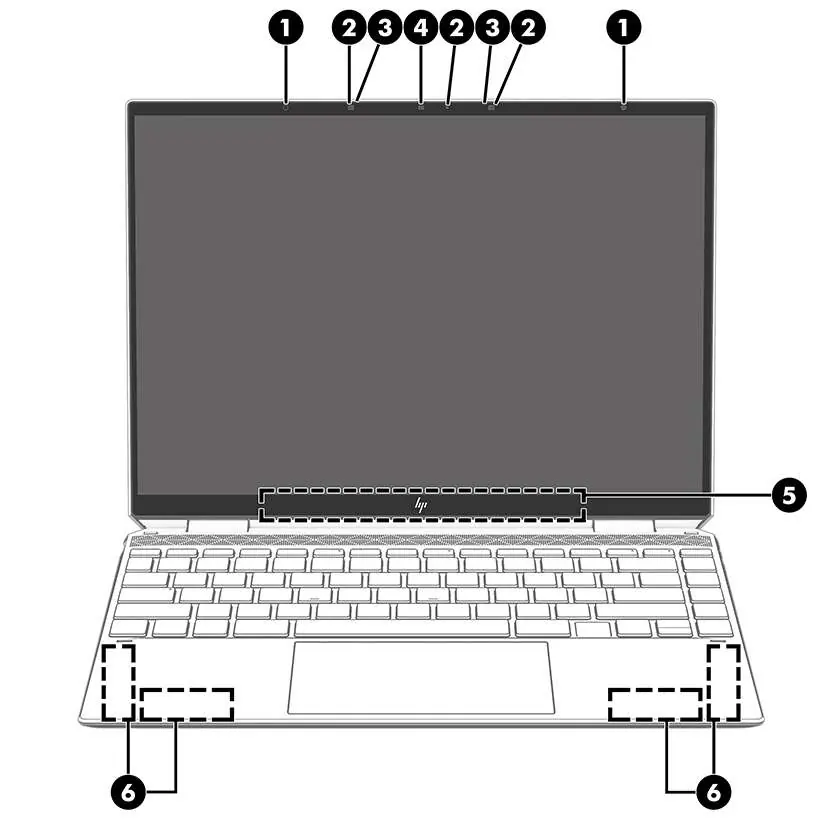
- Display: Equipped with ambient light sensors, camera, and internal microphones.
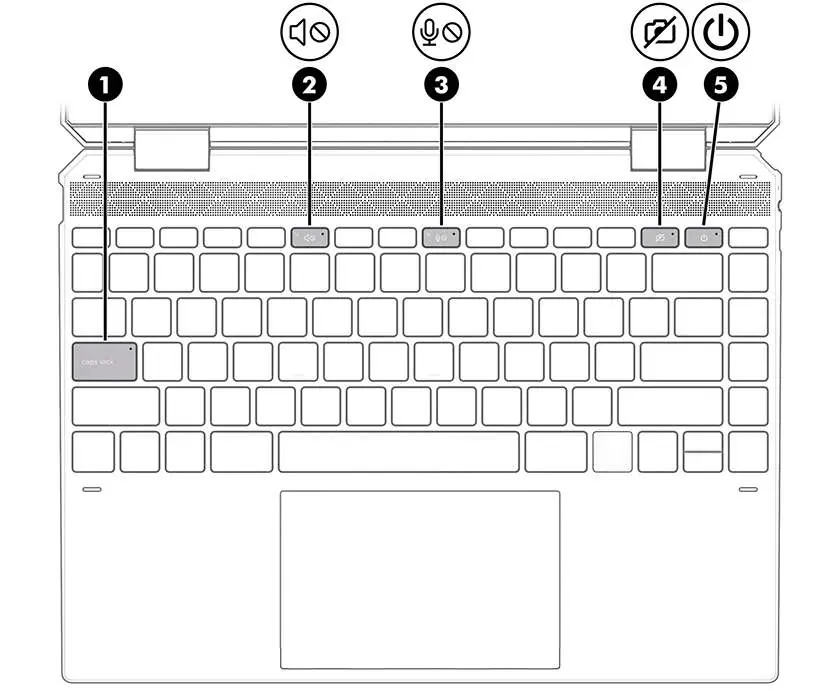
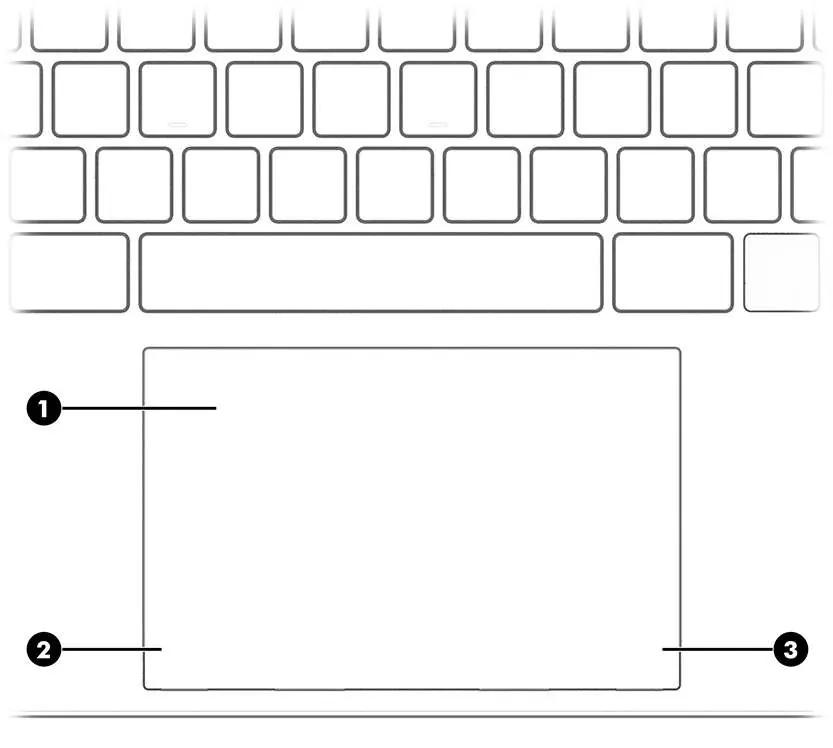
- Keyboard area: Includes a touchpad, power light, camera privacy light, microphone mute light, and mute light.
Connecting to a network
You can connect to the internet using wireless or wired connections:
- Wireless: Use the wireless controls in the operating system or the airplane mode key to manage connections.
- WLAN: Connect to local area networks via built-in antennas.
- Mobile Broadband/eSIM: Select models support mobile broadband or eSIM for cellular connectivity.
Navigating the screen
The touchpad and touch screen support various gestures to improve navigation:
- Tap: Select items on the screen.
- Two-finger pinch zoom: Zoom in or out.
- Two-finger slide/tap: Scroll or perform right-click functions.
- Three-finger/Four-finger gestures: Use for multitasking and switching between apps.
Managing power
Efficient power management helps extend battery life:
- Sleep and Hibernation: Use these modes to conserve power when the computer is not in use.
- Battery: Monitor charge levels via the Power icon. If the battery is low, connect the AC adapter.
- HP Fast Charge: Available on select models to charge the battery quickly.
Maintaining your computer
Regular maintenance ensures optimal performance:
- Performance: Use Disk Defragmenter and Disk Cleanup to keep the system running smoothly.
- Updates: Keep programs and drivers updated using Windows 10/10 S settings.
- Cleaning: Remove dirt and debris carefully. Use approved disinfectants for cleaning surfaces.
Securing your computer
Protect your data using built-in security features:
- Passwords: Set up Windows passwords and BIOS passwords to restrict access.
- Windows Hello: Use facial recognition for secure logins on supported models.
- Security Software: Utilize antivirus and firewall software to protect against threats.
Diagnostics and recovery
If you encounter system issues, use the following tools:
- HP PC Hardware Diagnostics: Available in both Windows and UEFI environments to identify hardware failures.
- Recovery: Use Windows tools or the HP Cloud Recovery Download Tool to create recovery media and restore your system.
Manufacturer information
HP Inc.
Practical help
Common problems
Computer will not restart
Do not change the processor configuration in msconfig.exe from 4 or 2 processors to 1. If changed, you must perform a factory reset.
Low battery level
Connect the AC adapter. A blinking white light indicates the adapter is disconnected and the battery is low.
Touchpad not responding
Ensure the touchpad is enabled in settings. If using an external mouse, click the touchpad button in settings to toggle it.
Before use
- Back up your hard drive by creating recovery media.
- Connect to a wired or wireless network.
- Update or purchase antivirus software.
- Familiarize yourself with hardware components and software.
- Access HP Support Assistant for guided assistance.
Specs in practice
- Audio Combo Jack
- Supports headphones, headsets, and speakers; does not support standalone microphones.
- Ambient Light Sensors
- Automatically adjusts display brightness based on surrounding light conditions.
Images and diagrams
- Right side: Contains microSD reader, USB-C/Thunderbolt ports, and audio jack.
- Left side: Contains USB port, Nano SIM slot, and magnetic pen area.
- Display: Contains camera, microphones, and ambient light sensors.
Model compatibility
- Some features like SIM card slot, low blue light mode, and HP Fast Charge are available on select products only.
- Thunderbolt docking station support depends on specific hardware configuration.

Manual page author
David Miller
Documentation analyst
Organizes user manual content into clear summaries, with attention to model details, product context, and everyday usability.