Electronics / Monitors
HP LCD Displays Screen Resolution Guide
A guide to understanding screen resolution configurations on HP LCD displays, including native resolution, fixed matrix display, and scaling.
Quick answers from the manual
Quick answer
- HP recommends using the native resolution for the best image quality. You can change the resolution in your computer's display settings. p. 1
Key actions
- Change resolution in computer display settings p. 1
Problems and fixes
Blurry image
Use native resolution instead of scaling.
p. 1Where to find it in the PDF
- Screen Resolution Guide p. 1
Table of contents
Understanding Screen Resolution on HP LCD Displays
This guide explains how screen resolution configurations work on HP LCD displays. Understanding these settings helps you achieve the best image quality and utilize your screen effectively.
Resolution Configurations
There are three primary ways your LCD display handles resolution:
Native Resolution
This is the optimal resolution where the display settings match the predefined area of the display panel. HP recommends using this setting for the best performance and image clarity.
Fixed Matrix Display
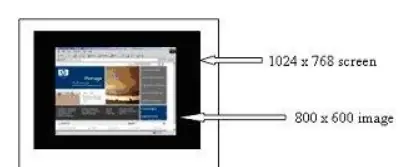
This method uses the exact number of pixels required for a specific resolution. It often results in a border or framing effect, as the image size remains unchanged, preventing you from using the full screen area.
Scaling
Scaling uses an interpolated algorithm to widen the resolution to fit the entire screen. While this allows you to use the full screen at lower resolutions, it may cause the image to appear blurry due to data loss or dithering.
Adjusting Display Settings
The default setting for HP LCD displays is the native resolution. If you need to change the resolution, you can do so through your computer's display settings.
Manufacturer information
HP Inc.
Practical help
Common problems
Image appears blurry
This is likely due to Scaling. Use the Native resolution for the best quality.
Black borders around the image
This is likely Fixed matrix display. Change resolution settings to match the native resolution.
Before use
- Identify the native resolution of your display panel.
- Ensure your computer display settings match the native resolution.
Specs in practice
- Native resolution
- The optimal resolution where the display settings match the panel's physical pixel format.
- Fixed matrix display
- Uses specific pixels, often resulting in borders.
Images and diagrams
- The diagram illustrates the difference between a 1024 x 768 screen and an 800 x 600 image, showing how resolution settings affect the display area.

Manual page author
Michael Turner
Technical manual editor
Reviews PDF manuals for structure, safety notes, and practical product details so readers can find the right information quickly.