Computers / Laptops
User Manual for HP OmniBook Ultra Flip Copilot+ PC OLED 14-fh0000nd
Comprehensive user guide for the HP OmniBook Ultra Flip Copilot+ PC OLED 14-fh0000nd. Learn about hardware components, network connectivity, power management, system maintenance, security settings, and troubleshooting.
Table of contents
Manual images
Click an image to enlargeQuick guide from the manual
This guide provides essential information for setting up and maintaining your HP OmniBook Ultra Flip. Key initial steps include registering your computer, backing up your hard drive, connecting to a network, and familiarizing yourself with the hardware and software. Always ensure your antivirus software is up to date.
Getting to know your computer
The computer features various ports and components for connectivity and interaction:
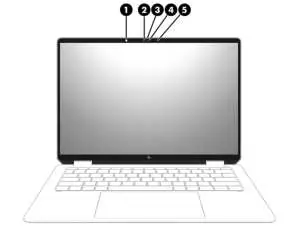
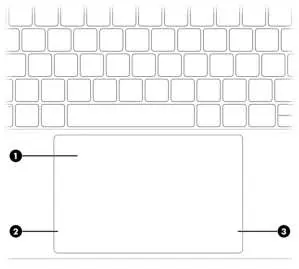
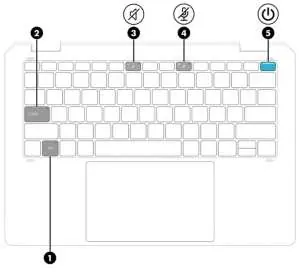
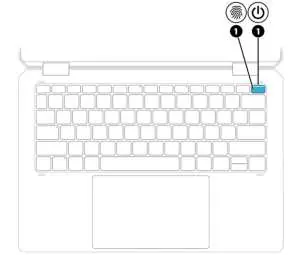
- Right side: Includes USB Type-C power connector and Thunderbolt ports with HP Sleep and Charge and DisplayPort output.
- Left side: Features a USB Type-C port and an audio-out (headphone)/audio-in (microphone) combo jack.
- Display: Includes infrared camera, webcam, and manual camera shutter (on select models).
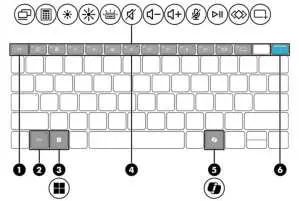
- Keyboard area: Contains the touchpad, power button, fingerprint reader, and special function keys.
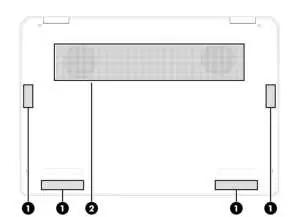
- Bottom: Houses speakers and vents for cooling.
Connecting to a network
You can connect to the internet using:
- WLAN: Connect to Wi-Fi networks via the taskbar network status icon.
- HP Mobile Broadband: Use mobile operator networks for connectivity without Wi-Fi.
- Bluetooth: Connect peripherals like mice, keyboards, and audio devices.
- LAN: Use a wired connection via a network cable if an RJ-45 port or adapter is available.
Managing power
The computer supports Sleep and Hibernation modes to conserve power. You can initiate these via the Start menu or by pressing the power button. Use HP Fast Charge to quickly charge your battery (on select models). If the battery is low, connect the AC adapter provided with the computer.
Maintaining your computer
Regular maintenance ensures optimal performance:
- Performance: Use Disk Defragmenter (for hard drives) and Disk Cleanup to free up space.
- Updates: Regularly update programs and drivers via HP Support Assistant or Windows Update.
- Cleaning: Use a microfiber cloth moistened with water or a 70% isopropyl alcohol solution to clean external surfaces. Avoid abrasive materials and harsh chemicals.
Securing your computer
Protect your data using Windows passwords, Setup Utility (BIOS) passwords, and Windows Hello (fingerprint or facial recognition). Always keep your antivirus and firewall software updated.
BIOS and Diagnostics
Access the Setup Utility (BIOS) by pressing esc and then f10 during startup. Use HP PC Hardware Diagnostics (Windows or UEFI) to troubleshoot hardware issues if the computer is not functioning properly.
Backing up and recovery
Create recovery media using Windows tools or the HP Cloud Recovery Download Tool. If the system fails, you can use these tools to restore your computer to its factory state.
Manufacturer information
HP Inc.
Practical help
Common problems
Computer will not restart after changing processor settings
Do not change processor configuration in msconfig.exe from 4 or 2 processors to 1. Perform a factory reset if this occurs.
Low battery level
Connect the AC adapter provided with the computer or an adapter with the correct power rating.
Cannot exit Hibernation
Connect the AC adapter to external power and press the power button.
Fingerprint reader issues
Ensure all sides of your finger are registered during the setup process.
Before use
- Register the computer
- Back up your hard drive
- Connect to a wired or wireless network
- Familiarize yourself with hardware and software
- Update or purchase antivirus software
- Access HP Support Assistant for updates
Specs in practice
- Operating Temperature
- 5°C to 35°C (41°F to 95°F)
- Relative Humidity
- 10% to 90% (operating, noncondensing)
- Maximum Altitude
- -15 m to 3,048 m (operating)
Images and diagrams
- Right side ports: USB Type-C power connector and Thunderbolt ports.
- Left side ports: USB Type-C port and audio combo jack.
- Display components: Infrared camera, webcam, and shutter.
- Keyboard layout: Special keys, action keys, and power button.
- Touchpad: Touchpad zone and left/right click areas.
Model compatibility
- Some features like IMAX Enhanced Mode, Wake-on-voice, and eSIM are available on select products only.
- Windows in S Mode works exclusively with apps from the Microsoft Store.
- HP 3D DriveGuard only protects internal hard drives, not external ones.

Manual page author
David Miller
Documentation analyst
Organizes user manual content into clear summaries, with attention to model details, product context, and everyday usability.