General / Other Manuals
User Manual for Poly Sync 20/Sync 20+ Series Bluetooth Speakerphone
Quick guide for the Poly Sync 20 and Sync 20+ Series Bluetooth speakerphone. Learn how to set up, pair via Bluetooth or USB, manage calls, use Microsoft Teams features, and update your device.
Quick answers from the manual
Quick answer
- The Poly Sync 20/Sync 20+ is a portable Bluetooth speakerphone. To start, connect it via USB to wake it from Deepsleep mode. Use the Poly Lens app for updates and customization. p. 5, 10
Key actions
- Pairing via Bluetooth p. 9
- Charging the device p. 12
First start
- Wake from Deepsleep p. 5
Problems and fixes
Device won't turn on
Connect to USB power to wake from Deepsleep.
p. 18Maintenance and reset
- Update firmware via Poly Lens p. 10, 14
Where to find it in the PDF
- Controls p. 6
- Charging p. 12
Table of contents
Manual images
Click an image to enlargeQuick Guide
The Poly Sync 20/Sync 20+ is a portable Bluetooth speakerphone. Upon unboxing, the device is in Deepsleep mode to preserve battery. You must connect it to a USB power source to activate it before first use. Use the Poly Lens Desktop or Mobile app to customize settings, update firmware, and manage advanced features.
Setup
Mobile Setup: Ensure the speakerphone is on. Press and hold the Bluetooth button for 2 seconds until the LEDs flash blue in a cross pattern. Select "Poly Sync 20" in your mobile device's Bluetooth settings.
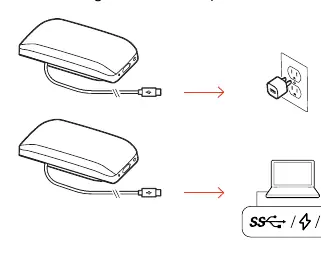
Wired Setup: Connect the USB cable directly to your computer's USB port. The device will power on automatically.
USB Adapter Setup (BT700): The adapter comes pre-paired. Plug the adapter into your computer. If re-pairing is required, use the Poly Lens Desktop app to initiate the process.
Controls and Indicators
The device features a touch-sensitive interface:
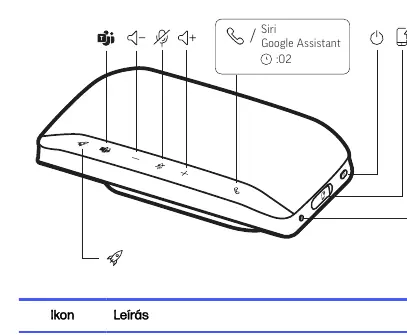
- Rocket Button: Customizable via Poly Lens Desktop (default: Play/Pause media).
- Teams Button: Access Microsoft Teams (Teams-compatible models only).
- Volume Buttons: Adjust volume for calls, media, or notifications.
- Mute Button: Toggle microphone mute.
- Call Button: Answer or end calls.
- Voice Assistant: Press and hold the Call button for 2 seconds to activate Siri, Google Assistant, or Cortana.
- Power Button: Press and hold for 2 seconds to power on/off.
Charging
To check the battery status, tap the power button or any button when the device is inactive. The LED bar indicates the charge level. Charge the device using a USB cable connected to a computer or wall charger. The device can also charge a mobile phone via its USB-A port (ensure the speakerphone has at least a medium charge level).
Software
Download the Poly Lens app (Desktop or Mobile) to unlock full functionality, including firmware updates, language changes, and advanced call control configuration.
Troubleshooting
- Device won't turn on: It is likely in Deepsleep mode. Connect to a USB power source to wake it.
- Slow charging: Use a wall charger or a dedicated fast-charging USB port on your computer.
- Teams button not working: Ensure you are using a Teams-compatible model and have the Microsoft Teams desktop application installed.
Safety
Operate the device within the temperature range of 10°C to 40°C. Do not disassemble the unit. If skin irritation occurs, discontinue use. Keep small parts away from children to prevent choking hazards.
Manufacturer information
HP Inc.
Practical help
Common problems
Device does not turn on
The device is in Deepsleep mode. Connect the USB cable to a power source to activate it.
Slow charging
Connect the USB cable to a wall charger or a computer's fast-charging USB port.
Teams button unresponsive
Ensure you have the Microsoft Teams desktop app installed and that the Poly device is set as the default audio device in Teams settings.
Before use
- Connect the device to a USB power source to wake it from Deepsleep mode.
- Download the Poly Lens Desktop app for firmware updates and customization.
- Ensure the speakerphone is charged to at least a medium level before using it to charge a phone.
Specs in practice
- Deepsleep mode
- A power-saving state used for shipping; requires a USB connection to wake up.
Images and diagrams
- The LED bar provides visual feedback for battery status, call status, and mute status.
- The Rocket button is user-configurable via the Poly Lens app.
Model compatibility
- Teams-compatible models require the Microsoft Teams desktop application.
- Teams mobile app is not supported for the dedicated Teams button functionality.

Manual page author
Emily Carter
User documentation editor
Prepares concise manual descriptions and highlights the most useful setup, operation, and maintenance information for readers.