Electronics / Paper Shredders
Operating Manual for HP OneShred Auto 200CC Shredder
Quick guide and operating instructions for the HP OneShred Auto 200CC shredder. Learn how to set up, operate, empty the bin, and troubleshoot your device.
Quick answers from the manual
Quick answer
- The HP OneShred Auto 200CC is a document shredder for private use, featuring an automatic infeed for up to 200 sheets and a manual infeed for up to 13 sheets. p. 3
Key actions
- Emptying the waste bin p. 4
- Starting the shredder p. 4
First start
- Place on a stable surface, insert the waste bin until it clicks, connect the power cable, and press the Power button. p. 4
Problems and fixes
Bin full LED lights up red
Empty the waste bin.
p. 4Technical specifications
| Parameter | Value | Meaning | Pages |
|---|---|---|---|
| Power supply | 230 V~, 50 Hz, 1.9 A, 437 W | Electrical requirements | p. 4 |
Where to find it in the PDF
- General View of the Shredder p. 3
- Technical Data p. 4
Table of contents
Quick guide from the manual
The HP OneShred Auto 200CC is a document shredder designed for private indoor use. It features an automatic infeed for up to 200 sheets and a manual infeed for up to 13 sheets. Ensure the waste bin is properly fitted before operation. Maintain at least 10 cm distance from walls for proper cooling.
Safety Information
- Keep fingers, hair, scarves, ties, and jewelry away from the insertion slot.
- Do not operate the shredder if the power cable is damaged.
- Keep children and pets away from the shredder.
- Remove all paper clips, staples, and rubber bands before shredding.
- Do not use air sprays near the shredder.
Setup and Operation
Setting up the shredder
- Place the shredder on a stable, level, horizontal surface near an accessible power socket.
- Slide the waste bin into the device until it latches audibly.
- Connect the power plug to a power socket.
- Press the Power (On/Off) button to switch the device on. The Ready LED will light up blue.
Shredding manually
- Insert the material to be shredded into the center of the manual infeed slot.
- The shredder will automatically draw in the material and stop when finished.
- If the sensor does not detect the material, press and hold the Forward button.
Shredding automatically
- Open the automatic infeed cover completely.
- Insert up to 200 sheets of paper into the automatic infeed.
- The device will draw in the sheets individually and shred them.
Maintenance and Troubleshooting
Emptying the waste bin
When the waste bin is full, the Bin full LED lights up red. The shredder will stop automatically.
- Switch off the device using the Power (On/Off) button.
- Pull the waste bin out of the device.
- Empty the waste bin.
- Slide the waste bin back into the device until it latches.
Technical Data
- Power supply: 230 V~, 50 Hz, 1.9 A, 437 W
- Automatic infeed: 60 min continuous operation / 40 min cool down
- Manual infeed: 15 min continuous operation / 40 min cool down
Manufacturer information
HP Inc.
Practical help
Common problems
Bin full LED lights up red
The waste bin is full. Switch off the device, remove the bin, empty it, and reinsert it.
Shredder does not start
Ensure the waste bin is properly fitted and latched in the device.
Material jam
Use the Reverse button to clear the jam or shred the material manually.
Before use
- Ensure the waste bin is properly fitted.
- Remove all paper clips, staples, and rubber bands.
- Place the shredder on a stable, level surface.
- Maintain at least 10 cm distance from walls.
- Check that the power cable is not damaged.
Specs in practice
- P-4 Security Level
- Recommended for highly sensitive and confidential data (particle size ≤ 160 mm²).
- Automatic Infeed
- Capacity of up to 200 sheets of paper.
- Manual Infeed
- Capacity of up to 13 sheets of paper or one credit card.
Images and diagrams
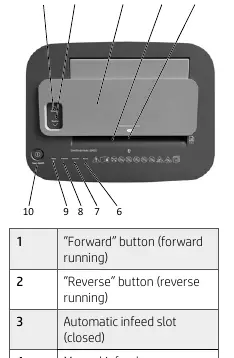
- 1: Forward button
- 2: Reverse button
- 6: Bin full LED
- 7: Overload LED
- 8: Overheat LED
Model compatibility
- Designed for private indoor use only.
- Not intended for use by children.
- Do not shred unopened or folded letters in the automatic infeed.

Manual page author
Michael Turner
Technical manual editor
Reviews PDF manuals for structure, safety notes, and practical product details so readers can find the right information quickly.