Electronics / USB Hubs & Docking
User Manual for StarTech.com USB-C Multiport Adapter DKT30CHVPD2
Quick guide for the StarTech.com DKT30CHVPD2 USB-C Multiport Adapter. Includes setup instructions, port specifications, and LED indicator details.
Table of contents
Manual images
Click an image to enlargeQuick guide from the manual
The StarTech.com DKT30CHVPD2 is a plug-and-play USB-C multiport adapter. It is designed to work automatically with modern operating systems without requiring manual driver installation. Ensure your host computer supports DisplayPort Alt Mode and USB Power Delivery (PD) for full functionality.
Product Overview
The adapter features multiple connectivity options:
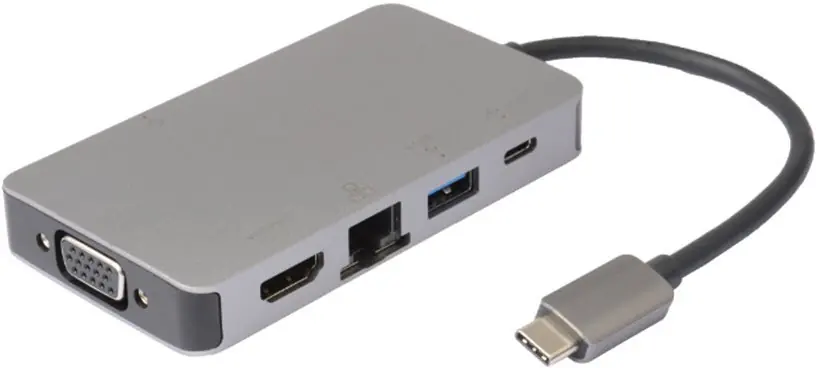
- VGA Port: Supports resolutions up to 1920x1080 at 60Hz.
- HDMI Port: Supports HDMI 1.4b with 4K resolution at 30Hz.
- RJ45 Port: Gigabit Ethernet (10/100/1000 Mbps).
- USB-A Ports: Multiple ports for peripherals and storage devices (USB 3.2 Gen 1).
- USB-C Port: Supports USB Power Delivery (PD) pass-through.
Setup and Installation
Installation is automatic on all modern operating systems. If drivers are not installed automatically, visit www.startech.com/DK30CHVPD2 to download the latest drivers.
Power Delivery
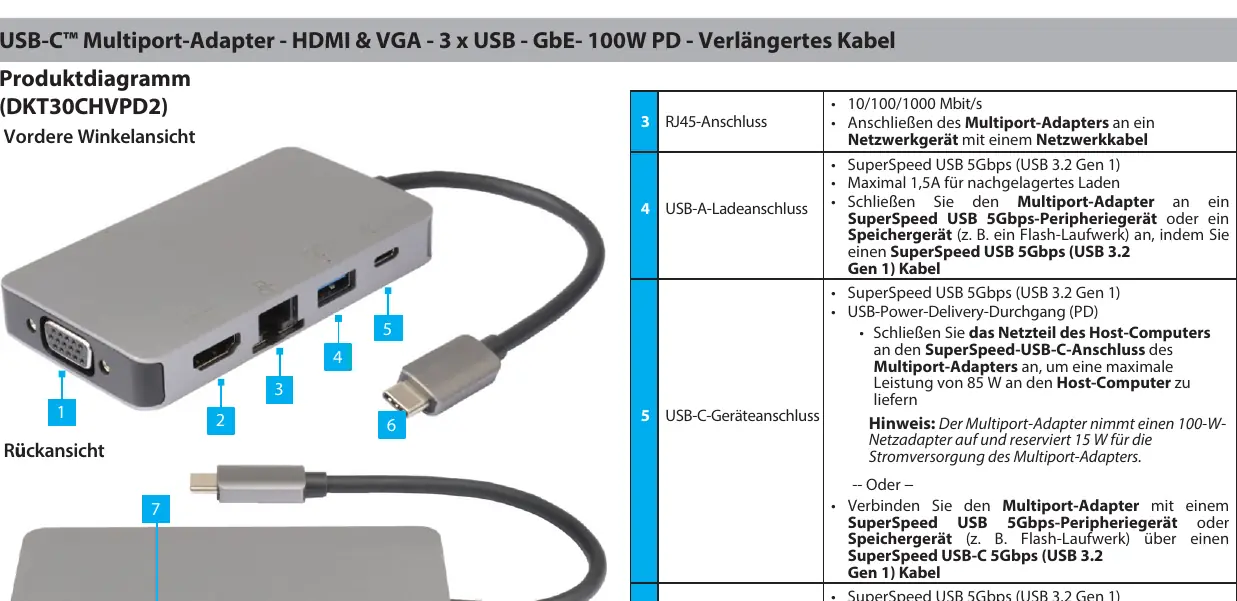
The USB-C host port supports USB PD 3.0 (up to 85W to the host). The adapter accepts up to 100W power input, reserving 15W for its own operation and providing the remaining power to the connected host laptop.
RJ45 LED Indicators
The network port features LED indicators to show connection status:
- Solid Orange/Amber: Connection established (10/100/1000 Mbps).
- Off (Orange/Amber): No connection.
- Blinking White: Network traffic detected.
- Off (White): No connection.
Official resources from the manual
Practical help
Common problems
Device not recognized or not working
Ensure the host computer supports DisplayPort Alt Mode and USB Power Delivery. Check that the USB-C cable is securely connected.
No network connection
Check the RJ45 LED indicators. If the orange/amber light is off, verify the network cable connection.
Drivers not installing
Visit www.startech.com/DK30CHVPD2 to manually download and install the latest drivers if the automatic installation fails.
Before use
- Verify the host computer has a USB-C port.
- Confirm the host computer supports DisplayPort Alt Mode.
- Confirm the host computer supports USB Power Delivery.
- Ensure you have the necessary cables (HDMI, VGA, Ethernet) for your peripherals.
Specs in practice
- USB 3.2 Gen 1
- Supports data transfer speeds up to 5Gbps.
Images and diagrams
- The diagram identifies 7 ports: 1 (VGA), 2 (HDMI), 3 (RJ45), 4 (USB-A), 5 (USB-C device port), 6 (USB-C host port), and 7 (USB-A).
- Port 5 is specifically for power delivery or peripherals, while Port 6 is the primary connection to the host laptop.
Model compatibility
- Requires a host computer with a USB-C port that supports DP Alt Mode and USB-PD.

Manual page author
David Miller
Documentation analyst
Organizes user manual content into clear summaries, with attention to model details, product context, and everyday usability.