Computers / Tablets
User Manual for Hyundai 10LB2 Tablet
Quick guide for the Hyundai 10LB2 tablet. Learn how to set up your device, manage SIM and memory cards, configure security, use communication features, and maintain your tablet.
Table of contents
Manual images
Click an image to enlargeQuick Start Guide
Before using your Hyundai 10LB2 tablet for the first time, ensure the battery is fully charged using the provided travel adapter or a PC USB cable. To assemble the device, insert your SIM card with the gold contacts facing into the device and your memory card with the gold contacts facing downwards.
Getting Started
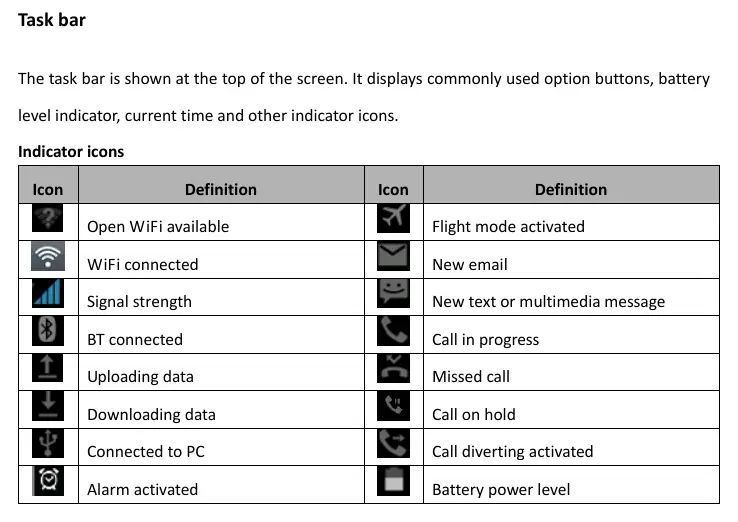
To turn on the device, press and hold the power key. The home screen allows you to access widgets, shortcuts, and applications. The task bar at the top of the screen displays essential status information, including Wi-Fi connectivity, signal strength, and battery level.
Device Customization and Security
- Manage Applications: Go to Settings, then Apps & notifications to uninstall or modify application settings.
- Screen Lock: Protect your data by setting a screen lock (None, Swipe, Pattern, PIN, or Password) via Settings, Security, Screen lock.
- Fingerprint: You can set up fingerprint authentication for unlocking the screen or confirming purchases.
- Factory Reset: If necessary, you can reset the device to factory settings via Settings, System, Advanced, Reset options. Note that this will erase all data.
Communication Features
The tablet supports phone calls, messaging, and email. To make calls, use the Phone application to access the dialer, call log, or contacts. You can manage contacts by importing them from a SIM or memory card. For messaging, the device supports both SMS and MMS, allowing you to attach pictures, videos, and audio clips.
Entertainment and Tools
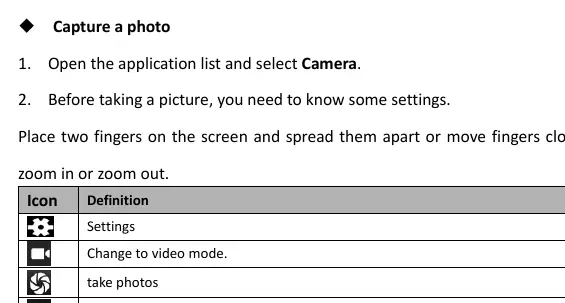
The device includes a camera for capturing photos and videos. Use the camera interface to switch between front and rear lenses, enable smile mode, or record video. Other built-in tools include a Calendar for managing events, an Alarm clock, a File Manager for organizing data, a Sound Recorder, and a Calculator.
Connectivity
You can connect your tablet to other devices and networks using:
- USB Connection: Connect to a PC to transfer files. Use the notification panel to select Transfer files mode.
- Wi-Fi: Enable Wi-Fi in Settings to search for and connect to available wireless networks.
- Bluetooth: Pair with other devices via Settings, Connected devices, Pair new device.
Care and Maintenance
To ensure the longevity of your device, keep it dry and avoid exposure to extreme temperatures, magnetic fields, or dusty environments. Use only manufacturer-approved accessories to prevent malfunctions.
Manufacturer information
Hyundai
Practical help
Common problems
Device will not turn on
Charge the battery using the travel adapter or connect to a PC via USB cable.
SIM or memory card not recognized
Ensure the SIM card gold contacts face into the device and the memory card gold contacts face downwards.
Forgotten screen lock
Perform a factory reset via Settings > System > Advanced > Reset options. Warning: This will erase all data.
Before use
- Charge the battery fully before first use.
- Insert SIM card with gold contacts facing into the device.
- Insert memory card with gold contacts facing downwards.
- Ensure you have a Google account for full functionality.
Images and diagrams
- The task bar displays icons for Wi-Fi, signal strength, battery level, and active notifications.
- Camera interface icons allow switching between photo/video modes and front/rear lenses.
Model compatibility
- Supports standard SIM and memory cards; some brands may not be fully compatible.
- Compliant with POP3/IMAP/Exchange internet standards for email.

Manual page author
David Miller
Documentation analyst
Organizes user manual content into clear summaries, with attention to model details, product context, and everyday usability.