Lighting / Outdoor Lighting
User Manual for Hyundai 10WB4 Smartphone
Quick guide for the Hyundai 10WB4 smartphone. Learn how to set up your device, manage SIM and memory cards, customize settings, use communication features, and maintain your phone.
Table of contents
Manual images
Click an image to enlargeQuick Guide from the Manual
This manual provides essential instructions for operating the Hyundai 10WB4 smartphone. Key procedures include initial setup, SIM and memory card installation, and basic device navigation. Users should charge the battery fully before the first use and ensure all safety guidelines regarding RF exposure and operating environments are followed.
Assembling the Device
To prepare the device for use:
- Unpack: Ensure the box contains the mobile phone, user manual, and adapter.
- Charge: Use a travel adapter or PC USB connection to charge the battery before first use.
- SIM Card: Remove the back cover, insert a Nano SIM card with gold contacts facing the device, and push into the slot.
- Memory Card: Insert an SD/T card in the designated slot above the SIM slot for additional storage.
Getting Started
Powering On/Off: Press and hold the power key for about 5 seconds to turn the device on. To restart or shut down, hold the power button for 1 second and select the desired option from the menu.
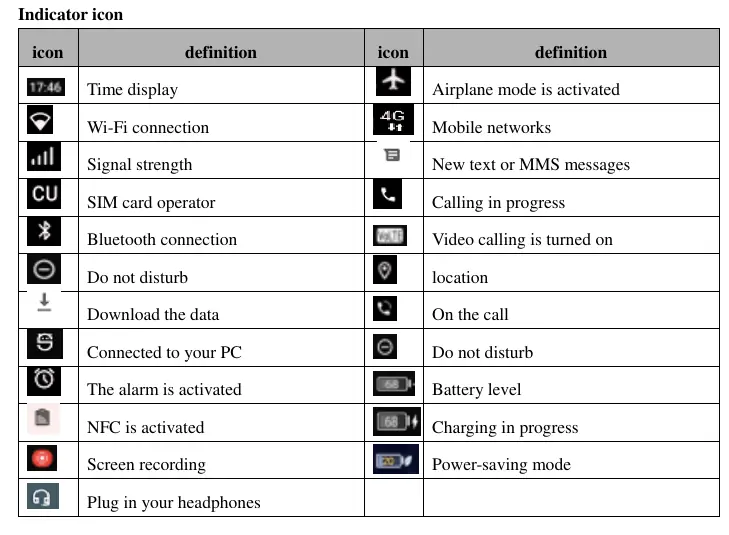
Navigation: Use the Home screen to access apps and widgets. The taskbar at the top displays notifications, battery level, and connectivity status. Use the notification panel to access quick toggles like Wi-Fi, Bluetooth, and Airplane Mode.
Customization
Users can personalize the device via the Settings menu:
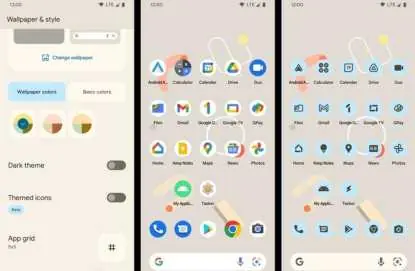
- Display: Adjust brightness, font size, and auto-rotation settings.
- Wallpaper & Style: Long-press the home screen to change themes, icons, and wallpapers.
- Security: Set up screen locks (Pattern, PIN, Password) and manage app permissions.
Communication and Web
The device supports standard communication features:
- Phone: Use the Phone app to dial numbers, manage contacts, and view call logs.
- Messages: Create and send text or MMS messages, including attachments like pictures and videos.
- Email: Configure email accounts via the Email app to send and receive messages.
- Browser: Access the web, manage bookmarks, and set a homepage.
Entertainment
Camera: Capture photos and videos. Use the on-screen controls to switch between front/rear lenses, adjust flash, and zoom. Files are saved to the DCIM folder.
FM Radio: Plug in headphones to listen to the radio. Use the interface to scan channels and save favorites.
Connectivity
The device supports USB file transfer, Wi-Fi, and Bluetooth. Enable these features in the Settings menu to connect to networks or pair with other devices.
Safety and Maintenance
Keep the device dry and avoid extreme temperatures (below -10°C or above 50°C). Do not use the device in potentially explosive atmospheres or near medical devices like pacemakers. Follow all FCC guidelines regarding RF exposure.
Manufacturer information
Hyundai
Practical help
Common problems
Device will not turn on
Ensure the battery is sufficiently charged.
SIM or Memory card not detected
Ensure the card is inserted correctly with gold contacts facing the device.
Cannot connect to Wi-Fi
Check if Wi-Fi is enabled in Settings > Network and Internet.
Device is running slowly
Close unused applications or clear cache in Settings > Apps.
Before use
- Charge the battery fully.
- Insert a Nano SIM card.
- Insert a memory card (optional) for extra storage.
- Set up a Google Account for full functionality.
- Configure screen lock for security.
Specs in practice
- Airplane Mode
- Disables all wireless signals (Wi-Fi, Bluetooth, cellular) for non-network use.
- Factory Reset
- Erases all data from internal storage; use with caution.
Images and diagrams
- Task bar icons: Displays battery, time, signal strength, and active notifications.
- Camera interface: Includes zoom, flash settings, and video mode toggle.
Model compatibility
- Supports Nano SIM cards.
- Supports external memory cards (SD/T card).
- Requires Remote Mailbox service for email.

Manual page author
Michael Turner
Technical manual editor
Reviews PDF manuals for structure, safety notes, and practical product details so readers can find the right information quickly.