Computers / Tablets
User Manual for Hyundai 10LC1 Tablet
Quick guide for the Hyundai 10LC1 tablet. Learn how to set up your device, manage SIM and memory cards, customize settings, use communication features, and understand safety precautions.
Table of contents
Quick guide from the manual
This guide provides essential information for operating your Hyundai 10LC1 tablet. Before first use, ensure the battery is fully charged. The device supports SIM and memory card installation for expanded functionality and storage. Always use original chargers to prevent damage.
Assembling
To prepare your device for use:
- Charge the battery: Use a travel adapter or connect to a PC via USB cable.
- Install SIM card: Ensure gold contacts face into the device and push into the slot.
- Install memory card: Insert with gold contacts facing downwards and push into the slot.
Basic operations
Powering on/off: Press and hold the power key for about 5 seconds to turn on. To restart or shut down, press and hold the power key and select the desired option from the menu or the status bar.
Home screen & Task bar: The home screen features multiple panels for widgets and app shortcuts. The task bar at the top displays indicator icons such as battery level, Wi-Fi, and notifications.
Customization
You can personalize your tablet by:
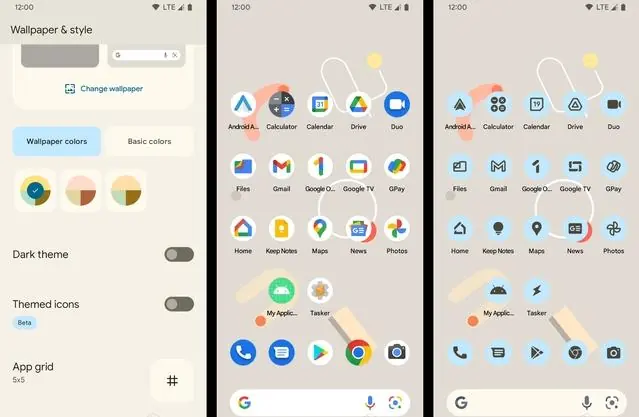
- Wallpaper & style: Long press on the home screen to change wallpapers, themes, and icon styles.
- Auto-rotation: Toggle screen rotation via the notification panel or Settings > Display > Advanced.
- Display size: Adjust font size in Settings > Display > Advanced.
Communication
The device supports phone calls, messaging, and email:
- Phone: Use the virtual keypad to dial numbers, access call logs, or manage contacts.
- Messages: Create and send text or MMS messages. MMS can include pictures, videos, and emoticons.
- Email: Set up your email accounts in the Email application to send and receive messages.
Entertainment
Camera: Use the camera app to take photos and record videos. Pinch to zoom in or out. Settings allow for flash control, lens switching, and video mode selection.
FM Radio: Plug in headphones to use the radio. Use the on-screen controls to scan frequencies, save favorites, and record broadcasts.
Connectivity
USB Connection: Connect to a PC to transfer files. Use the notification panel to select 'transfer files' mode.
Wi-Fi & Bluetooth: Manage wireless connections via Settings. The device automatically searches for available networks and Bluetooth devices for pairing.
Safety and maintenance
Keep the device dry and away from extreme temperatures, magnetic fields, or dusty environments. Follow all safety precautions regarding pacemakers, explosive atmospheres, and aircraft usage. The device complies with FCC RF exposure standards; maintain a minimum distance of 0.5 cm from the body during operation.
Manufacturer information
Hyundai
Practical help
Common problems
Device will not turn on
Ensure the battery is charged. Press and hold the power key for about 5 seconds.
SIM card not recognized
Ensure the gold contacts are facing into the device and the card is fully inserted into the slot.
Screen rotates unexpectedly
Open the notification panel and toggle 'Rotate Screen Automatically' to off, or adjust in Settings > Display.
Before use
- Charge the battery fully before first use.
- Insert SIM card with gold contacts facing inward.
- Insert memory card with gold contacts facing downward.
- Ensure you have a Google account for device setup.
Images and diagrams
- Notification Panel: Swipe down to access quick toggles like Wi-Fi, Bluetooth, and brightness.
- Camera Interface: Use on-screen icons to switch between photo/video modes, flash settings, and lens switching.
Model compatibility
- Some memory card brands may not be fully compatible.
- Third-party applications may cause performance issues.

Manual page author
Emily Carter
User documentation editor
Prepares concise manual descriptions and highlights the most useful setup, operation, and maintenance information for readers.