Computers / Tablets
User Manual for Hyundai Koral 10M4 Tablet
Quick guide for the Hyundai Koral 10M4 tablet. Learn about key layout, ports, Windows 10 navigation, safety precautions, and basic operations.
Table of contents
Manual images
Click an image to enlargeQuick guide from the manual
This guide provides essential information for operating the Hyundai Koral 10M4 tablet. It covers safety precautions, device layout, and basic Windows 10 navigation.
Safety Precautions
- Environment: Use in non-tropic areas below 2,000 meters. Avoid extreme temperatures (too hot/cold), high humidity, dust, and direct sunlight.
- Handling: Prevent the tablet from falling or strong impacts. Do not disassemble the device, as this voids the warranty.
- Liquids: If liquid spills on the device, close it immediately and do not use until completely dry.
- Cleaning: Do not use chemical detergents. Clean only with a dry, soft cloth.
- Data: Regularly back up important files. The company is not responsible for data loss due to software or hardware issues.
Device Layout
The tablet features various ports and buttons for connectivity and control:
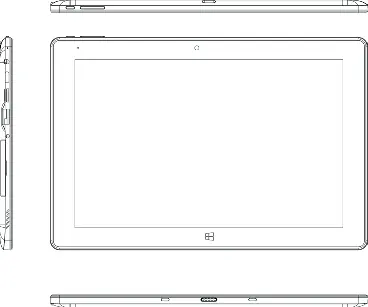
- Power & Volume: Located on the device edge.
- Cameras: Front and rear cameras.
- Connectivity: DC port, Type-C, Mini HDMI, USB 3.0, Earphone jack, SD Card slot.
- Other: Pogo Pin (for keyboard connection), Speakers.
Keyboard Usage
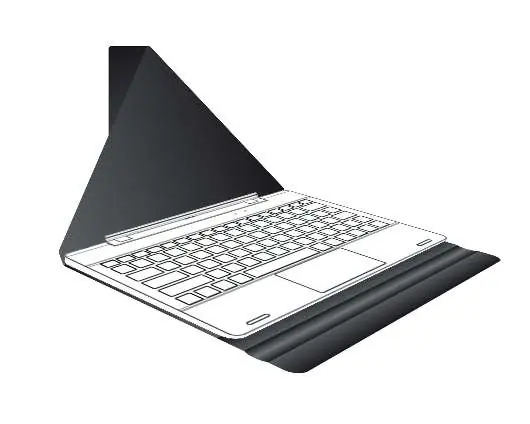
The keyboard is optional. It features a magnetic interface for easy alignment and connection to the tablet. It includes a full-size QWERTY layout and a touch mousepad.
Windows 10 Basics
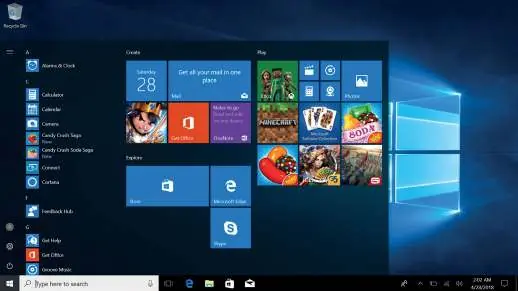
Desktop and Start Menu
The Start Menu allows access to Power, Settings, and Account management. You can pin applications to the Start screen or taskbar by right-clicking an app and selecting "Pin to Start" or "Pin to taskbar".
Multitasking
Use the Task View icon to see all running applications, switch between them, or close them.
Basic Operations
To manage power, use the Start Menu to select Sleep, Shut Down, or Restart options.
Support
For technical support or updates, visit www.hyundaitechnology.com.
Official resources from the manual
Manufacturer information
Hyundai
Practical help
Common problems
Liquid spill
Close the device immediately and do not use until it is completely dry.
Data loss
Back up important material regularly; the company is not responsible for loss due to software or hardware operation.
Warranty void
Do not disassemble the tablet by yourself.
Before use
- Ensure the operating environment is non-tropic, below 2,000m, and free from extreme dust or temperature.
- Back up important files before performing any maintenance or repair.
- Use only original batteries to prevent explosion risks.
- Check for software updates at www.hyundaitechnology.com.
Images and diagrams
- The device features a power button and volume controls on the edge.
- Ports include DC, Type-C, Mini HDMI, USB 3.0, and an earphone jack.
- The keyboard connects via a magnetic Pogo Pin interface.
Model compatibility
- The device runs on Windows 10.
- Keyboard is optional and may vary by specific tablet type.

Manual page author
Emily Carter
User documentation editor
Prepares concise manual descriptions and highlights the most useful setup, operation, and maintenance information for readers.