Computers / Tablets
User Manual for Hyundai HyTab Plus 10LB3 Tablet
Quick guide for the Hyundai HyTab Plus 10LB3 tablet. Learn how to set up your device, install SIM and memory cards, manage apps, use communication features, and configure connectivity settings.
Table of contents
Manual images
Click an image to enlargeQuick Start Guide
Before using your device for the first time, charge the battery completely using the provided travel adapter or by connecting it to a PC via USB. Ensure the device is powered off or in a safe state during initial setup.
Installing SIM and Memory Cards
- SIM Card: Insert the SIM card into the slot with the gold contacts facing into the device.
- Memory Card: Insert a memory card (up to 128GB) with the gold contacts facing downwards.
Getting Started
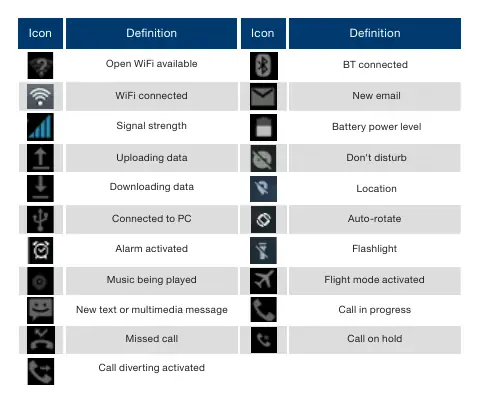
To turn the device on, off, or reboot, press and hold the power key. The home screen allows you to access apps, widgets, and indicator icons. You can pull down the notification panel to access quick settings like Wi-Fi, Bluetooth, Flashlight, and Battery Saver.
Security and Settings
You can protect your device by setting a screen lock (Swipe, Pattern, PIN, or Password) via Settings > Security > Screen lock. To reset the device to factory settings, navigate to Settings > System > Advanced > Reset options. Note that this will erase all data.
Communication
The device supports phone calls, contacts, messaging, and email. You can make calls using the virtual keypad, call log, or contacts list. To send SMS or MMS, use the Messaging application. Email accounts can be configured via the Email app, supporting POP3/IMAP/Exchange standards.
Connectivity
You can connect to the internet via Wi-Fi or share files using Bluetooth. To transfer files to a PC, connect via USB cable and select Transfer files in the notification panel.
Entertainment and Tools
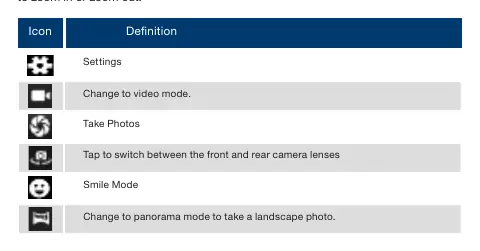
The device includes a Camera for photos and videos, a Calendar for scheduling, an Alarm, a File Manager for browsing storage, a Sound Recorder, and a Calculator.
Safety and Maintenance
Keep the device dry and away from extreme temperatures, magnetic fields, and dusty environments. Do not use incompatible accessories. Always switch off the device in areas with posted regulations, such as aircraft or near potentially explosive environments.
Contact Support
For technical support, contact Hyundai Technology. U.S. and Worldwide: (800) 560-0626 (Monday-Friday 8:00am-5:00pm PST) or email [email protected]. For Mexico (Spanish): 81 5030-7375 (Lunes-Viernes 8:00am-5:00pm CST) or email [email protected].
Manufacturer information
Hyundai
Practical help
Common problems
Device will not turn on
Charge the battery completely using the provided adapter.
SIM card not detected
Ensure the gold contacts are facing into the device and the card is pushed firmly into the slot.
Memory card not recognized
Ensure the gold contacts are facing downwards and the card is pushed firmly into the slot.
Forgot screen lock
Perform a factory reset via Settings > System > Advanced > Reset options (Warning: this erases all data).
Before use
- Charge the battery fully before first use.
- Insert SIM card with gold contacts facing into the device.
- Insert memory card with gold contacts facing downwards.
- Ensure you have a Google account for full functionality.
Specs in practice
- Factory Reset
- Erases all data, including Google account, system settings, and downloaded apps.
Images and diagrams
- Task Bar: Displays battery level, time, and indicator icons like Wi-Fi, Bluetooth, and notifications.
- Camera Icons: Includes settings, video mode, switch lens, smile mode, and panorama mode.
Model compatibility
- Memory cards: Some brands may not be fully compatible with the device.
- Email: Compliant with POP3/IMAP/Exchange standards.

Manual page author
Emily Carter
User documentation editor
Prepares concise manual descriptions and highlights the most useful setup, operation, and maintenance information for readers.