Computers / Tablets
User Manual for Hyundai 10LB4 Tablet
Quick guide for the Hyundai 10LB4 tablet. Learn how to set up your device, manage apps, configure settings, use communication features, and maintain your tablet safely.
Table of contents
Manual images
Click an image to enlargeQuick guide from the manual
This guide provides essential information for operating your Hyundai 10LB4 tablet. Before first use, ensure the battery is fully charged. The device supports SIM and memory cards for expanded functionality and storage. Always follow safety precautions, especially regarding medical devices and explosive atmospheres.
Assembling your tablet
Check your package for the tablet, user manual, and adapter. To prepare the device:
- Charge the battery: Use a travel adapter or connect to a PC via USB cable before first use.
- Install SIM card: Ensure gold contacts face into the device and push into the slot.
- Install memory card: Insert with gold contacts facing downwards and push into the slot.
Getting started
To turn on the device, press and hold the power key for about 5 seconds. To restart or shut down, press and hold the power key and volume up key, or use the shutdown button in the status bar. You can switch to airplane mode via Settings or the status bar shortcut to disable network services while keeping other functions active.
Settings and customization
You can customize your device through the Settings menu. Key features include:
- Auto-rotation: Toggle via the notification panel or Settings > Display > Advanced.
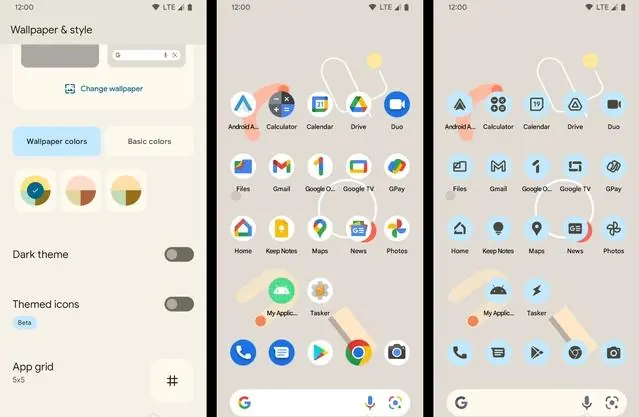
- Wallpaper & style: Long press on the home screen to change themes and icons.
- Display size: Adjust via Settings > Display > Advanced > Font size.
- Security: Set screen locks (None, Swipe, Pattern, PIN, Password) via Settings > Secure > Screen Lock.
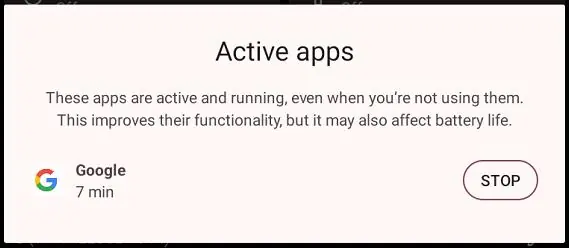
- Manage applications: Uninstall or stop apps via Settings > Apps.
Communication and web
The tablet includes features for phone calls, contacts, messaging, and email. To make calls, use the Phone app to dial numbers or access contacts. For messaging, you can send text or MMS messages (including pictures, video, and audio). Email setup requires configuring your account via the Email app.
Entertainment and tools
The device comes with several built-in tools:
- Camera: Supports photo and video capture. Use the gallery icon to view media.
- FM Radio: Plug in headphones to use as an antenna.
- Calendar: Create and manage events.
- Alarm clock: Set alarms with recurrence and snooze options.
- File Manager: Browse, edit, and move files.
- Recorder: Record voice memos.
Connectivity
You can connect your tablet to a PC via USB to transfer files. Wi-Fi and Bluetooth can be activated through the Settings menu or notification panel to connect to wireless networks and other devices.
Safety and maintenance
Keep the device dry and away from extreme temperatures (-10°C to 50°C). Avoid using the device in dusty or dirty environments. Maintain a distance of at least 8 inches from pacemakers. Always use manufacturer-approved accessories to prevent malfunction.
Manufacturer information
Hyundai
Practical help
Common problems
Device will not turn on
Ensure the battery is charged. Press and hold the power key for 5 seconds.
SIM or memory card not recognized
Verify that the card is inserted correctly (gold contacts facing into the device for SIM, downwards for memory card).
Interference with other devices
Keep the tablet at least 8 inches away from pacemakers and turn off in areas with explosive atmospheres.
Before use
- Charge the battery fully before the first use.
- Insert SIM card with gold contacts facing into the device.
- Insert memory card with gold contacts facing downwards.
- Ensure you have a Google account for full functionality.
- Check that the device is not in an area where electronic devices are prohibited.
Specs in practice
- Operating Temperature
- -10°C to 50°C; do not use outside this range.
- Body-worn distance
- Maintain at least 0.5 cm distance from the body for RF exposure compliance.
Images and diagrams
- The task bar displays status icons like Wi-Fi, signal strength, and battery level.
- The notification panel provides quick toggles for Wi-Fi, Bluetooth, and brightness.
Model compatibility
- Some memory card brands may not be fully compatible.
- Peer-to-peer functionality is supported but limited to US frequencies.

Manual page author
Michael Turner
Technical manual editor
Reviews PDF manuals for structure, safety notes, and practical product details so readers can find the right information quickly.