Computers / Keyboards Input
User Guide for Ikan PT-PEDAL Foot Control Pedals
A comprehensive guide for the Ikan PT-PEDAL foot controller. Includes setup instructions, Key Remapper software configuration, and usage tips for teleprompter control.
Table of contents
Manual images
Click an image to enlargeQuick Start Guide
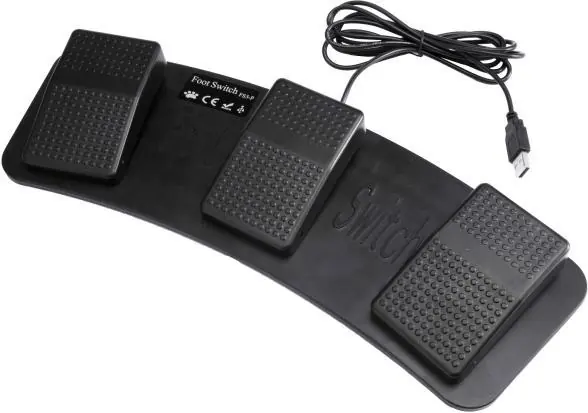
The Ikan PT-PEDAL is a wired foot controller designed to manage teleprompter sessions. To begin using the device, you must connect it to your computer via USB and configure the pedal actions using the Key Remapper software. The device features three pedals: the center pedal starts or stops the session, the left pedal slows down the scroll speed, and the right pedal increases the scroll speed.
Product Overview
The PT-PEDAL features a curved design that accommodates both right- and left-foot configurations. It is equipped with dampeners to reduce noise during operation. For optimal control, it is recommended to use the device on a flat surface.
Hardware Connection
Connect the foot controller to your computer using the provided 5-foot standard USB cable. The device is compatible with computers running Microsoft Windows 10, 8, or 7.
Software Configuration
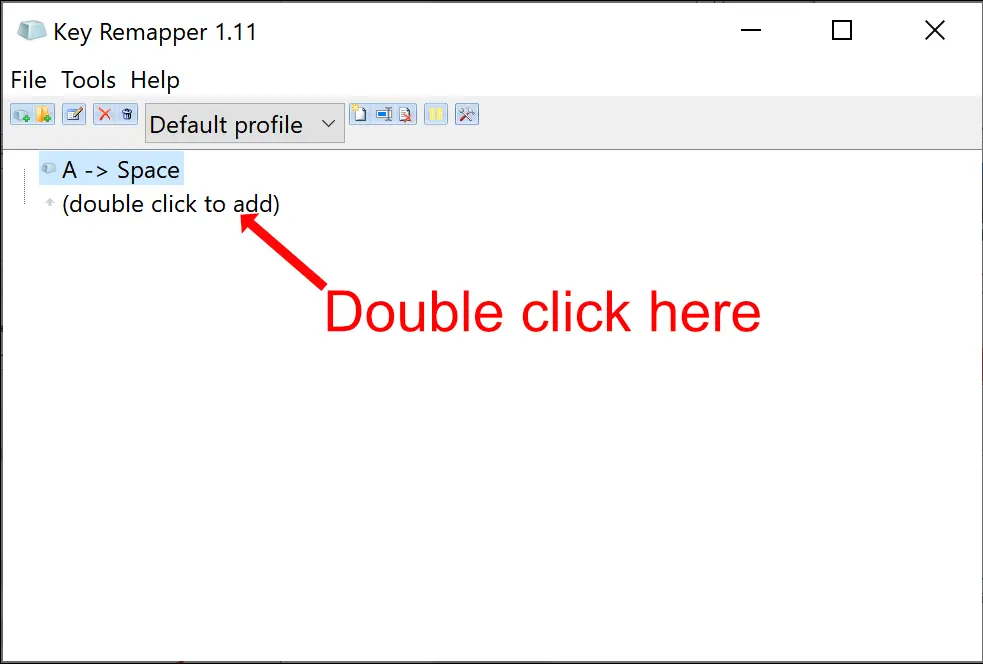
To enable the pedals to control your teleprompter software, you must configure them using the Key Remapper software. Follow these steps for each pedal:
- Install and run the Key Remapper software on your computer.
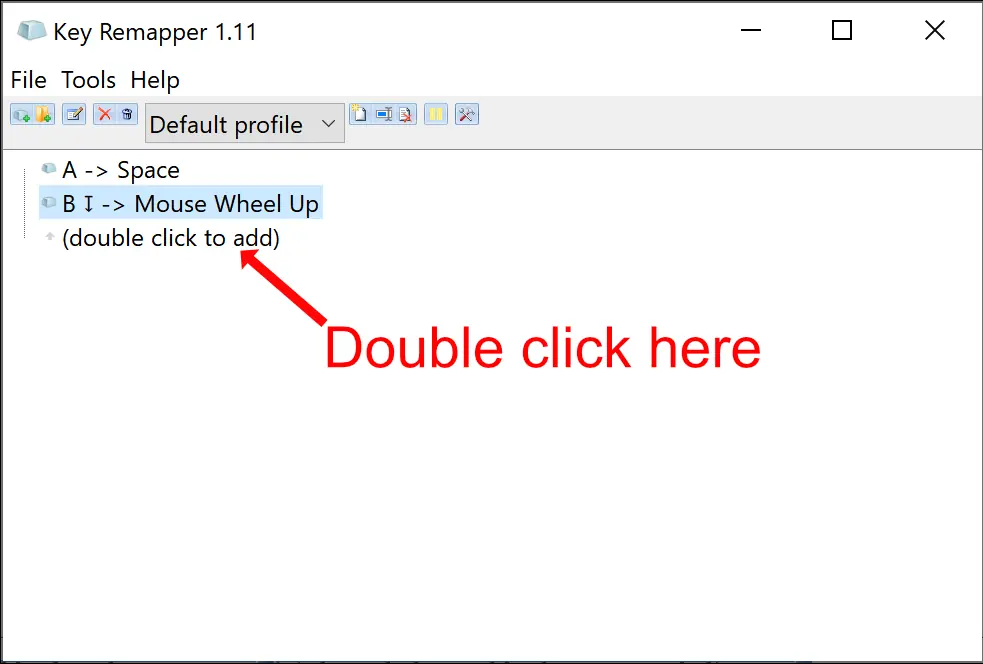
- Double-click the text (double click to add) in the software window to create a new mapping.
- Click the Key of mouse button section, then tap the specific pedal you wish to configure.
- Click the Replace by following key section, then perform the corresponding action on your keyboard or mouse (e.g., press Space bar, scroll up, or scroll down).
- Click OK to save the mapping.
Repeat this process for all three pedals to ensure full functionality within the Prompter Pro software.
Using the Pedals
Once the keys and mouse movements are mapped, open the Prompter Pro software. You can control the scroll speed by pushing the scroll pedals multiple times. The left pedal is used to stop the script.
Practical help
Common problems
Pedals are not responding in the teleprompter software.
Ensure the USB cable is securely connected and that the Key Remapper software is running in the background with the correct mappings applied.
Pedals perform the wrong action (e.g., wrong scroll direction).
Re-run the Key Remapper configuration steps. Ensure the correct pedal is tapped during the 'Key of mouse button' step and the correct keyboard/mouse action is assigned in the 'Replace by following key' step.
Before use
- Place the pedal unit on a flat, stable surface.
- Ensure your computer is running Windows 10, 8, or 7.
- Install the Key Remapper software.
- Connect the USB cable to an available port on your computer.
Specs in practice
- Compatibility
- Designed for use with Ikan Beam Splitter Glass Teleprompters and Ikan's Prompter Pro software.
Images and diagrams
- The Key Remapper software interface requires double-clicking the '(double click to add)' area to initiate a new key assignment.
- The configuration window requires selecting the physical pedal input first, followed by the desired keyboard or mouse output action.
Model compatibility
- Compatible with Microsoft Windows 10, 8, and 7.
- Requires Key Remapper software for functionality.

Manual page author
David Miller
Documentation analyst
Organizes user manual content into clear summaries, with attention to model details, product context, and everyday usability.