Computers / Storage
User Manual for Intenso USB 3.2 Gen 1x1 External Hard Drive
Quick guide for the Intenso USB 3.2 Gen 1x1 external hard drive. Learn how to connect, safely remove, and understand LED status indicators.
Quick answers from the manual
Quick answer
- To connect the drive, use the provided USB cable to link the drive to your computer's USB port. The LED will glow blue for USB 3.x connections and green for USB 2.0 connections. Always eject the drive safely via the OS before disconnecting. p. 4
Key actions
- Connect the drive using the provided USB cable. p. 4
- Eject the drive safely before unplugging. p. 4, 5
First start
- Connect the device to the computer; drivers will install automatically. p. 4
Technical specifications
| Parameter | Value | Meaning | Pages |
|---|---|---|---|
| Dimensions | 13 x 77 x 126 mm | Physical size of the device. | p. 5 |
| Max Speed | 5 Gbit/s | Maximum data transfer rate. | p. 5 |
Where to find it in the PDF
- Safety Instructions p. 2, 3
- Connection and Usage p. 4
- Technical Data p. 5
Table of contents
Quick guide from the manual
This document provides essential instructions for the Intenso USB 3.2 Gen 1x1 external hard drive. Key operations include proper connection to your computer, understanding LED status indicators, and safe removal procedures to prevent data loss.
Safety and handling
- Do not drop: The device is delicate; avoid shocks or vibrations, especially during transport.
- Environment: Keep away from moisture, dust, heat, and direct sunlight.
- Handling: Do not open the casing or attempt repairs yourself, as this voids the warranty.
- Liquids: Do not place containers with liquids near the device.
- Data safety: Regularly back up your data to another storage device to prevent loss in case of hardware failure.
System requirements and connection
The drive is compatible with Windows 8 and later, and Mac OS 10 and later. For optimal performance, use the provided USB cable.
Connecting the drive
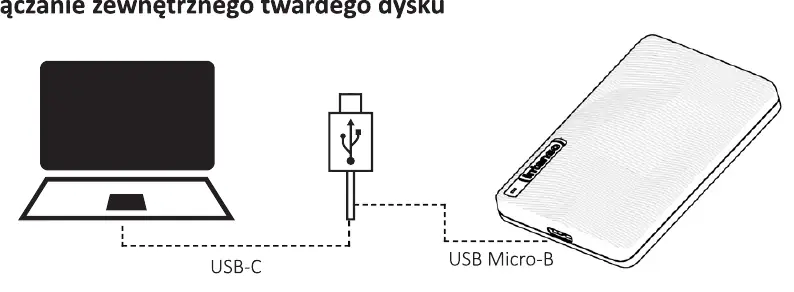
- Connect the USB Micro-B end of the cable to the external hard drive.
- Connect the USB-C end (or use the provided adapter for USB-A) to your computer.
- Wait for the operating system to install the necessary drivers automatically.
LED status indicators
- Blue light: The drive is connected to a USB 3.x port.
- Green light: The drive is connected to a USB 2.0 port.
- Flashing light: Data is currently being read or written. Do not disconnect the drive while the light is flashing.
Removing the drive
Always eject the drive via your operating system before physically disconnecting it. Ensure all files are closed and the LED is not flashing to avoid data corruption.
Technical specifications
- Dimensions: 13 x 77 x 126 mm
- Transfer speed: Max 5 Gbit/s (USB 3.2 Gen 1x1)
- Capacity calculation: 1 MB = 1,000,000 bytes; 1 GB = 1,000,000,000 bytes
Practical help
Common problems
Drive not recognized by computer
Ensure the cable is securely connected. If using a USB 2.0 port, try a USB 3.x port if available. Ensure the computer meets system requirements.
Data loss
Always eject the drive safely via the operating system before unplugging. Do not disconnect while the LED is flashing.
Before use
- Check that the package contains the hard drive, USB cable, and adapter.
- Ensure your computer is running Windows 8+ or Mac OS 10+.
- Do not place the drive near heat sources or liquids.
- Ensure the surface is stable and free from vibrations.
Specs in practice
- USB 3.2 Gen 1x1
- Interface standard supporting high-speed data transfer up to 5 Gbit/s.
Images and diagrams
- The connection diagram illustrates plugging the USB Micro-B connector into the drive and the USB-C/A connector into the computer.
Model compatibility
- Compatible with Windows 8 and newer.
- Compatible with Mac OS 10 and newer.
- Backward compatible with USB 2.0 ports (at lower speeds).

Manual page author
Michael Turner
Technical manual editor
Reviews PDF manuals for structure, safety notes, and practical product details so readers can find the right information quickly.