Computers / Storage
User Guide for OWC Flex 1U4 Rackmount Storage Solution
Quick guide for the OWC Flex 1U4 4-Bay Thunderbolt storage and PCIe expansion rackmount. Learn about installation, drive setup, port connectivity, and troubleshooting.
Quick answers from the manual
Quick answer
- The OWC Flex 1U4 is a 4-bay Thunderbolt storage, docking, and PCIe expansion rackmount solution for Mac. It supports U.2/SATA drives and PCIe expansion cards. p. 1, 3
Key actions
- Install drives p. 7
- Install PCIe card p. 8
First start
- Connect power cable, connect Thunderbolt 4 cable to host, power on using rear switch. p. 9
Problems and fixes
Device not working
Check power connections, try a different Thunderbolt 4 cable, or connect to another computer.
p. 9Maintenance and reset
- Use OWC Dock Ejector software to safely eject drives. p. 5
Technical specifications
| Parameter | Value | Meaning | Pages |
|---|---|---|---|
| Operating Temperature | 10°C – 35°C (50°F – 95°F) | Recommended operating temperature range. | p. 6 |
| PCIe Slot | x16 physical, x4 electrical | Slot specifications for expansion cards. | p. 4 |
Where to find it in the PDF
- Front View p. 4
- Rear View p. 4
- Drive Installation p. 7
- PCIe Installation p. 8
Table of contents
Manual images
Click an image to enlargeQuick guide from the manual
The OWC Flex 1U4 is a 4-bay Thunderbolt storage, docking, and PCIe expansion rackmount solution. This guide covers the essential setup, installation, and maintenance procedures required to operate the device safely and efficiently.
System Requirements
- Hardware: Mac with Thunderbolt 3, Thunderbolt 4, or USB4/Thunderbolt (USB-C).
- Rack Mount: 19-inch to 26-inch rack mount case with an available 1U slot.
- Operating System: macOS 10.15.1 or later.
- Supported Drives: (4) 2.5-inch or 3.5-inch SATA drives or U.2 drives.
- Expansion: (1) PCIe x16 slot (PCIe 3.0 x4 speed) for half-length, full-height, single-slot cards. Note: GPUs are not supported.
Front and Rear View
The front panel features power and activity LEDs for U.2 and SATA drives. The rear panel provides connectivity for PCIe cards, USB 3.2 Gen 2 (Type-C and Type-A), Thunderbolt 3 ports (85W host, 15W daisy-chain), DisplayPort 1.4, and the power switch.

Installation
Installing Drives
- Disengage the drive tray by pushing the tray tab to the right and removing the tray.
- Place a 3.5-inch drive into the tray with the label facing up and the connector facing the open end.
- For 2.5-inch drives, use the included drive spacer.
- Align the drive and tray holes, then secure with drive screws.
- Slide the tray back into the chassis until the connections seat properly.
Installing a PCIe Card
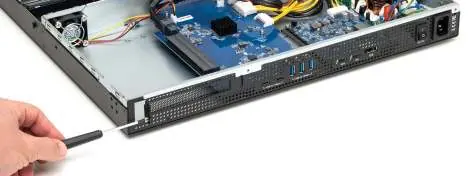
- Remove the five screws securing the chassis lid (three on top, two on the back) and slide the lid off.
- Remove the screw holding the PCIe slot cover.
- Insert the PCIe card into the slot, aligning the connector. Do not force the card if resistance is felt.
- Secure the card bracket with the screw, then replace the chassis lid and secure it with the five screws.
Usage and Maintenance
The device supports hot-swapping, but it is recommended to unmount disks from the operating system before swapping drives to prevent data loss. Use the OWC Dock Ejector software to safely eject all connected drives with a single click. Ensure the device is kept within the operating temperature range of 10°C to 35°C (50°F to 95°F) and do not block ventilation openings.
Troubleshooting
If the device is not working, verify that the power cable is connected to a power source and the power switch is on. Ensure the Thunderbolt 4 cable is properly connected to both the computer and the OWC Flex 1U4. If issues persist, try connecting to another computer or using a different Thunderbolt cable.
Practical help
Common problems
Device not working
Verify power cable connection, ensure the power switch is on, and check the Thunderbolt 4 cable connection.
Device goes to sleep
The OWC Flex 1U4 will go to sleep when the connected host computer goes to sleep.
Data loss risk
Always eject or unmount disks from the operating system before powering off the device.
Before use
- Ensure Mac has Thunderbolt 3, 4, or USB4/USB-C.
- Verify macOS 10.15.1 or later.
- Use anti-static precautions when installing drives.
- Ensure rack case has an available 1U slot.
- Check that PCIe cards are not GPUs and have Thunderbolt-aware drivers if required.
Specs in practice
- PCIe x16 slot
- Supports half-length, full-height, single-width cards at PCIe 3.0 x4 speed.
- Thunderbolt 3 ports
- Includes an 85W port for host connection and a 15W port for daisy-chaining devices.
- USB 3.2 Gen 2
- Provides 10Gb/s data transfer speed for compatible USB devices.
Images and diagrams
- Front Panel: Shows power/activity LEDs for U.2 and SATA drives.
- Rear Panel: Shows PCIe slot, USB-C/A ports, Thunderbolt ports, DisplayPort, and power switch.
Model compatibility
- GPUs are not supported.
- SAS drives require a separate PCIe SAS controller.
- DisplayPort performance may decrease if sharing bandwidth with Thunderbolt ports.

Manual page author
Emily Carter
User documentation editor
Prepares concise manual descriptions and highlights the most useful setup, operation, and maintenance information for readers.