Computers / Storage
User Manual for LaCie RAID Manager for 2-Bay Devices
A comprehensive guide for LaCie RAID Manager for 2-Bay Devices. Learn how to install the software, configure RAID levels (0, 1, JBOD), manage device settings, and troubleshoot common issues like initialization and system extension blocks.
Quick answers from the manual
Quick answer
- LaCie RAID Manager is used to configure and manage arrays, monitor drive health, and set up email alerts for LaCie 2-bay storage devices. p. 4, 9
Key actions
- Modify RAID configuration p. 13, 14
- Enable kernel extension (macOS) p. 7
First start
- Download and install the software, then launch it from your computer's applications. p. 6
Problems and fixes
Initialization is slow
Adjust the processing slider in Device settings to High.
p. 19Maintenance and reset
- You can clear notification entries by clicking 'Clear All' in the Notifications tab. p. 16
Where to find it in the PDF
- Introduction and Requirements p. 4, 5
- Getting Started and Installation p. 6, 7, 8
- Array Configuration p. 11, 12, 13, 14
- Device and App Management p. 15, 16, 17
Table of contents
Manual images
Click an image to enlargeQuick guide from the manual
LaCie RAID Manager is a software utility designed to configure and manage arrays for LaCie 2-bay professional storage devices. It allows users to set up RAID levels, monitor drive health, and configure email alerts. Key operations include modifying RAID configurations, checking device status, and managing app settings.
System Requirements
The software supports various operating systems depending on the connection type:
- Thunderbolt 3: macOS Sierra 10.12 and higher; Windows 10 and higher.
- Thunderbolt 2: Mac OS X 10.9 and higher; Windows 7 and higher (driver required).
- USB: Mac OS X 10.9 and higher; Windows 8 and higher.
Installation
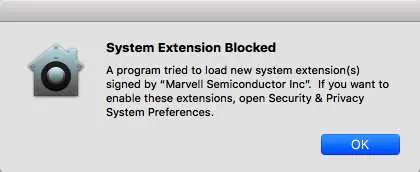
Download the installer from the LaCie website or your device's quick install guide. Follow the on-screen instructions. On macOS 10.13 (High Sierra) and later, you may need to approve the 'Marvell Semiconductor Inc' kernel extension in System Preferences > Security & Privacy to complete the installation.
RAID Configuration
You can configure your 2-bay device in different RAID levels:
- RAID 0: Striping. Offers 100% capacity and excellent speed, but no data protection. If one drive fails, all data is lost.
- RAID 1: Mirroring. Offers 50% capacity and excellent protection. Data is duplicated on both disks.
- JBOD: Just a Bunch of Disks. Operates as two independent disks.
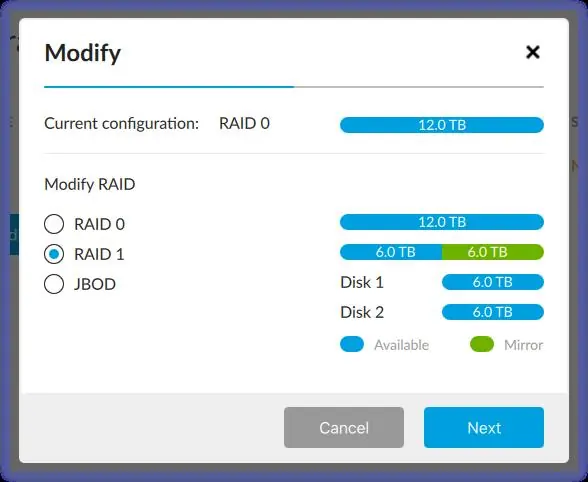
To modify the RAID configuration, go to the Array tab, click Modify, choose the desired RAID level, and follow the on-screen prompts. Note that this process may require physical interaction with the device, such as pressing a button or using a pinhole.
Device and App Management
The interface allows you to:
- Change device name: Click the Edit icon next to the device name.
- View device details: Access hardware information like vendor ID and serial number.
- Notifications: View events, download logs, and set up email alerts.
- Updates: Check for firmware and software updates.
Troubleshooting
If initialization is running for days, you can check Device settings to see if the processing speed is set to Low. Moving the slider to High can speed up the process, though it may affect device performance. Only one operation (e.g., initialization, disk check) can be performed at a time.
Practical help
Common problems
Initialization is running for days
Check Device settings in LaCie RAID Manager. If processing is set to Low, move the slider to High to speed up initialization.
System Extension Blocked (macOS)
Go to System Preferences > Security & Privacy and click the Allow button for the 'Marvell Semiconductor Inc' software.
Device not listed in app
Select 'Scan for new devices' to search for connected hardware.
Before use
- Ensure your OS meets the minimum requirements for your connection type (Thunderbolt 3, 2, or USB).
- Download the latest version of LaCie RAID Manager.
- For Windows, ensure BIOS, Thunderbolt firmware, and drivers are updated.
- For macOS 10.13+, be prepared to approve the kernel extension in Security & Privacy settings.
Images and diagrams
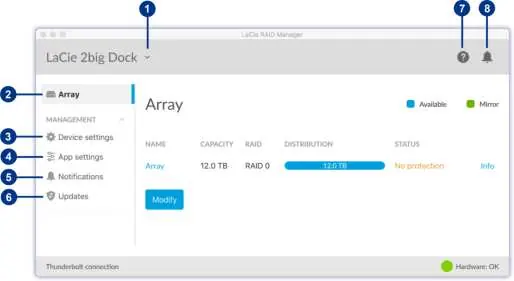
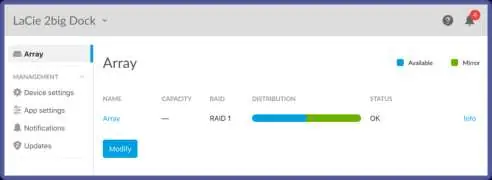
- The main interface displays the Array tab, device settings, and status indicators.
- The Modify dialog allows you to select and confirm a new RAID configuration.
Model compatibility
- Compatible with LaCie 2big Dock Thunderbolt 3, Rugged RAID Pro, and Rugged RAID Shuttle.
- LaCie Rugged RAID Shuttle does not support JBOD configuration due to Seagate Secure encryption.

Manual page author
Emily Carter
User documentation editor
Prepares concise manual descriptions and highlights the most useful setup, operation, and maintenance information for readers.