Computers / Storage
User Manual for Toshiba Canvio Gaming Portable Hard Drive
Quick guide for the Toshiba Canvio Gaming portable hard drive. Learn how to connect, install, safely disconnect, and troubleshoot your device.
Quick answers from the manual
Quick answer
- Connect the drive using the supplied USB 3.2 Gen 1 cable to a compatible USB Type-A port on your device. Ensure the device is powered on. p. 4
Key actions
- Always use the 'Eject' or 'Safely Remove' function before unplugging the drive to prevent data loss. p. 4
First start
- Connect the drive to a powered-on device using the provided USB cable. p. 4
Problems and fixes
Drive not recognized
Check connections, ensure powered USB hub is used, update firmware.
p. 6Maintenance and reset
- Formatting the drive (Note: this deletes all data). p. 6
Technical specifications
| Parameter | Value | Meaning | Pages |
|---|---|---|---|
| Capacity | 1TB | Storage capacity (decimal vs binary calculation) | p. 5 |
Where to find it in the PDF
- Installation and Connection p. 3, 4
- Troubleshooting p. 6
Table of contents
Manual images
Click an image to enlargeQuick guide from the manual
The Toshiba Canvio Gaming portable hard drive is designed for easy storage expansion. To get started, ensure your system meets the requirements (Windows 10/8.1, macOS v10.13-10.15, or compatible gaming consoles). Connect the drive directly to a USB Type-A port using the supplied cable. Always follow the safe removal procedure before unplugging the drive to prevent data loss.
System requirements
- Formatted as exFAT for compatibility with Windows, macOS, and gaming consoles (Playstation/Xbox).
- Requires one free USB Type-A port.
Installing and connecting the drive
The drive is bus-powered, meaning it draws power directly from the connected USB port; no external power supply is needed. Do not use passive USB hubs or connect the drive via keyboards or mice, as these may not provide sufficient power.
Connection steps:
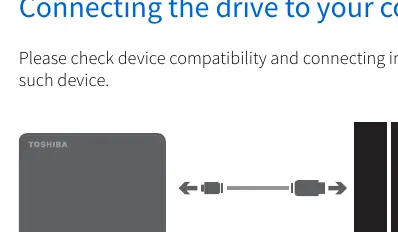
- Plug the USB 3.2 Gen 1 micro-B connector into the drive.
- Plug the USB Type-A connector into your compatible device after it has fully booted.
Safe removal
Never unplug the drive by simply pulling the cable, as data may be in the process of being written. Always use the 'Eject' or 'Safely Remove Hardware' function on your operating system before disconnecting.
Cleaning and maintenance
Before cleaning, ensure the drive is physically disconnected. Use standard cleaning products and wipe the surface dry. For file management, backups, and optimization (defragmentation), refer to your operating system's documentation.
Troubleshooting
If the computer does not recognize the drive, ensure all connections are secure. If using a USB hub, ensure it has its own power supply. If the drive is not visible in 'My Computer' or 'This PC', use 'Disk Management' to check if the drive is listed and create a new partition if necessary. Note that formatting the drive will erase all existing data.
Practical help
Common problems
Computer does not recognize the drive
Check all cable connections. If using a USB hub, ensure it has its own power supply. Update software/firmware if using an add-on card.
Drive displays 'Device cannot start' error
Check power connections or contact support for potential hardware malfunction.
Cannot complete format
If formatting fails with FAT, try using the NTFS file system.
Before use
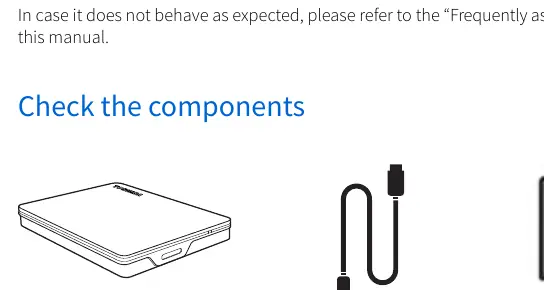
- Check all components are present (Drive, USB cable, Support document)
- Ensure the computer/console is powered on and fully booted
- Verify the USB port is a Type-A port
- Ensure no passive USB hubs are used
Specs in practice
- Capacity (1TB)
- Manufacturers calculate capacity using the decimal system (1TB = 1,000GB), while operating systems use the binary system, resulting in a lower displayed capacity (approx. 931GB).
Images and diagrams
- The connection diagram shows the drive connected via the USB 3.2 Gen 1 cable to a compatible device (PC or console).
Model compatibility
- Compatible with Windows 10, 8.1
- Compatible with macOS v10.13, v10.14, v10.15
- Compatible with Playstation/Xbox (check compatibility list online)

Manual page author
Emily Carter
User documentation editor
Prepares concise manual descriptions and highlights the most useful setup, operation, and maintenance information for readers.