Computers / Storage
User Manual for Toshiba Canvio Slim Portable Hard Drive
Quick guide for the Toshiba Canvio Slim portable hard drive. Learn how to connect, format, and troubleshoot your device.
Quick answers from the manual
Quick answer
- The Toshiba Canvio Slim is a bus-powered portable hard drive. Connect it to a USB Type-A port on your computer using the provided USB 3.2 Gen 1 micro-B cable. No external power is required. p. 3, 4
Key actions
- Connect the drive p. 4
- Safely remove the drive p. 5
Problems and fixes
Computer does not recognize the drive
Check connections, use a powered USB hub, or update firmware.
p. 6Technical specifications
| Parameter | Value | Meaning | Pages |
|---|---|---|---|
| Compatibility | Windows 11/10/8.1, macOS v12.5/v11.6/v10.15 | Supported operating systems | p. 3 |
Where to find it in the PDF
- Introduction and Components p. 3
- Connection and Installation p. 4
- Troubleshooting p. 6
Table of contents
Quick guide from the manual
The Toshiba Canvio Slim is a bus-powered portable hard drive. It does not require an external power supply as it draws all necessary power from the connected USB port. Ensure your computer is fully booted before connecting the drive.
Introduction
Thank you for choosing the Toshiba Canvio Slim Hard Drive. This manual contains all relevant information for installation, usage, and maintenance of the drive, as well as security and safety advice.
Check the Components
Ensure you have the following items:
- Canvio Slim Hard Drive
- USB 3.0 Micro-B cable
- Support document
System Requirements
- Formatted NTFS for Windows 11 / Windows 10 / Windows 8.1
- Requires reformatting for macOS v12.5 / v11.6 / v10.15
- One free USB 3.0 or USB 2.0 port
Installing the drive
The drive is bus-powered, meaning no external power supply is needed. Do not use passive USB hubs or USB connectors from keyboards, mice, or similar products to connect the drive. Ensure connectors are inserted correctly and do not use force.
Connecting the drive to your computer
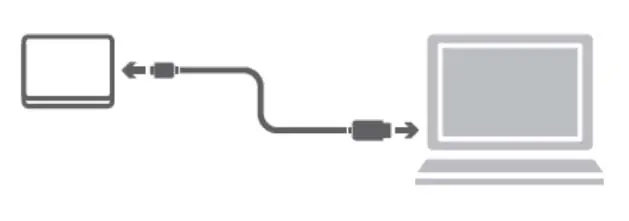
- Plug the USB 3.2 Gen 1 micro-B connector into the corresponding port on the drive.
- With your computer powered on and fully booted, plug the USB Type-A connector into a USB Type-A port on your computer.
Dismount and disconnect the drive
It is strongly recommended not to unplug the drive by just pulling the cable, as data may be in the process of being written. Follow these steps for safe removal:
- Windows PC: Click the 'Hardware and Eject Media' icon, select the TOSHIBA drive to eject, wait for the notification, then unplug.
- Mac: Ctrl-click the hard disk icon and choose 'Eject', or drag the icon to the trashcan, then unplug.
Cleaning the drive case
Before cleaning, ensure the drive is physically disconnected from the computer. Use standard cleaning products and wipe off any remaining liquid.
Troubleshooting
If your computer does not recognize the drive, ensure all connections are secure. If using a USB hub, ensure it has its own power supply. If using an add-on card, ensure it is working properly and update the software/firmware.
Practical help
Common problems
Computer does not recognize the disk drive
Check that all connections are secure. If using a USB hub, ensure it has its own power supply. If using an add-on card, ensure it is working properly and update the software/firmware.
Drive capacity in Windows is lower than stated
This is due to different calculation methods (decimal vs. binary). A 1TB drive appears as 931GB in Windows.
Drive feels warm during operation
This is normal and not dangerous.
Device cannot start error
Check power connections or the drive may require service.
Before use
- Ensure you have a free USB 3.0 or 2.0 port.
- Check that the USB cable is connected correctly.
- Ensure the computer is fully booted before connecting.
- If using a USB hub, ensure it is powered.
Images and diagrams
- The manual includes a diagram showing the connection of the USB 3.2 Gen 1 micro-B cable to the drive and the USB Type-A connector to the computer.
Model compatibility
- Formatted NTFS for Windows 11 / Windows 10 / Windows 8.1.
- Requires reformatting for macOS v12.5 / v11.6 / v10.15.

Manual page author
David Miller
Documentation analyst
Organizes user manual content into clear summaries, with attention to model details, product context, and everyday usability.