Power / Power Distribution Units
User Manual for Link Tech PowerLink V5
Quick start guide and technical manual for the Link Tech PowerLink V5. Learn how to configure the device, use the web interface, update firmware, and troubleshoot network connections.
Table of contents
Manual images
Click an image to enlargeQuick Start Guide
To begin using your PowerLink V5, follow these steps:
- Move the slider switch to either WiFi or WiFi + PoE mode.
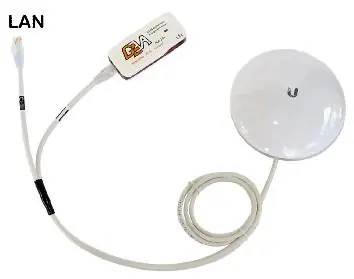
- Connect your CPE to the LAN port on the PowerLink V5 using a short CAT5 cable.
- Connect your wireless device to the www.linktechs.net SSID.
- The device will typically provide an IP address via DHCP from the CPE, or you may need to configure it statically.
- Access the device via a web browser at 192.168.1.69.
Hardware Overview
The device features several physical controls and indicators:
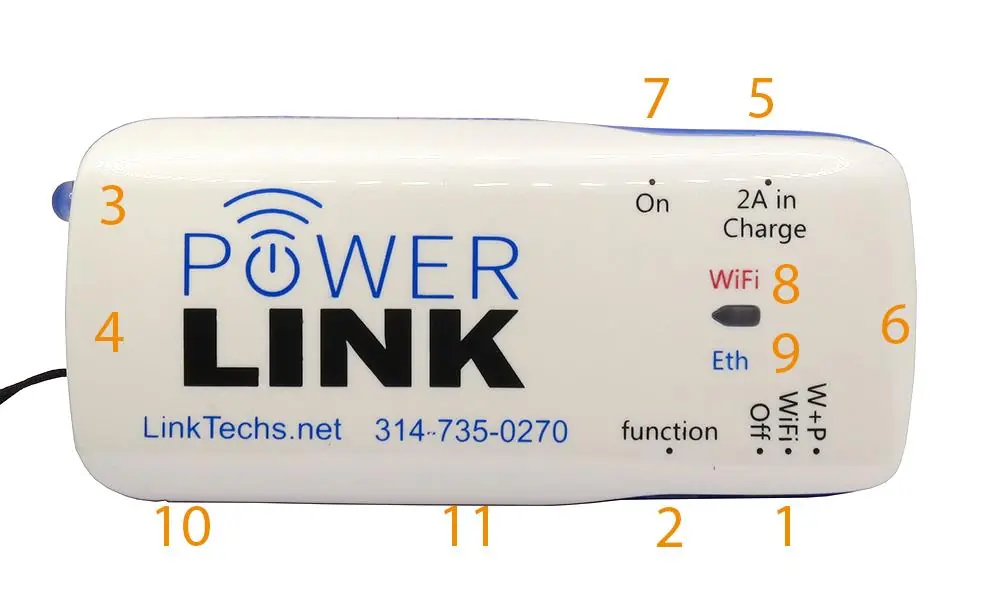
- Power Slider (3 positions): Off (PowerBank mode), WiFi, and WiFi + PoE.
- Function Pushbutton: Used to turn the PowerBank/Test battery on (one click), turn off PowerBank/WiFi (fast double click), or toggle the built-in light (long click).
- Reset Button: Used for firmware updates (pressed during startup) or factory resets (pressed for 30 seconds).
- LED Indicators: Includes Power (Orange), WiFi (Red), Ethernet (Blue), and Battery Level (4 Red LEDs).
Web Interface and Configuration
You can access the device's web interface by navigating to http://192.168.1.69 in your browser. The default credentials are:
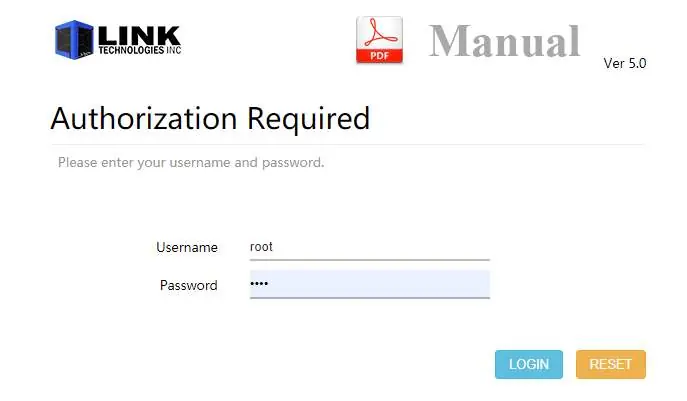
- Username: root
- Password: geva
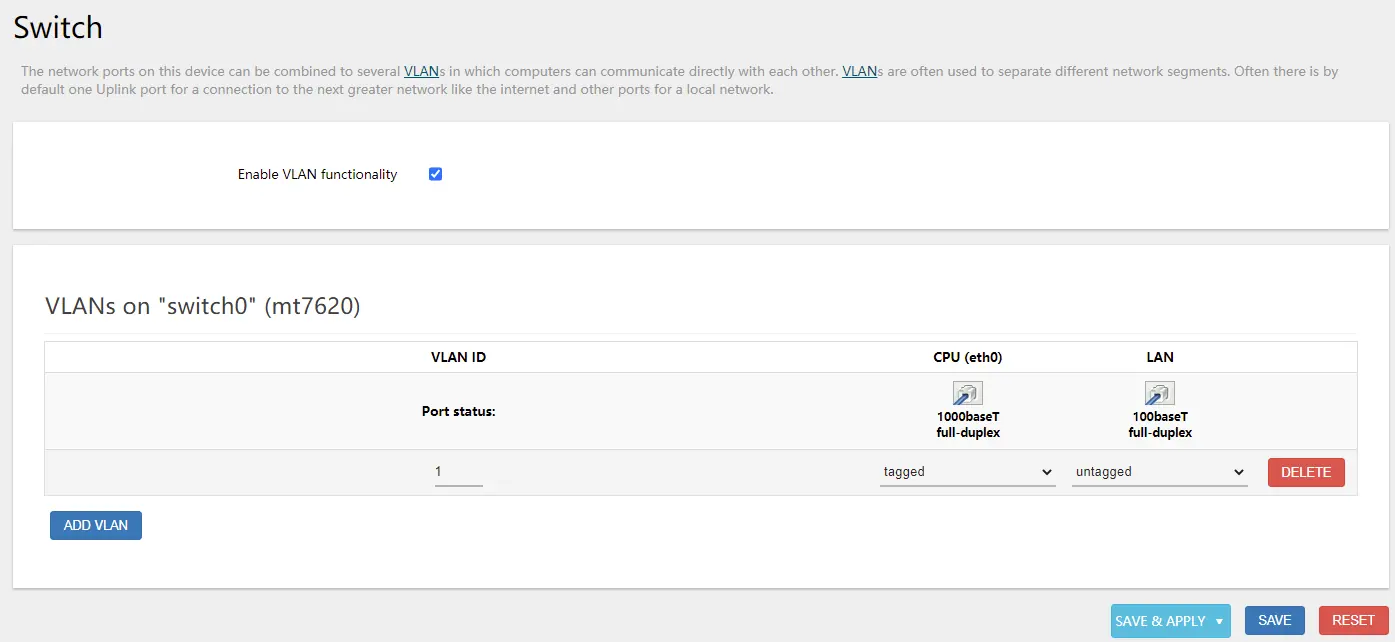
The interface allows you to manage network settings, including interfaces, wireless configuration, VLANs, and firewall rules. The device runs OpenWrt, providing advanced routing and configuration options.
Firmware Upgrades
There are three ways to upgrade the firmware:
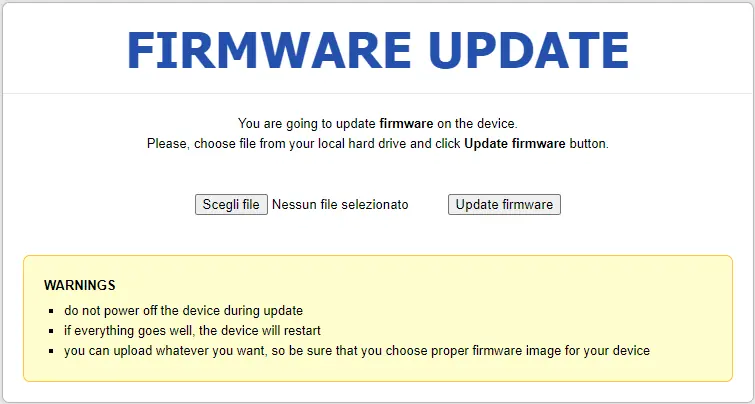
- USB Method: Use a FAT32 formatted USB drive (under 4GB) with the firmware file named "BatteryPoE_at2.bin". Plug it in, power off, press Reset, and power on.
- Reset Button Method: Press the Reset button, power on the device, and access the uBoot firmware page at 192.168.1.69/index.html.
- Web Interface: Navigate to System -> Backup -> Update within the router's web interface.
Troubleshooting
- Ethernet Issues: The Blue Eth LED is fixed when the connection is 100 Full Duplex. If it is flashing, the connection is Half Duplex, which indicates a defective cable or connection.
- Device Unreachable: If configuration changes render the device unreachable, perform a factory reset by holding the Reset button for 30 seconds.
- Samba3: Does not work with Windows 10 by default, but can be enabled manually.
Technical Specifications
- Battery: 7000mA/h capacity for charging external devices.
- Chipset: MT7620 2.4GHz.
- Protection: Short-circuit, Overload, and Temperature protection.
- Compatibility: Supports Passive PoE for Ubiquiti, Mikrotik, and Cambium devices.
- Weight: 140 grams.
- Dimensions: 96 x 44 x 97 mm.
Official resources from the manual
Practical help
Common problems
Device is unreachable after configuration
Perform a factory reset by holding the Reset button for 30 seconds.
Ethernet connection is slow or unstable
Check the Blue Eth LED. If it is flashing, the connection is Half Duplex (defective cable or port).
Samba3 file sharing not working on Windows 10
Samba3 is not enabled by default for Windows 10; you must enable it manually.
Before use
- Charge the device via the USB-C port.
- Set the slider switch to the desired mode (WiFi or WiFi+PoE).
- Connect the CPE to the LAN port using a short CAT5 cable.
- Connect to the 'www.linktechs.net' SSID.
- Ensure the device is not in 'Off' mode if you need WiFi or PoE.
Images and diagrams
- Hardware Overview: Identifies the power slider, function button, and LED indicators.
- Cambium Cable: A specialized cable with reversed power pins required for certain Cambium CPEs.
Model compatibility
- Supports Passive PoE devices including Ubiquiti, Mikrotik, and Cambium.
- Optional 5GHz AC module can be added to the unit.
- Works with various manufacturer apps like EasyUBNT, Tik-App, and Ubntu.

Manual page author
Emily Carter
User documentation editor
Prepares concise manual descriptions and highlights the most useful setup, operation, and maintenance information for readers.