Tools / Measuring Tools
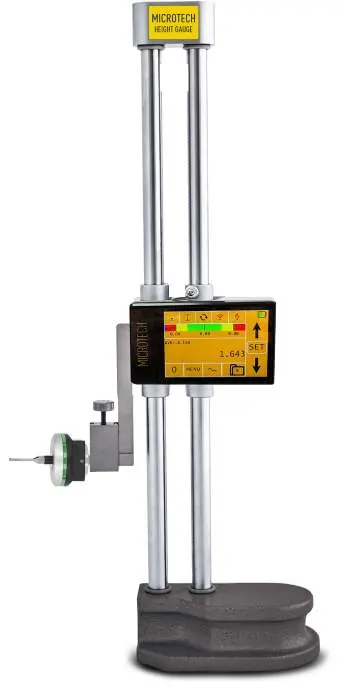
User Manual for Microtech Micron Computerized Multi-Force Caliper
Quick guide for the Microtech Micron Computerized Multi-Force Caliper. Learn how to use force control, data transfer, measurement modes, and device settings.
Table of contents
Manual images
Click an image to enlargeQuick Guide from the Manual
The Microtech Micron Computerized Multi-Force Caliper is a precision measuring instrument featuring an electronic multi-force control module (1-20N), wireless and USB data transfer, and various advanced measurement modes. To switch the device on, push the button for 1 second; to switch off, push for 3 seconds. Always clean measuring surfaces with a cloth before use and ensure the device is charged to prevent internal battery failure.
Technical Data
The device features a 2.0-inch color LED display with a resolution of 320x240. It is powered by a rechargeable Li-Pol battery (400 mAh) and can be charged via micro-USB or a magnetic port. The case is constructed from aluminium.
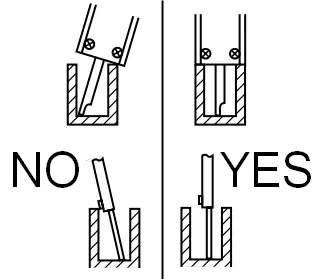
Correct Measuring
Proper measurement technique is critical for accuracy. Ensure the caliper jaws are positioned correctly against the workpiece. Avoid tilting the caliper during measurement. Refer to the visual guides in the manual for correct versus incorrect positioning of the jaws.
Force Control
The electronic multi-force control module allows for consistent measurement force between 1-20N. Force modes include:
- DISABLE: Force mode is off.
- INDICATE: Displays requested force and status on the force bar.
- AUTO: Indicates requested force and saves the length value to memory upon reaching the target force.
- FORCE: Indicates actual force value during pushing.
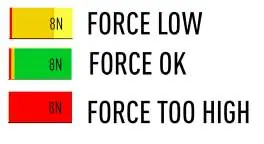
The force bar uses color coding: Green (Force OK), Yellow (Lower Force), and Red (Over Force).
Main Screen and Navigation
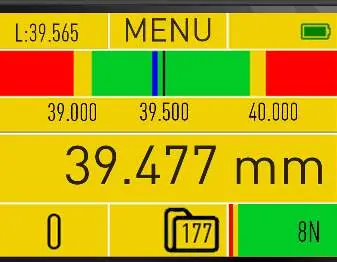
The main screen displays the last measured value, connection status (Wireless/USB), analog scale, and memory status. You can activate Standard or Folder memory systems via the Memory menu. Data can be saved by touching the data area on the screen or pressing the button.
Functions
The device includes several advanced functions accessible via the menu:
- LIMITS mode (GO/NOGO): Set upper and lower limits for pass/fail inspection.
- PEAK mode (MAX/MIN/MODULE/RANGE): Track maximum and minimum values.
- TIMER mode: Set a timer period for data saving or sending.
- FORMULA mode: Select math, radius, or other formulas.
- RESOLUTION selection: Adjust resolution and toggle between mm/inch.
- LINEAR error compensation: Recalculate detail size to calibration conditions (20°C).
- TEMP compensation: Adjust for material types (Glass, Quartz, Stainless steel, Cuprum, Aluminium).
Data Transfer
The caliper supports wireless data transfer to the MDS App (Android, iOS, Windows) and HID mode for direct transfer to any application as a keyboard input. USB OTG data transfer is also available by connecting a USB cable to a PC.
Settings and Maintenance
Access the Extra menu to reset the device to factory settings (push 10 times) or perform firmware updates. You can also manage calibration dates and view device info, including firmware version and MAC address for wireless connections.
Practical help
Common problems
Internal battery failure
Do not leave the caliper uncharged for a long period.
Inaccurate measurements
Clean the oil from the measuring surfaces of the caliper using a cloth.
Force control issues
Ensure the force is applied within the 1-20N range and monitor the force bar color indicators.
Before use
- Charge the device using the micro-USB or magnetic port.
- Clean measuring surfaces with a cloth.
- Check the calibration date in the device info menu.
- Select the appropriate measurement mode (e.g., 2D, Force, Limits).
- Verify the material type setting if using temperature compensation.
Specs in practice
- Case Material
- Aluminium.
Images and diagrams
- Force bar: Green indicates force is OK, Yellow indicates force is too low, Red indicates force is too high.
- Connection icons: Indicate status of Wireless and USB HID connections.
Model compatibility
- Wireless data transfer compatible with Android, iOS, and Windows.
- USB HID mode compatible with Windows, MacOS, Linux, and Android.

Manual page author
David Miller
Documentation analyst
Organizes user manual content into clear summaries, with attention to model details, product context, and everyday usability.