Electronics / USB Hubs & Docking
Sabrent USB 3.0 10-Port Hub
A comprehensive guide for the Sabrent USB 3.0 10-Port Hub. Learn how to set up the device, connect power and data cables, manage individual port power switches, and troubleshoot common connection issues.
Table of contents
Manual images
Click an image to enlargeQuick Start Guide
Follow these steps to set up your Sabrent USB 3.0 10-Port Hub:
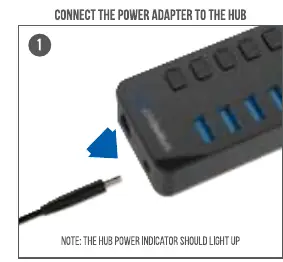
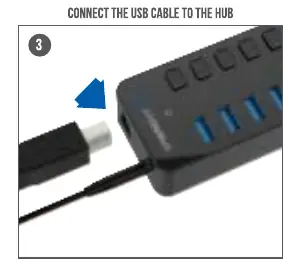
- Connect Power: Plug the included 12V3A power adapter into the hub's power port, then connect the adapter to a wall outlet. The hub power indicator should light up.
- Connect to Computer: Connect the provided USB 3.0 cable to the hub's USB 3.0 port (labeled for computer connection) and the other end to an available USB port on your computer.
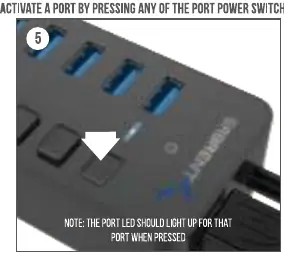
- Activate Ports: Press the individual power switch for the specific port you wish to use. The port LED will light up to indicate it is active.
- Connect Devices: Plug your USB devices into the activated USB 3.0 ports.
Product Overview
The Sabrent USB 3.0 10-Port Hub features a sleek design with individual power control for each port.
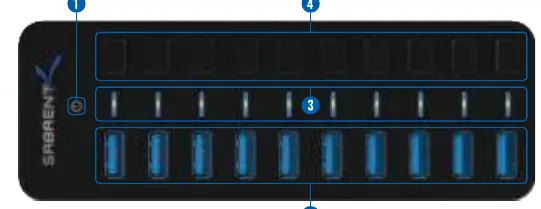
- Hub Power Indicator: Shows that the hub is receiving power.
- USB 3.0 Ports: 10 high-speed ports for data transfer and device charging.
- Port Power Switches: Individual buttons to toggle power for each specific port.
- Port Power Indicators: Blue LEDs that illuminate when a specific port is active.
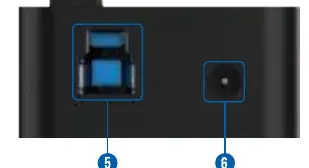
- Rear Ports: Includes the main USB 3.0 port for computer connection and the power input port.
Operation
The hub is Plug & Play, meaning no driver installation is required for Windows, Mac OS, or Linux systems. To use a device, ensure the hub is powered on, then press the power switch corresponding to the port you intend to use. The blue LED will confirm the port is active and ready for data transfer or charging.
Troubleshooting
If you encounter issues with your hub, please check the following:
- Power LED does not come on: Ensure there is a tight connection between the power adapter and the hub. Try plugging the adapter into a different wall outlet.
- Computer does not recognize the hub: Ensure the USB 3.0 cable is securely connected to both the hub and the computer. Try connecting the cable to a different USB port on your computer.
For additional support, please visit the official website at WWW.SABRENT.COM.
Official resources from the manual
Manufacturer information
Sabrent
Practical help
Common problems
Power LED does not come on
Ensure a tight connection between the power adapter and the hub, and try a different power outlet.
Computer does not recognize the hub
Ensure a tight connection between the hub and the USB cable, and try a different USB port on your computer.
Before use
- Verify you have the 12V3A power adapter.
- Ensure you have the USB 3.0 cable.
- Locate an available wall power outlet.
- Identify an available USB 3.0 port on your computer.
Specs in practice
- 12V3A Power Adapter
- Required external power source to ensure stable operation for all 10 ports.
Images and diagrams
- The top panel contains 10 USB ports, 10 power switches, and 10 port power indicators.
- The rear panel contains the main USB 3.0 port for computer connection and the DC power input port.
Model compatibility
- Compatible with Windows, Mac OS, and Linux.
- Backward compatible with USB 2.0 and 1.1 devices.

Manual page author
David Miller
Documentation analyst
Organizes user manual content into clear summaries, with attention to model details, product context, and everyday usability.