Power / Portable Power Stations
User Manual for Photonic Universe WiFi 2.4G RJ45 D Adapter
Comprehensive user guide for the Photonic Universe WiFi 2.4G RJ45 D adapter. Includes installation steps, configuration for cloud and local monitoring, technical specifications, and compatibility warnings.
Quick answers from the manual
Quick answer
- The Photonic Universe WiFi 2.4G RJ45 D adapter connects solar controllers and inverters to the cloud for remote monitoring via a 2.4G WiFi network, or allows for offline data synchronization via a direct connection. p. 1, 2
Key actions
- Connect the adapter to the RJ45 port of the solar controller or inverter. p. 1, 2
- Configure the adapter using the mobile app by entering the 22-digit Gateway SN. p. 2
First start
- Ensure the phone is connected to a 2.4G WiFi network, then follow the app instructions to add the gateway and configure WiFi settings. p. 2
Problems and fixes
Signal interference
Do not install in metal cabinets as it reduces signal strength.
p. 2Technical specifications
| Parameter | Value | Meaning | Pages |
|---|---|---|---|
| Working voltage | 5V ± 0.5V | Powered by RS485 com. port | p. 1 |
| Power consumption | Peak: 150mA; Idle: 310uA | Power usage | p. 1 |
| Work frequency | 2.4 ~ 2.4835 GHz | Wireless frequency | p. 1 |
Where to find it in the PDF
- Overview and Specifications p. 1
- Configuration Scenarios p. 2
Table of contents
Manual images
Click an image to enlargeQuick guide from the manual
The Photonic Universe WiFi 2.4G RJ45 D adapter allows you to transmit operational data from your solar controller, inverter, or inverter/charger to a cloud server for remote monitoring. It supports both local and cloud-based monitoring modes.
Appearance and Connection
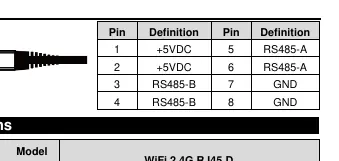
The device features an RJ45 connector that plugs directly into the communication port of your compatible device. It is powered directly through this port. Note: If installing the adapter inside a metal cabinet, signal strength and communication distance may be significantly reduced.
Working Processes
The adapter supports two primary scenarios for data management:
Scenario 1: With Local 2.4G WiFi Network
Use this mode to upload data to the cloud automatically:
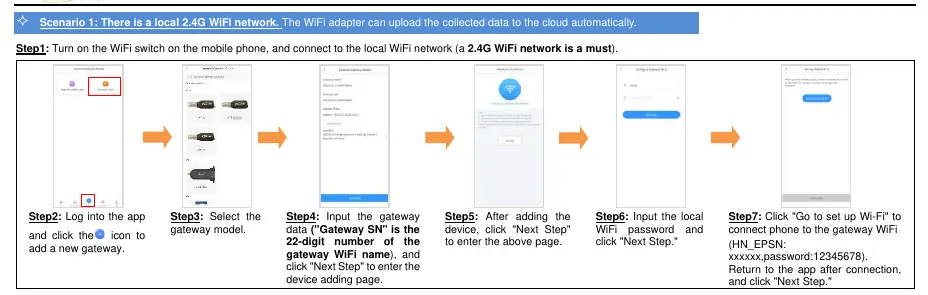
- Connect the adapter to the RJ45 port of your device.
- Ensure your mobile phone is connected to a 2.4G WiFi network.
- Open the app and add a new gateway.
- Input the gateway data (Gateway SN is the 22-digit number found on the gateway WiFi name).
- Follow the app prompts to input your local WiFi password.
- Click 'Go to set up Wi-Fi' to connect your phone to the gateway WiFi (HN_EPSN: xxxxxx, password: 12345678).
- Return to the app to complete the setup.
Scenario 2: Without Local 2.4G WiFi Network
Use this mode to download data manually:
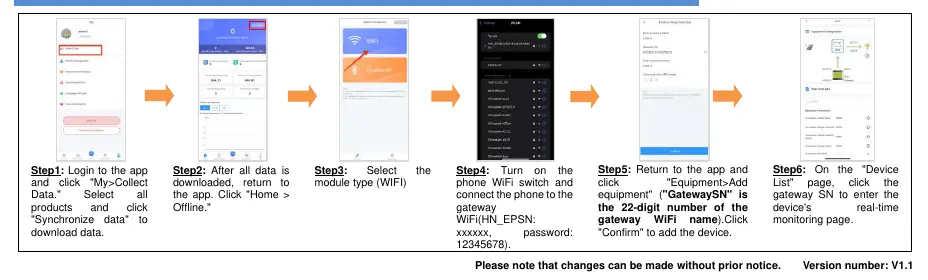
- Login to the app and navigate to 'My > Collect Data'.
- Select all products and click 'Synchronize data'.
- After downloading, return to the app and select 'Home > Offline'.
- Select the module type (WIFI).
- Connect your phone to the gateway WiFi (HN_EPSN: xxxxxx, password: 12345678).
- Return to the app, select 'Equipment > Add equipment', and enter the Gateway SN to view real-time monitoring.
Important Warnings
- Compatibility: This adapter is not compatible with PU1024B/PU2024B, PU1024BW/PU2024BW, and LS-B series controllers.
- Environment: Do not install in humid, salt spray, corrosive, greasy, flammable, explosive, or dusty environments.
- Power: The adapter requires 4.5V~5.5V and is only suitable for devices meeting this requirement.
Practical help
Common problems
Signal strength is weak or connection drops.
Avoid installing the adapter inside a metal cabinet, as the material and size will reduce signal strength and distance.
Device not connecting to the network.
Ensure you are using a 2.4G WiFi network. The adapter does not support 5G WiFi networks.
Adapter not recognized by the controller.
Verify that your controller is not one of the incompatible models (PU1024B/PU2024B, PU1024BW/PU2024BW, or LS-B series).
Before use
- Verify your controller model is compatible with the adapter.
- Ensure you have a 2.4G WiFi network available for cloud configuration.
- Download the required mobile app.
- Locate the 22-digit Gateway SN on the adapter label.
- Check that the installation environment is free from dust, moisture, and corrosive elements.
Specs in practice
- Working voltage
- 5V ± 0.5V (Powered by RS485 communication port).
- Communication method
- RS485.
- Work frequency
- 2.4 ~ 2.4835 GHz.
Images and diagrams
- The RJ45 pinout diagram shows pins 1-8, with pins 1-2 providing +5VDC, and pins 3-8 handling RS485 communication and ground.
- The workflow diagrams illustrate the step-by-step app configuration for both online (cloud) and offline (direct) modes.
Model compatibility
- Compatible with controllers, inverters, or inverter-chargers with an RJ45 port.
- Incompatible with PU1024B/PU2024B, PU1024BW/PU2024BW, and LS-B series controllers.

Manual page author
Michael Turner
Technical manual editor
Reviews PDF manuals for structure, safety notes, and practical product details so readers can find the right information quickly.