Computers / Storage
Installation Guide and Warranty for Samsung Portable SSD
Quick guide for your Samsung Portable SSD. Learn how to connect your drive, understand system requirements, and review warranty terms and safety information.
Quick answers from the manual
Quick answer
- This manual provides instructions for connecting your Samsung Portable SSD via USB-C or USB-A, outlines system requirements, and details warranty policies and safety precautions. p. 3, 4
Key actions
- Connect the SSD to your device using the provided USB-C or USB-A cable. p. 3
First start
- Ensure your system meets the minimum requirements (Windows 7+, Mac OS X 10.10+, Android 5.1+) and supports UASP. p. 4
Problems and fixes
Lost password
Factory reset at a service center is required, which will erase all data.
p. 4Maintenance and reset
- If the password is lost, a factory reset at a service center is the only solution. p. 4
Technical specifications
| Parameter | Value | Meaning | Pages |
|---|---|---|---|
| Power Requirement | 5Vdc, 1.5A | Required power for the USB 3.2 port. | p. 4 |
Where to find it in the PDF
- Connection Instructions p. 3
- Usage and Safety p. 4
- Warranty Statement p. 4, 5, 6
Table of contents
Quick guide from the manual
This document provides essential instructions for connecting and maintaining your Samsung Portable SSD. It covers connection methods, system requirements, and important warranty information.
How to connect
The device can be connected to a USB 3.2 port (5Vdc, 1.5A). Use the provided cable to connect the SSD to your computer or device. Two connection types are supported:
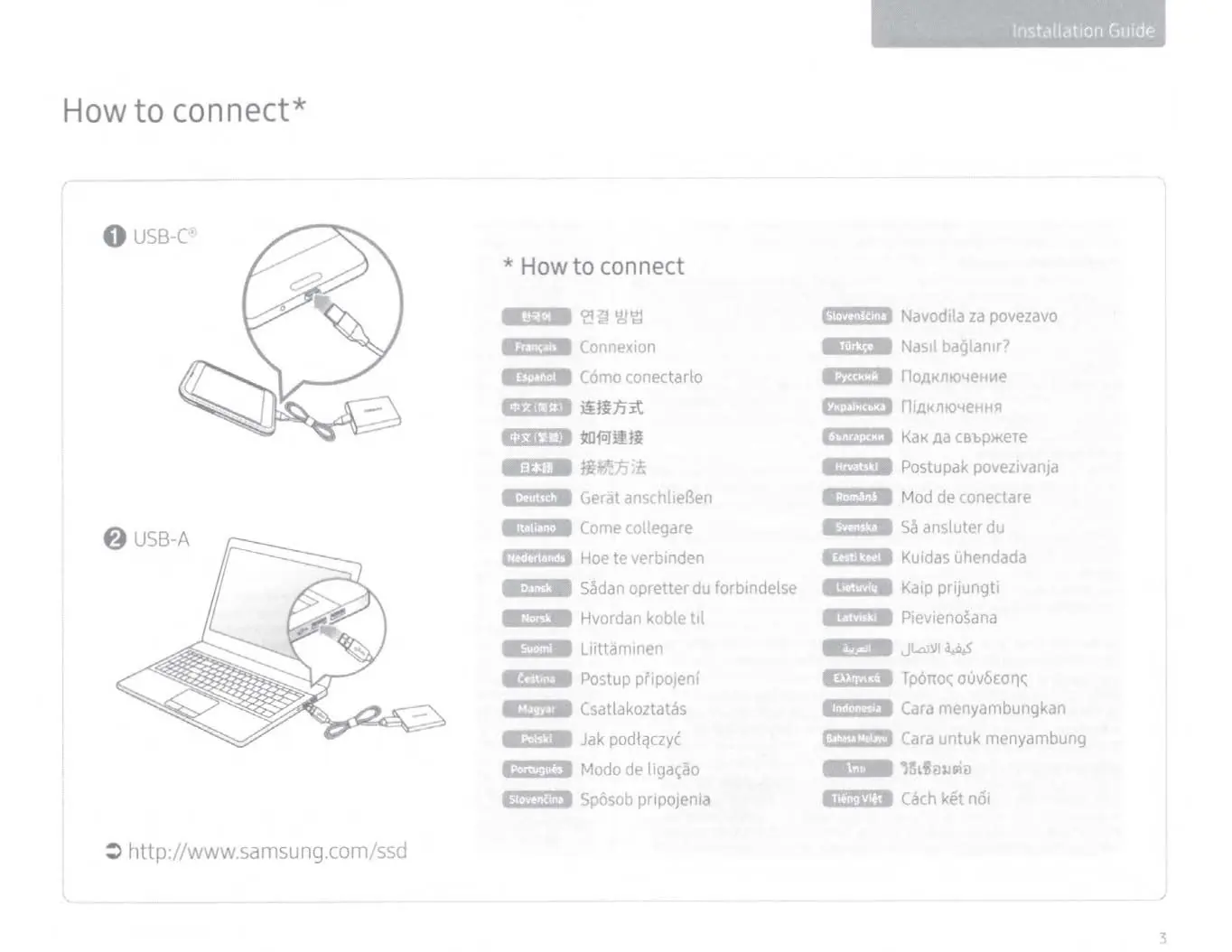
- USB-C: Direct connection for compatible USB-C ports.
- USB-A: Connection using a USB-A adapter or cable for standard USB-A ports.
For optimal performance, ensure your host system supports UASP (USB Attached SCSI Protocol).
Using your Portable SSD
System Requirements: The drive is compatible with Windows (7 or later), Mac (OS X 10.10 or later), and Android (Lollipop Ver. 5.1 or later). Some operating systems may require you to reformat the drive.
Safety and Handling:
- Impact/Shock: Avoid dropping the device. Drops from heights exceeding 2 meters (for T5 EVO/T7/T7 Touch) or 3 meters (for T7 Shield/T9) may cause permanent data loss or malfunction.
- Temperature: Prolonged usage may increase device temperature. If it feels hot, do not hold it for a long time.
- Water: Liquid damage is not covered under warranty. If the device gets wet, ensure it is completely dried before connection.
- Disassembly: Do not disassemble or tamper with the product, as this voids the warranty.
- Password Loss: If the password is lost or forgotten, the only solution is a factory reset at a service center, which will result in the permanent erasure of all data.
Warranty Information
Samsung warrants the product against defects in material and workmanship. The warranty period depends on the specific model and the TBW (Total Bytes Written) threshold. Always back up your data, as Samsung is not responsible for data loss. The warranty does not cover damage caused by misuse, unauthorized repairs, or external conditions like power surges.
Regulatory Compliance
The device complies with various international standards, including FCC (USA), ICES-003 (Canada), and KC (Korea). Please dispose of the product according to local WEEE (Waste Electrical and Electronic Equipment) regulations.
Manufacturer information
Samsung Electronics
Practical help
Common problems
Device feels hot to the touch
Prolonged usage may increase device temperature. Do not hold the device for a long time.
Password lost or forgotten
The only solution is to have a factory reset at a service center, which will result in permanent erasure of all data.
Poor performance
Ensure your system supports UASP (USB Attached SCSI Protocol). Using incompatible USB ports or file format settings may result in poor performance.
Before use
- Verify your system meets minimum requirements (Windows 7+, Mac OS X 10.10+, Android 5.1+).
- Ensure your computer supports UASP for optimal transfer speeds.
- Back up all important data before using the drive.
- Do not disassemble the casing or tamper with the product labels.
- Keep the device dry and avoid exposure to excessive heat or moisture.
Specs in practice
- TBW (Total Bytes Written)
- A threshold of data written to the drive that, when exceeded, may end the warranty period.
- USB 3.2 Port
- The required interface for the drive, providing 5Vdc and 1.5A power.
Images and diagrams
- The connection diagram illustrates two primary methods: connecting via USB-C for modern ports and using a USB-A adapter for legacy ports.
Model compatibility
- Performance may vary depending on the user's system.
- The device may require reformatting depending on the operating system.

Manual page author
Emily Carter
User documentation editor
Prepares concise manual descriptions and highlights the most useful setup, operation, and maintenance information for readers.