Industrial / Access Control
Installation Guide for Security Brands Remote Pro KP 12-000SGL
Quick installation and programming guide for the Security Brands Remote Pro KP 12-000SGL access control keypad. Includes wiring diagrams, setup steps, and configuration instructions.
Table of contents
Manual images
Click an image to enlargeQuick guide from the manual
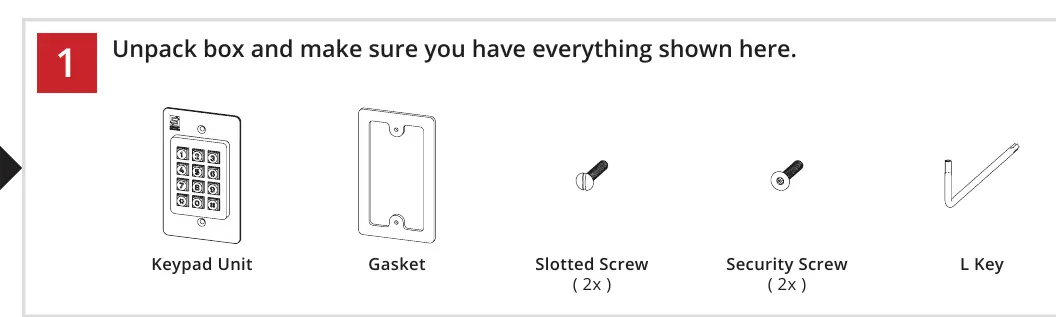
The Remote Pro KP 12-000SGL is a Wiegand output keypad designed for access control. Before starting, ensure you have the keypad unit, gasket, two slotted screws, two security screws, and the L key. Warning: Automatic gates can cause serious injury or death. Always ensure the gate path is clear before operating and use safety devices.
Installation
Prepare a single-gang junction box for mounting. The keypad unit is secured to the junction box using the included screws. The gasket is optional if the unit is mounted indoors.
Wiring
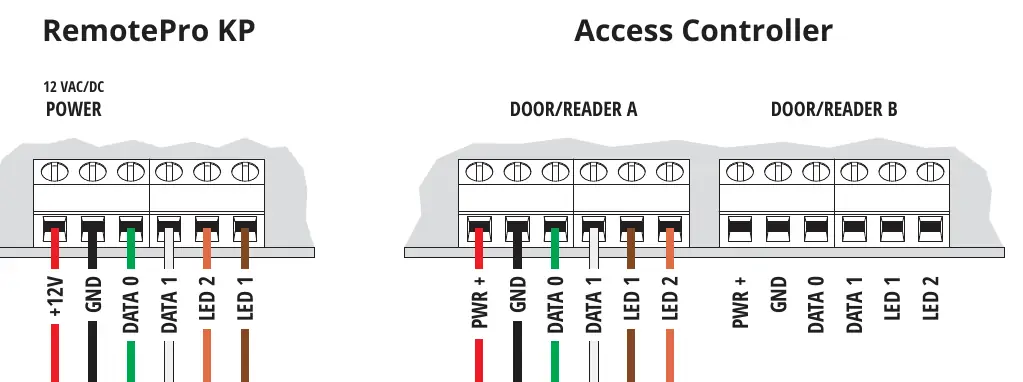
Connect the keypad to your access controller using the Wiegand terminals. The wiring requires connections for 12V power, Ground, Data 0, Data 1, LED 1, and LED 2. Ensure all connections are secure before testing.
Programming
Programming is performed using the keypad. The default Master Code is 1251. To change the Master Code: Enter 1 2 5 1 2 [New 4-digit Code] #. To set the Facility Code: Enter 1 2 5 1 1 [3-digit Code] #. To set the access code length: Enter 1 2 5 1 3 [4 or 5] #. A green arrow indicates a good tone on the keypad.
Advanced Programming
Additional settings can be configured using the Master Code:
- Toggle LED 2: Enter 1 2 5 1 4 [1 for ON, 2 for OFF] #.
- Toggle Backlit LEDs: Enter 1 2 5 1 5 [1 for ON, 2 for OFF] #.
- Set Programming Timeout: Enter 1 2 5 1 6 [03-99 seconds] #.
- Set Acknowledgment Timeout: Enter 1 2 5 1 7 [01-99 seconds] #.
Unit Reset Procedure
If you need to reset the unit to factory default settings:
- Unscrew mounting screws with the L Key and remove the keypad unit from the junction box.
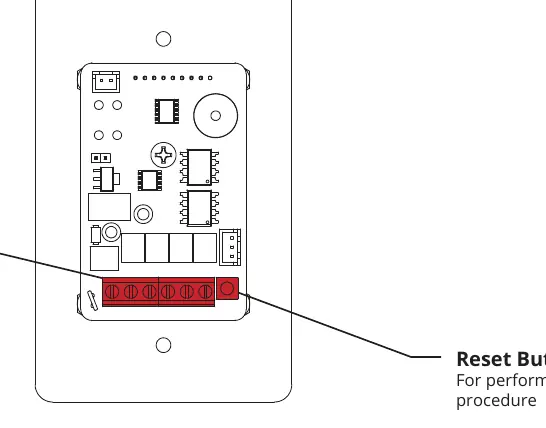
- Press and hold the Reset Button for about 10 seconds.
- The unit will sound one tone. Release the Reset Button after you hear the tone.
- Reinstall the keypad unit in the junction box and fasten the mounting screws.
Things to Know
- Star Key (*): Deletes your current entry if you make a mistake.
- Pound Key (#): Used to exit Programming Mode.
- Tones: Always wait for a good tone before moving to the next step. An incorrect entry will sound a bad tone.
Support
If you need assistance, you can contact support at (972) 474-6422 or email [email protected]. Support is available Monday through Friday, 8am to 5pm Central.
Manufacturer information
Security Brands, Inc.
Practical help
Common problems
Incorrect entry
The unit will sound a 'bad' tone. Press the star key (*) to delete the entry and start over.
No response from access controller
If the unit waits for a response and receives none, it will sound an 'error' tone and the status LED will flash.
Forgot Master Code
Perform the Unit Reset Procedure to restore factory default settings (Default Master Code is 1251).
Before use
- Ensure the gate path is clear.
- Verify 12 VAC/DC power supply is available.
- Install a single-gang junction box.
- Ensure the Wiegand device is ready for wiring.
- Have the L Key ready for installation and reset procedures.
Specs in practice
- Facility Code
- 3-digit code (000-255) that must match the access controller being used.
- Programming Timeout
- Time in seconds (03-99) the unit waits for input before exiting Programming Mode.
- Acknowledgment Timeout
- Time in seconds (01-99) the unit waits for a response from the access controller.
Images and diagrams
- The wiring diagram shows the terminal connections between the RemotePro KP and the Access Controller (12V, GND, Data 0, Data 1, LED 1, LED 2).
- The Reset Button is located on the back of the keypad unit.
Model compatibility
- Designed for Wiegand output devices.
- Requires 12 VAC/DC power.

Manual page author
Michael Turner
Technical manual editor
Reviews PDF manuals for structure, safety notes, and practical product details so readers can find the right information quickly.