Software / Apps Services
User Manual for Segway Ninebot eKickScooter E2 Pro
Comprehensive user guide for the Segway Ninebot eKickScooter E2 Pro. Includes setup instructions, dashboard controls, maintenance schedules, and troubleshooting steps for common error codes.
Table of contents
Manual images
Jump to the sectionQuick guide from the manual
Before using your Segway Ninebot eKickScooter E2 Pro, you must install the Segway Mobility App, activate your KickScooter, and obtain the latest firmware updates and safety instructions. The manufacturer reserves the right to make changes to the product and manual at any time.
Device Overview
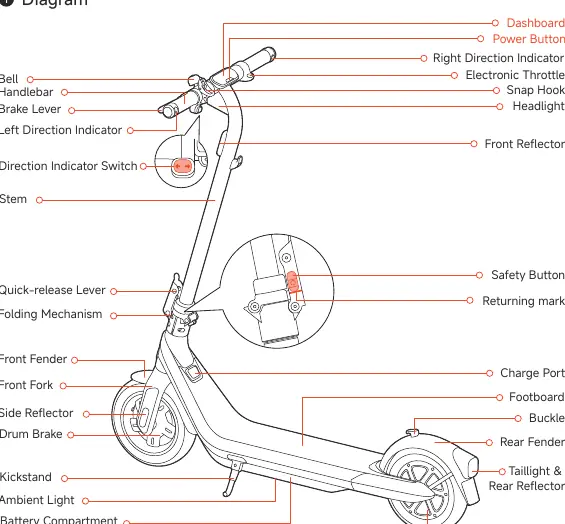
The scooter consists of several key components, including the handlebar, electronic throttle, brake lever, dashboard, folding mechanism, front and rear fenders, and the battery compartment. The charging port is located on the side of the footboard.
Dashboard and Controls
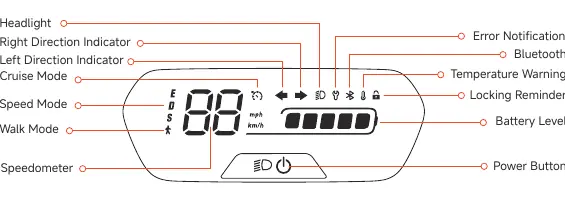
The dashboard displays speed, battery level, and status icons. The power button is used to turn the scooter on (press) and off (press and hold for 2 seconds). When the scooter is on, press the power button to toggle the headlight and taillight, press twice to switch between four speed modes (ECO, Standard, Sport, Walk), and press three times to toggle the ambient light.
Specifications
Key technical specifications include:
- Max Speed: Approx. 18.6 mph (30 km/h)
- Range: Approx. 15.5 miles (25 km)
- Max Payload: 265 lbs (120 kg)
- Charging Time: Approx. 5.5 hours
- IP Rating: IPX4 (protected against splashing water)
- Tire Pressure: 45±3 psi
Maintenance Schedule
Regular maintenance is essential for safe riding. Owners are responsible for performing regular checks.
- Mainframe: Clean with a soft, wet cloth.
- Tires: Inflate to 50–55 psi.
- Screws: Regularly tighten screws on the handlebar, stem, throttle, and brake levers.
- Brakes: Ensure the rear wheel spins freely and stops when the brake lever is squeezed.
- Battery: Charge at least once every 60 days for long-term storage. Replace after 500 charge/discharge cycles or 15,000 km.
Troubleshooting
If the scooter detects an error, an error code will appear on the dashboard. Check the Segway Mobility App for specific error details. Common issues include communication errors (check cables), sensor errors (check throttle/brake handles), and controller over-voltage or over-current issues (check for overload or charger usage).
Manufacturer information
Segway
Practical help
Common problems
Error Code 10
Dashboard communication is abnormal. Check the dashboard or related cables.
Error Code 14
Throttle hall sensor error. Check the throttle handle, dashboard, and related cables.
Error Code 15
Brake hall sensor error. Check the brake handle, dashboard, and related cables.
Error Code 51
Controller over voltage. Check if the correct vehicle charger is used or restart the vehicle.
Error Code 52
Motor is stalled. Check whether the scooter is overloaded.
Before use
- Install the Segway Mobility App.
- Activate the KickScooter via the app.
- Check for the latest firmware updates.
- Verify tire pressure is 45-55 psi.
- Ensure the battery is charged.
- Check that all screws on the handlebar and stem are tightened.
Specs in practice
- Charging Time
- Approximately 5.5 hours for a full charge.
Images and diagrams
- Handlebar: Contains the throttle, brake lever, and bell.
- Folding Mechanism: Located on the stem for easy storage.
- Dashboard: Displays speed, battery, and status icons.
- Charge Port: Located on the side of the footboard.
- Drum Brake: Located on the rear wheel.
Model compatibility
- The Segway Mobility App is required for activation and firmware updates.
- The app supports KickScooters with built-in Bluetooth.
- Use only original Segway-Ninebot parts for repairs and replacements.

Manual page author
David Miller
Documentation analyst
Organizes user manual content into clear summaries, with attention to model details, product context, and everyday usability.