Electronics / USB Hubs & Docking
User Manual for StarTech DKT31CHDVCM USB-C Mini Docking Station
Quick-start guide for the StarTech DKT31CHDVCM USB-C Mini Docking Station. Learn how to connect your laptop, set up displays, and understand port functionality and resolution limits.
Table of contents
Quick Start Guide
To begin using your StarTech DKT31CHDVCM Docking Station, follow these steps:
- Unravel the cable: Hold the USB-C Connector and gently pull the wrap-around cable outward from the docking station housing.
- Connect to host: Plug the USB-C Connector into a USB-C or Thunderbolt 3 port on your laptop.
- Connect peripherals: Connect your displays, network cables, or USB devices to the appropriate ports on the dock.
Product Overview
The docking station features a circular design with a wrap-around cable and the following ports:
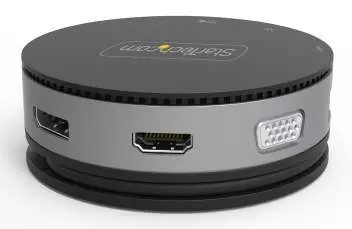
- RJ45 Port: For network device connection.
- DisplayPort, HDMI, and VGA Ports: For connecting display devices. Note: The host laptop must be enabled with DP ALT Mode.
- USB-A Ports (x2): For USB peripherals. Supports fast-charging (5V at 1.5A, 7.5W).
- USB-C Port: For USB peripherals or PD Pass Through (5V at 1.5A, 7.5W).
Requirements
Ensure your setup meets the following criteria:
- Host: A laptop with a USB-C or Thunderbolt 3 port that has DP ALT Mode enabled.
- Display: A VGA, HDMI, or DisplayPort compatible monitor.
- Cables: Depending on your configuration, you will need a VGA, HDMI, DisplayPort, or CAT5e/6 cable.
Connecting Displays
If you connect more than one display, the first display connected will be the active one until disconnected. The priority order for monitors is: DisplayPort > HDMI > VGA.
Technical Specifications
The docking station supports various resolutions depending on the connection:
- Full HD (1920x1080, 1920x1200): 60 Hz
- 2K (2560x1440, 2560x1600): 60 Hz
- UHD (3840x2160): 30 Hz (60 Hz only if host port supports DP 1.4)
- 4K (4096x2160): 24 Hz
Dimensions: The unit has a diameter of 90 mm and a height of 32.5 mm.
Practical help
Common problems
Display not working
Ensure your host laptop supports DP ALT Mode. The docking station will not output video without this feature enabled.
Multiple displays connected
The docking station prioritizes displays in this order: DisplayPort, then HDMI, then VGA. The first one connected is the active one.
Before use
- Verify your laptop has a USB-C or Thunderbolt 3 port.
- Confirm the laptop supports DP ALT Mode.
- Ensure you have the required cables (VGA, HDMI, or DisplayPort) as they are sold separately.
- Unravel the wrap-around cable gently from the housing.
Specs in practice
- USB-A/USB-C Charging
- Supports up to 5V at 1.5A (7.5W) for connected devices.
- UHD Resolution
- Supports 3840x2160 at 30Hz, or 60Hz if the host port supports DP 1.4.
Images and diagrams
- The device features a wrap-around cable integrated into the housing for portability.
- Ports are distributed around the circular edge of the device for easy access.
Model compatibility
- Requires DP ALT Mode on the host laptop.
- Cables for displays and network are not included.

Manual page author
Michael Turner
Technical manual editor
Reviews PDF manuals for structure, safety notes, and practical product details so readers can find the right information quickly.