Lighting / Controllers & Dimmers
SuperLightingLED L1(WZ) 0/1-10V ZigBee + RF + Push Dimmer User Guide
Comprehensive user guide for the SuperLightingLED L1(WZ) 0/1-10V ZigBee + RF + Push Dimmer. Includes installation instructions, wiring diagrams, Tuya APP setup, RF remote matching, and technical specifications.
Table of contents
Manual images
Click an image to enlargeQuick Guide
The L1(WZ) is a 1-channel 0/1-10V dimmer that supports ZigBee, RF, and Push-Dim control. It is designed for wall junction box mounting. To use remote or voice control, a Tuya ZigBee gateway is required. Ensure your LED driver is compatible with 0/1-10V dimming signals before installation.
Installation and Wiring
The device is designed to be installed in a standard wall junction box. Ensure the power is disconnected before starting installation.
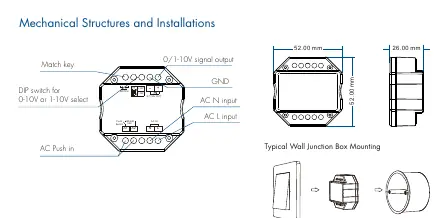
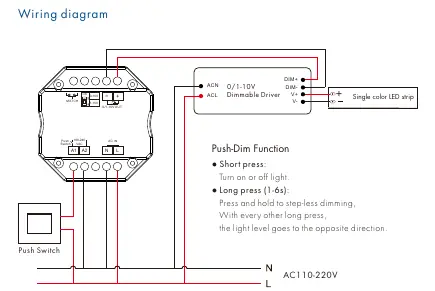
- AC Input: Connect AC L and AC N to the 100-240V power supply.
- Push Switch: Connect an external push switch to the A1 and A2 terminals to enable local on/off and dimming control.
- Output: Connect the 0/1-10V dimmable LED driver to the 0/1-10V OUT terminals (+ and -).
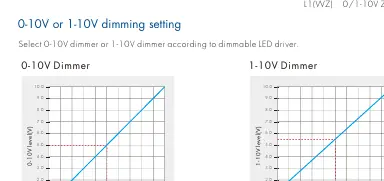
- DIP Switch: Use the DIP switch on the device to select between 0-10V or 1-10V output mode, depending on your LED driver requirements.
Important Wiring Limits: Do not connect more than 5 LED drivers to a single dimmer. The maximum wire length between the dimmer and the LED driver should not exceed 15 meters.
Operation
Push-Dim Function
- Short press: Turn the light on or off.
- Long press (1-6s): Perform step-less dimming. With every other long press, the dimming direction reverses.
Tuya APP Connection
- Press and hold the Match/Set key for 2 seconds to reset the ZigBee network.
- To enter configuration mode, press and hold the Match/Set key for 5 seconds, or push the Match/Set key twice quickly. The blue LED indicator will flash rapidly.
- Follow the Tuya APP instructions to complete the connection.
Matching RF Remotes
You can match the dimmer with RF remotes using two methods:
- Match Key: Short press the match key on the L1(WZ), then immediately press the on/off key (single zone) or zone key (multiple zone) on the remote.
- Power Restart: Switch off the power to the L1(WZ), switch it back on, and immediately short press the on/off key (single zone) or zone key (multiple zone) 3 times on the remote. The light will blink 3 times to confirm success.
Technical Parameters
- Input Voltage: AC 100-240V
- Output Signal: 0/1-10V (20mA)
- RF Control Distance: 30m (barrier-free)
- Dimming Range: 0-100% (256 levels)
- Operating Temperature: Ta: -30°C to +55°C
- Case Temperature (Max): Tc: +65°C
- IP Rating: IP20
Practical help
Common problems
Light does not respond to RF remote
Ensure the remote is matched correctly using the Match key or Power Restart method. Check if the remote is within the 30m range.
Tuya APP cannot find the device
Reset the ZigBee network by holding the Match/Set key for 2s, or enter config mode by holding for 5s/pushing twice. Ensure the Tuya ZigBee gateway is online.
Dimming is not smooth or range is incorrect
Verify that the DIP switch is set to the correct mode (0-10V or 1-10V) matching your LED driver specifications.
Before use
- Ensure input voltage is AC 100-240V.
- Verify the LED driver is 0/1-10V dimmable.
- Ensure the number of connected LED drivers does not exceed 5 pieces.
- Keep wire length from dimmer to LED driver under 15 meters.
- Ensure a Tuya ZigBee gateway is available for remote/voice control features.
Specs in practice
- 0/1-10V Output
- The control signal sent to the LED driver to adjust brightness.
- RF Control distance
- Maximum range of 30m in an open, obstacle-free environment.
- Dimming levels
- 256 levels provide smooth, flicker-free dimming from 0 to 100%.
Images and diagrams
- The wiring diagram illustrates the connection between AC power, the Push Switch, and the 0/1-10V Dimmable Driver.
- The mechanical structure diagram highlights the location of the Match key and the DIP switch for 0-10V/1-10V selection.
Model compatibility
- Requires Tuya ZigBee gateway for remote and voice control.
- Compatible with RF 2.4G single zone or multiple zone dimming remotes.
- Supports Amazon Echo and TmallGenie for voice control.

Manual page author
Emily Carter
User documentation editor
Prepares concise manual descriptions and highlights the most useful setup, operation, and maintenance information for readers.