Electronics / Speakers & Soundbars
User Manual for T-nB 2.4GHz/Bluetooth Mouse MWCOLOR
Quick guide for the T-nB 2.4GHz/Bluetooth Mouse (MWCOLOR). Learn how to pair the device via Bluetooth, charge the battery, and follow essential safety guidelines for proper operation.
Quick answers from the manual
Quick answer
- To pair the mouse via Bluetooth, turn it on and press the 'connect' button for 5 seconds. To charge, connect the mouse to a USB port. p. 1, 2
Key actions
- Pairing via Bluetooth p. 1, 2
- Charging the device p. 1, 2
First start
- Turn on the device and press the connect button for 5 seconds to pair. p. 1, 2
Where to find it in the PDF
- Safety and Operation Instructions p. 1, 2
Table of contents
Quick guide from the manual
This document provides instructions for the T-nB 2.4GHz/Bluetooth mouse. Key operations include pairing the device via Bluetooth and charging the internal battery via a USB port.
Safety Instructions
- Do not disassemble or attempt to repair the device yourself.
- Keep the device away from heat sources, flammable substances, and dangerous objects.
- Use the device in an environment with a temperature between 0°C and 40°C.
- Keep the device out of the reach of children.
- Do not use the device if it has been damaged or exposed to moisture.
- Ensure the power supply matches the specifications required for the device.
Bluetooth Connection
To connect the mouse to your computer, tablet, or smartphone:
- Ensure the mouse is turned on.
- Press and hold the connect button for 5 seconds to initiate pairing mode.
- Follow the Bluetooth settings on your host device to complete the connection.
Charging
If the device has a built-in battery, connect it to a USB port on your computer or a compatible charger to charge the device.
Support
If you encounter issues, please contact customer support at [email protected] or visit the website at www.t-nb.com.
Official resources from the manual
Practical help
Common problems
Device not connecting via Bluetooth
Ensure the mouse is turned on and press the 'connect' button for 5 seconds to enter pairing mode.
Device not working
Check if the battery is charged by connecting the mouse to a USB port.
Before use
- Ensure the mouse is switched to the ON position.
- Verify that your computer, tablet, or smartphone has Bluetooth enabled.
- Ensure the USB port used for charging is functional.
Specs in practice
- 2.4GHz / Bluetooth
- Dual wireless connectivity options for the mouse.
Images and diagrams
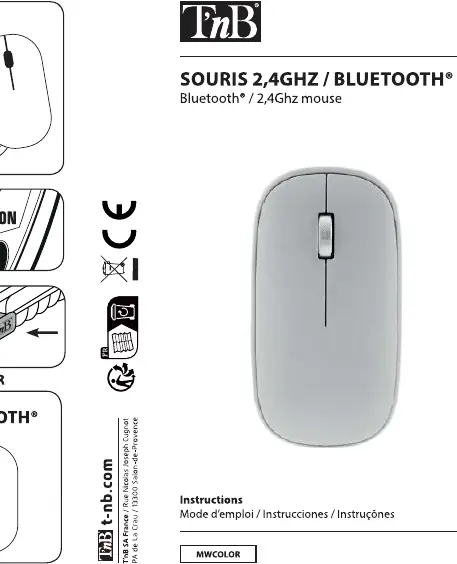
- The diagram illustrates the location of the ON/OFF switch.
- The diagram shows the 'connect' button used for Bluetooth pairing.
- The diagram indicates the USB port connection for charging.
Model compatibility
- Compatible with devices supporting Bluetooth connectivity.

Manual page author
Michael Turner
Technical manual editor
Reviews PDF manuals for structure, safety notes, and practical product details so readers can find the right information quickly.