Computers / Keyboards Input
User Manual for Meetion DirectorC Wireless Keyboard and Mouse
Quick guide for the Meetion DirectorC wireless keyboard and mouse combo. Learn how to connect, use function keys, and understand technical specifications.
Quick answers from the manual
Quick answer
- The Meetion DirectorC is a wireless keyboard and mouse combo. To set it up, remove the USB receiver from the mouse, plug it into your computer, and turn both devices on using the switches on their undersides. p. 2, 3, 4
Key actions
- Connect the devices p. 3
- Power on devices p. 4
First start
- Remove USB receiver from mouse, plug into PC, turn on power switches. p. 2, 3, 4
Technical specifications
| Parameter | Value | Meaning | Pages |
|---|---|---|---|
| Keyboard Dimensions | 485*255*46.5mm | Physical size of the keyboard | p. 9 |
| Mouse Resolution | 600-3200DPI | Adjustable mouse sensitivity | p. 9 |
Where to find it in the PDF
- Quick Start Guide p. 2, 3, 4, 5
- Function Introduction p. 6, 7, 8
- Technical Specifications p. 9
Table of contents
Manual images
Click an image to enlargeQuick Start Guide
Follow these steps to set up your Meetion DirectorC wireless keyboard and mouse combo:
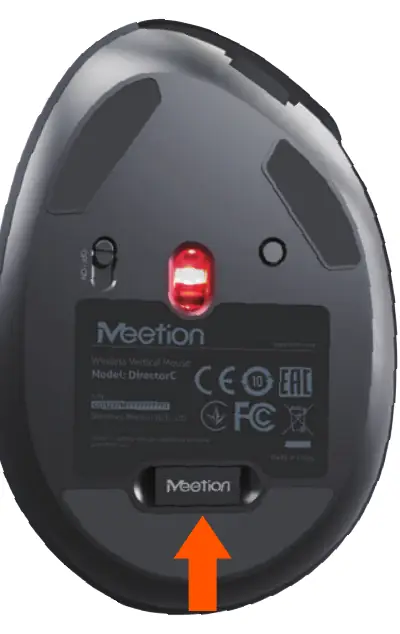
- Step 1: Locate the USB receiver stored on the bottom of the mouse. Remove it from the compartment. Note that a Type-C adapter is included in the packaging for additional connectivity options.
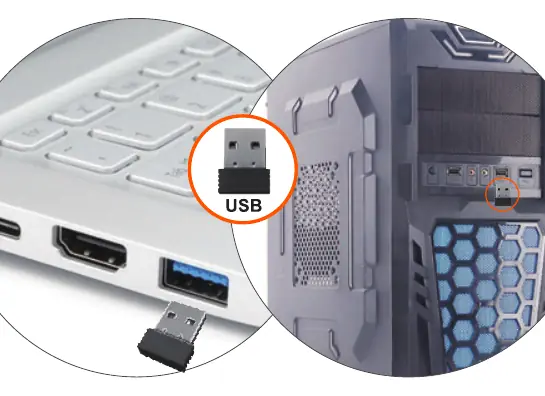
- Step 2: Insert the USB receiver into an available USB port on your computer. When used for the first time, your computer will automatically install the necessary hardware drivers.
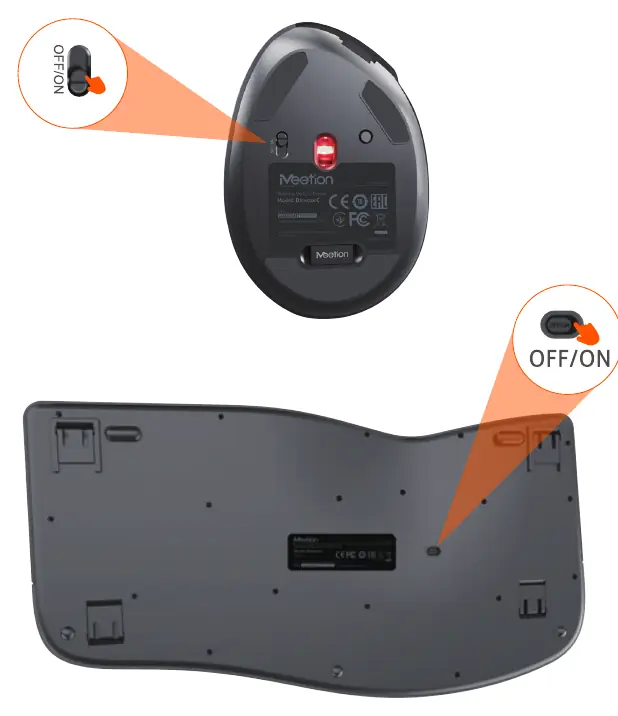
- Step 3: Locate the power switches on the bottom of both the keyboard and the mouse. Toggle the switches to the ON position.
- Step 4: Once connected and powered on, the devices are ready for normal use.
Keyboard Function Keys
The keyboard features a variety of multimedia and shortcut functions accessible via the Fn key:
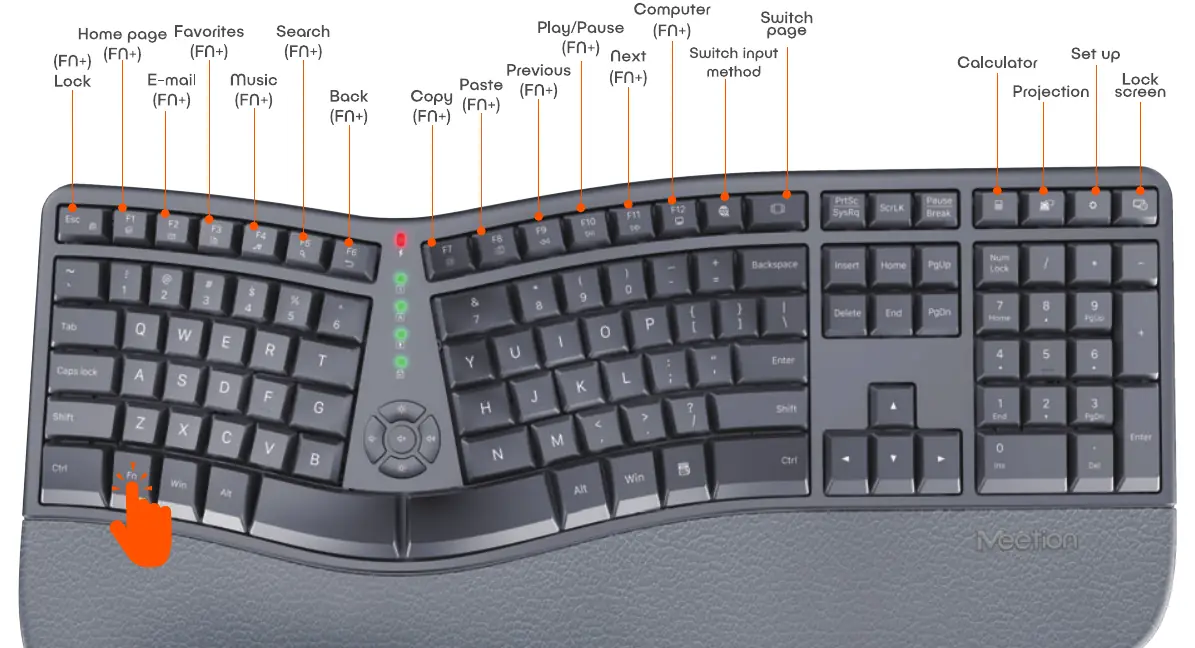
- Fn + F1: Home page
- Fn + F2: Favorites
- Fn + F3: E-mail
- Fn + F4: Search
- Fn + F5: Music
- Fn + F6: Back
- Fn + F7: Copy
- Fn + F8: Paste
- Fn + F9: Previous
- Fn + F10: Play/Pause
- Fn + F11: Next
- Fn + F12: Computer
- Additional keys: Switch input method, Switch page, Calculator, Projection, Set up, Lock screen.
Keyboard Indicators and Controls
The keyboard includes specific indicators and controls located in the center area:
- Indicators: Charging indicator, Num Lock, Caps Lock, ScrLK, Fn Lock.
- Controls: Screen brightness adjustment (+/-), Volume control (VOL+/VOL-), and Mute.
Mouse Features
The mouse is equipped with the following controls:
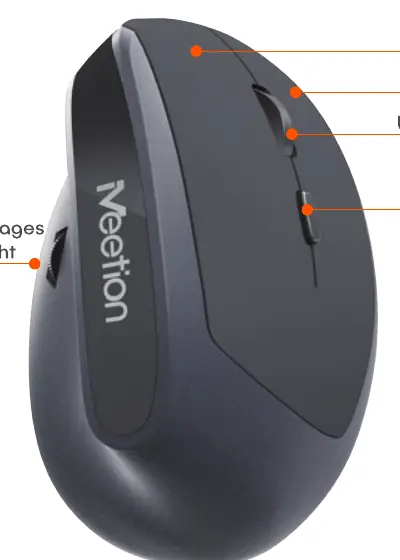
- Left button
- Right button
- Wheel button
- DPI button (for adjusting sensitivity)
- Side buttons for quickly turning pages left and right
Technical Specifications
- Model: DirectorC
- Interface: USB (Type-C adapter included)
- Battery: Rechargeable
- Compatible Systems: Windows XP/Vista/7/8/10/11, Mac OS
- Keyboard: Membrane type, 112/113 keys, 485x255x46.5mm, 930g
- Mouse: 5+1 keys, 600-3200 DPI resolution, 104x73x58mm, 95g
Practical help
Common problems
Device not connecting
Ensure the power switch on the bottom of the device is set to ON and the USB receiver is securely plugged into the computer.
USB receiver missing
Check the storage slot located on the bottom of the mouse.
Before use
- Remove the USB receiver from the mouse storage compartment.
- Ensure the computer is on and has an available USB port.
- Toggle the power switch on both the keyboard and mouse to the ON position.
- Use the included Type-C adapter if your computer lacks a standard USB-A port.
Specs in practice
- DPI (Resolution)
- Adjustable sensitivity from 600 to 3200 DPI for the mouse.
- Keyboard Type
- Membrane keyboard, which is generally quieter and softer to type on.
- Compatibility
- Works with Windows (XP through 11) and Mac OS.
Images and diagrams
- The keyboard layout includes a dedicated Fn key for accessing multimedia shortcuts.
- The mouse includes a DPI button on the top and side buttons for navigation.
Model compatibility
- Compatible with Windows XP, Vista, 7, 8, 10, 11, and Mac OS.

Manual page author
Emily Carter
User documentation editor
Prepares concise manual descriptions and highlights the most useful setup, operation, and maintenance information for readers.