Computers / Keyboards Input
User Manual for Macally RFCOMPACT Series Wireless Keyboard
Quick guide for the Macally RFCOMPACT Series wireless keyboard. Learn how to install, sync, use F-row shortcuts, and troubleshoot connectivity issues.
Quick answers from the manual
Quick answer
- To install the Macally RFCOMPACT keyboard, insert two AAA batteries, turn the power switch to ON, and plug the included USB-A RF dongle into your computer. p. 4
Key actions
- Resyncing the keyboard p. 6
First start
- Insert batteries and plug in the USB dongle. p. 4
Problems and fixes
Keyboard not syncing
Follow the resync procedure: Turn off, unplug dongle, turn on, press Esc+Q, plug in dongle.
p. 6Maintenance and reset
- Resyncing is the primary maintenance action for connectivity issues. p. 6
Technical specifications
| Parameter | Value | Meaning | Pages |
|---|---|---|---|
| Number of keys | 78 | Total key count | p. 7 |
| Switch type | Scissor-key | Keyboard switch mechanism | p. 7 |
Where to find it in the PDF
- Hardware Basics p. 3
- Installation p. 4
- Shortcuts p. 5
- Resyncing p. 6
Table of contents
Quick guide from the manual
To set up your Macally RFCOMPACT keyboard, insert two AAA batteries into the compartment, turn the keyboard on using the switch, and plug the USB-A RF dongle into your computer's USB-A port. If your computer only has USB-C ports, you will need a USB-C to USB-A adapter.
Hardware basics
The keyboard features a power switch and a battery/dongle storage compartment on the back. The LED indicator provides status updates:
- Caps Lock: Blue light when active, no light when inactive.
- Power: Blue light turns on then off when powering up. Red flashing indicates low battery.
- Syncing: Blue light flashes during the syncing process and stops when finished.
Installation instructions
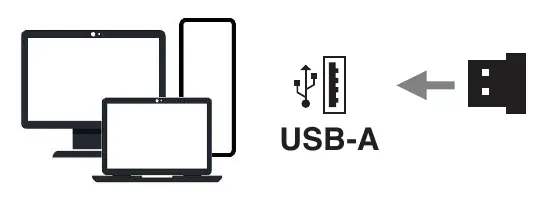
- Insert 2 AAA batteries into the battery compartment.
- Turn the keyboard on using the power switch.
- Plug the RF Dongle/Receiver into an available USB-A port on your computer.
Top F-row shortcuts
The keyboard features 16 shortcuts in the top F-row. To utilize these, hold down the fn key followed by the desired shortcut key:
- Web/Media: Open web browser, open mail, open music player.
- Playback: Previous track, Play/Pause, Next track.
- Volume: Mute, Volume down, Volume up.
- System: Insert, Print screen, Scroll Lock, Page up, Page down, Home, End.
Resyncing the dongle
If you receive a replacement dongle or the keyboard loses connection, follow these steps:
- Turn the keyboard off and unplug the dongle.
- Place the keyboard close to the USB port.
- Switch the keyboard on and immediately press Esc and Q simultaneously until the blue LED flashes.
- Plug the dongle back into the computer.
- The LED will stop flashing once synced.
Safety and maintenance
- Keep the device away from liquid, humidity, and moisture.
- Operate within a temperature range of 0°C (32°F) to 40°C (104°F).
- Do not disassemble the device, as this will void the warranty.
- Dispose of the product at a local recycling center; do not throw it in the garbage.
Practical help
Common problems
Keyboard not responding or not connected
Perform the resync procedure by pressing Esc and Q simultaneously while the keyboard is on and near the USB port.
LED flashing red
This indicates low battery; replace the AAA batteries.
Computer only has USB-C ports
Purchase a USB-C to USB-A adapter to connect the RF dongle.
Before use
- 2 AAA batteries
- Available USB-A port on computer
- Windows 7, 8, 10, or 11 operating system
Specs in practice
- Number of keys
- 78 keys
Images and diagrams
- Switch 1: Power On/Off
- Switch 2: Battery cover and dongle storage
- Switch 3: LED indicator for Caps Lock, Power, and Syncing
- Switch 4: USB RF Dongle/Receiver
Model compatibility
- Compatible with Windows 7/8/10/11
- Requires USB-A port (or adapter for USB-C)

Manual page author
Emily Carter
User documentation editor
Prepares concise manual descriptions and highlights the most useful setup, operation, and maintenance information for readers.