Electronics / Audio Mixers
Firmware Update Guide for TASCAM Sonicview 16/24
A comprehensive guide for updating the firmware on TASCAM Sonicview 16 and Sonicview 24 mixing consoles. Includes step-by-step instructions for checking current versions, preparing update media, performing the update, and important...
Table of contents
Manual images
Click an image to enlargeQuick Guide for Firmware Update
This document provides instructions for updating the firmware on TASCAM Sonicview 16 and Sonicview 24 consoles. Before starting, ensure you have a USB memory stick or SD card ready. Important: Do not turn off the power during the update process, as this may cause the device to become inoperable. If the update button does not appear on the screen, your device is already up to date.
Checking Current Firmware Version
Before performing an update, verify your current firmware version:
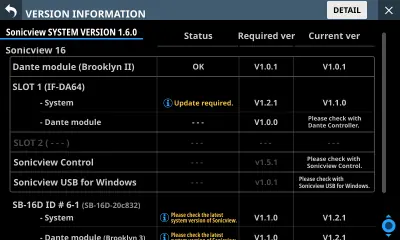
- Turn on the device.
- Press the MENU button to access the menu screen.
- Navigate to System Setup >Version Information.
- The current firmware version is displayed under SYSTEM VERSION. If your version matches or is newer than the update file, no update is required.
Firmware Update Procedure
Follow these steps to update your console:
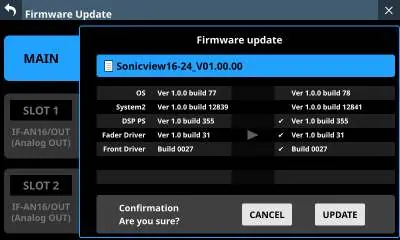
- Download the latest firmware from the official TASCAM website (https://tascam.jp/jp/). If the file is in ZIP format, extract it.
- Copy the firmware file to the root directory of a USB memory stick or SD card.
- Insert the USB memory or SD card into the top panel USB port or SD card slot of the console.
- On the console, go to Menu >System Setup >Firmware Update.
- Select the device tab you wish to update (MAIN, SLOT 1, or SLOT 2).
- Tap the USB or SD button in the top right corner to select the media.
- Select the update file from the list.
- Review the version information displayed. Tap UPDATE to proceed.
- Confirm the update when prompted. The device will restart and begin the update process.
Post-Update Steps
Once the update is complete:
- The screen will indicate that the update is finished.
- Use the POWER switch on the rear panel to restart the device.
- After restarting, verify the new firmware version in the Version Information screen.
- Delete the firmware update file from your USB memory or SD card.
Important Warnings and Restrictions
- Downgrade Restriction: You cannot downgrade the MAIN firmware from Ver 1.1.0 or higher to Ver 1.0.x.
- Snapshot Compatibility: Snapshots and All System Data created on MAIN firmware Ver 1.1.0 or higher cannot be imported or restored on a unit running Ver 1.0.x.
- Power Safety: Never disconnect power during the update process.
Official resources from the manual
Practical help
Common problems
Update button is not visible
This indicates that the firmware is already up to date or no update is required for the selected device.
Cannot downgrade firmware
MAIN firmware cannot be downgraded from Ver 1.1.0 or higher to Ver 1.0.x due to snapshot incompatibility.
Device fails to start after update
This is usually caused by power loss during the update. Ensure power is stable throughout the process.
Before use
- Download the latest firmware from the TASCAM website.
- Extract the firmware file if it is compressed (ZIP).
- Copy the firmware file to the root directory of a USB drive or SD card.
- Ensure the console is powered on.
- Check the current firmware version in the System Setup menu.
Specs in practice
- SLOT 1 / SLOT 2
- Updates the firmware for expansion cards installed in the respective slots.
Images and diagrams
- The Version Information screen displays the status, required version, and current version for the main system and expansion slots.
- The Firmware Update screen allows you to select the update file from connected USB or SD media.
- The confirmation screen displays the current version on the left and the new version on the right before applying the update.
Model compatibility
- Snapshots created on Ver 1.1.0+ cannot be used on Ver 1.0.x.
- Expansion cards not installed in a slot will not have their tabs displayed in the update menu.

Manual page author
Emily Carter
User documentation editor
Prepares concise manual descriptions and highlights the most useful setup, operation, and maintenance information for readers.