Electronics / Sim Racing Equipment
User Manual for Thermaltake G6 Direct Drive Racing Wheel with Pedals Bundle
Quick guide for the Thermaltake G6 Direct Drive Racing Wheel. Includes installation, pedal assembly, desk mounting, calibration steps, and safety warnings.
Table of contents
Manual images
Click an image to enlargeQuick guide from the manual
The Thermaltake G6 Direct Drive Racing Wheel is designed for PC gaming, featuring a 6Nm servo motor for realistic force feedback. This guide covers the essential setup, including mounting the base, connecting the pedals, and calibrating the wheel.
Base Interface Overview
The rear of the base contains the following ports:
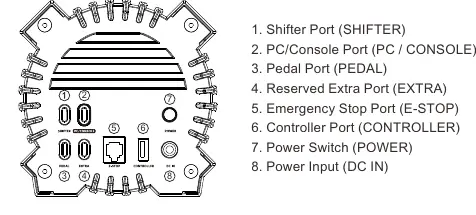
- 1. Shifter Port (SHIFTER)
- 2. PC/Console Port (PC / CONSOLE)
- 3. Pedal Port (PEDAL)
- 4. Reserved Extra Port (EXTRA)
- 5. Emergency Stop Port (E-STOP)
- 6. Controller Port (CONTROLLER)
- 7. Power Switch (POWER)
- 8. Power Input (DC IN)
Installation Guide
Desk Clamp Installation:
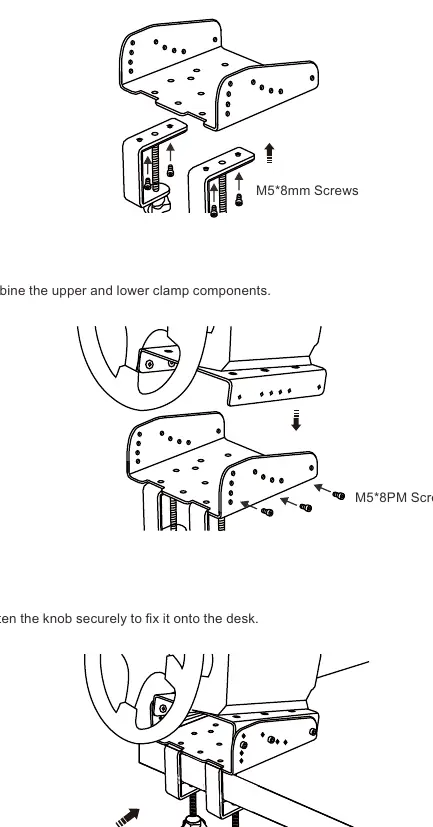
- Install the upper part of the clamp onto the base using the provided M6*12mm screws.
- Attach the lower part of the clamp to the upper assembly using M5*8mm screws.
- Combine the upper and lower clamp components and tighten the knobs securely to fix the base onto the desk.
Quick Release Wheel Installation:
- Align the 10 steel balls on the steering wheel with the 10 grooves on the wheelbase.
- Press the wheel into the wheelbase, ensuring the guide lines align.
- The quick release will automatically snap into place. If it does not lock, rotate the panel on the base to its default position and try again.
- To remove, pull back on the outer black ring and pull the wheel out.
Pedal Installation Process
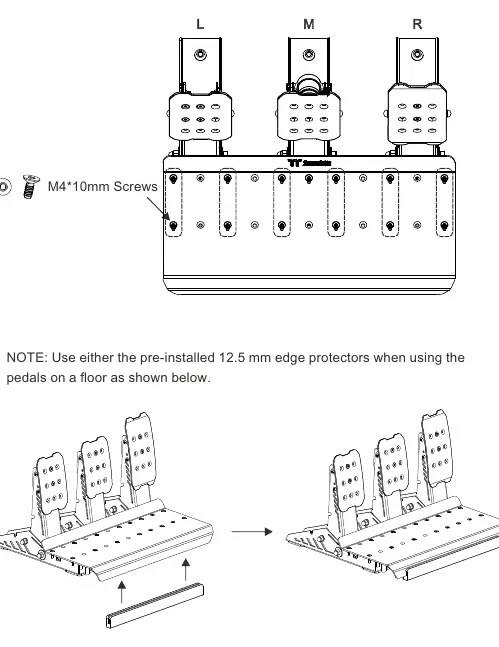
- Arrange the clutch (L), brake (M), and throttle (R) pedals from left to right on the included footrest.
- Secure the pedals using the M4*10mm screws.
- Connect the RJ11 6P4C cable from the brake pedal's THROTTLE port to the throttle pedal's THROTTLE port.
- Connect the RJ11 6P4C cable from the brake pedal's CLUTCH port to the clutch pedal's CLUTCH port.
- Connect the USB Type-B to C cable from the pedal set to the base.
- If using on a floor, ensure the 12.5 mm edge protectors are installed.
Troubleshooting and Calibration
If the joystick or shift paddles behave abnormally, perform the following calibration:
- Press and hold the A + VIEW buttons for 3 seconds to enter calibration mode (indicator lights will flash alternately).
- Move the joystick in all four directions and press each shift paddle twice.
- Press and hold the B + VIEW buttons for 1 second to complete calibration.
If the wheel is unresponsive, restart your computer or unplug and replug the USB cable on the base.
Safety Warnings
- Power: Use only the provided power adapter. Do not twist or pull cables.
- Ventilation: Keep at least 10 cm of space around the base. Do not block ventilation holes.
- Temperature: If the motor exceeds 60°C, power output will be reduced. If it exceeds 70°C, the base will shut down automatically.
- Usage: Intended for users aged 16 and older. Avoid prolonged gaming sessions; take a 10-15 minute break every hour.
Manufacturer information
Thermaltake
Practical help
Common problems
Indicator light on steering wheel does not turn on
Remove and reinstall the wheel, check power connection, and ensure the USB cable is securely plugged into the PC.
Steering wheel or pedals unresponsive during gameplay
Exit the game, unplug and replug the USB cable on the base, then re-enter the game.
Joystick or shift paddles not working correctly
Enter calibration mode by holding A + VIEW for 3 seconds, then follow the calibration steps.
Before use
- Ensure PC is running Windows 7, 10, or 11.
- Download the latest Thermaltake Racing Control Software from www.thermaltake.com.
- Verify all cables are securely connected to the base and PC.
- Ensure the base is mounted securely to a desk or cockpit.
- Check that the power adapter is correctly connected.
Specs in practice
- Sensor Technology
- Hall Effect sensors for high sensitivity and longevity.
Images and diagrams
- Base Interface: Shows the location of ports for Shifter, PC/Console, Pedal, Extra, E-Stop, Controller, Power, and DC In.
- Quick Release: Illustrates aligning the 10 steel balls with the grooves on the wheelbase to attach the steering wheel.
- Pedal Wiring: Shows the RJ11 cable connections between the brake, throttle, and clutch pedals.
Model compatibility
- Compatible with PC platform (Windows 7/10/11).
- Intended for users aged 16 and older.
- Requires Thermaltake Racing Control Software for full functionality.

Manual page author
Emily Carter
User documentation editor
Prepares concise manual descriptions and highlights the most useful setup, operation, and maintenance information for readers.