Electronics / Intercom Systems
Quick User Guide for Urmet 1723 Video Intercom Kit
Quick guide for the Urmet 1723 video intercom kit. Learn how to answer calls, navigate the home screen, manage Yokis home automation, and configure weekly schedules.
Quick answers from the manual
Quick answer
- The Urmet 1723 is a 2-wire video intercom kit. You can operate it by touching the screen or using the central button to answer calls, view cameras, manage Yokis home automation, and set weekly schedules. p. 1, 3, 9
Key actions
- Answer a call p. 5, 11, 35
- Open door p. 5, 11, 35
- Schedule Yokis command p. 6, 12, 36
First start
- The device is ready to use once installed. Ensure the CallMe app is configured for call forwarding features. p. 4, 10, 34
Problems and fixes
Device needs rebooting
Switch on the display, then press and hold the central button until it reboots.
p. 2, 8, 32Where to find it in the PDF
- Home Page Functions p. 3, 4, 9, 10
Table of contents
Manual images
Click an image to enlargeQuick guide from the manual
This guide provides instructions for operating the Urmet 1723 video intercom kit. The system is controlled via a touchscreen interface and a central button. The device supports call management, intercom, Yokis home automation, and alarm functions.
Display operation
To wake the display, touch it anywhere or press the central button. To turn it off, press the central button or wait for the 60-second timeout.
Answering calls
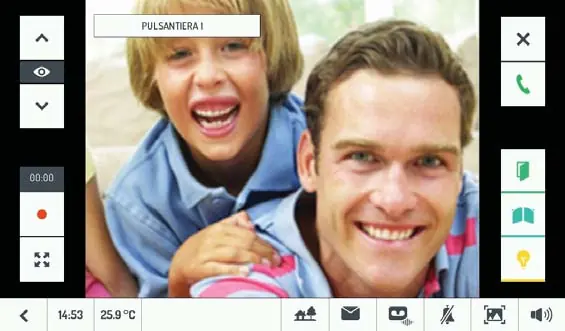
When a call is received, the screen lights up. Touch the green handset icon to answer in hands-free mode, or the 'X' icon to reject. You can also open the door or gate without answering by touching the respective icons on the screen.
Home Page functions
The Home Page consists of two screens. Key functions include:
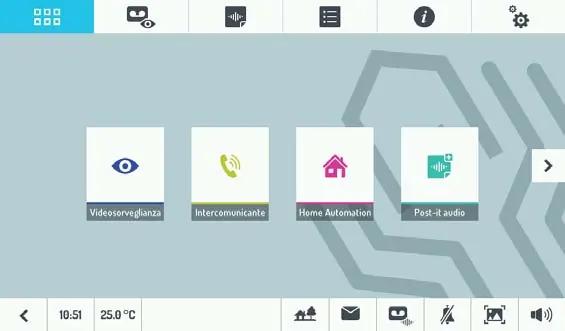
- Camera Control: View images from door units or additional cameras.
- Intercom: Call other users in the same or different apartments.
- Home Automation: Access Yokis controls.
- Post-it audio: Record internal messages.
- Alarm: Arm or disarm the alarm system.
- Auto Door Opener: Toggle the automatic door opener function.
Yokis Home Automation
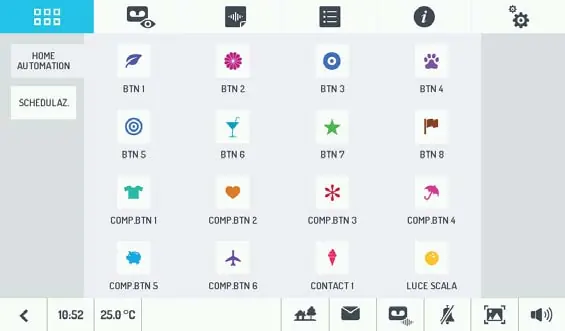
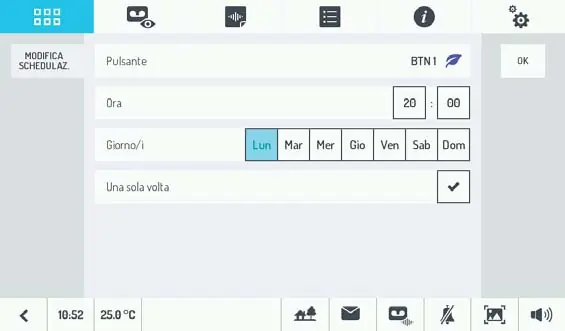
Access the Yokis page from the Home screen. You can select controls or schedule them weekly by pressing the 'Programme' button and then the calendar icon. You can then select the button to schedule, the time, and the days of the week.
Rebooting
If the device needs a reboot, switch on the display and hold the central button until the system restarts.
Manufacturer information
Urmet S.p.A.
Practical help
Common problems
Display is off
Touch the screen anywhere or press the central button.
Device unresponsive
Perform a reboot by switching on the display and holding the central button until it restarts.
Before use
- Ensure the device is powered.
- Configure the CallMe app for call forwarding features.
- Check if optional sensors are installed for temperature or mail notification features.
Images and diagrams
- Home page icons for navigation
- Call answering screen icons
- Yokis automation scheduling interface
Model compatibility
- Call forwarding requires CallMe App configuration.
- Temperature display requires an optional external sensor.
- Mail notification requires optional Yokis devices.

Manual page author
David Miller
Documentation analyst
Organizes user manual content into clear summaries, with attention to model details, product context, and everyday usability.