Music / Guitar Effects
User Manual for Walrus Audio Lüm Texture Engine
Quick guide for the Walrus Audio Lüm Texture Engine. Learn how to use the granular and reverb modes, manage presets, configure momentary automation, and power your pedal correctly.
Table of contents
Quick guide from the manual
The Lüm Texture Engine is a limited edition effects pedal featuring three unique granular and textural reverb modes. To ensure optimal performance, always use a 9V DC, center-negative power supply rated at 100mA or more. Isolated power supplies are highly recommended to avoid noise; daisy-chaining is not recommended. If you need assistance, you can contact support at [email protected].
Controls
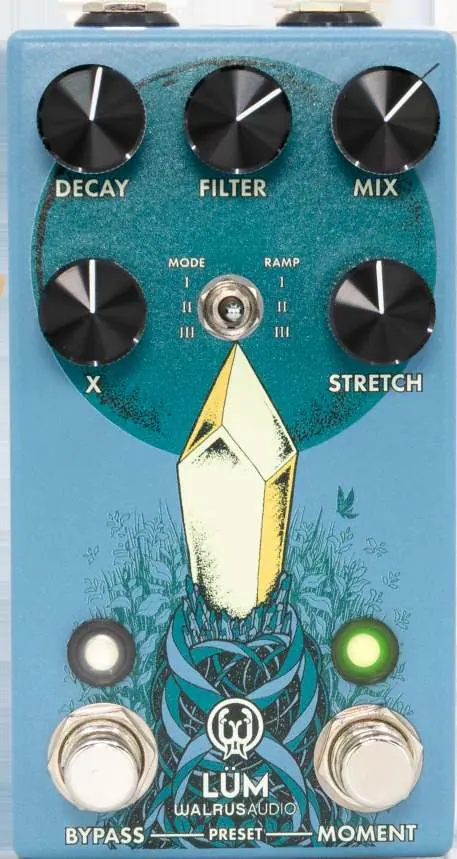
The pedal features five main knobs to shape your sound:
- Decay: Controls the decay on time-related parameters. In Mode I, it controls feedback of the sampled delay line. In Mode II, it controls the decay of the sampled reverb tank. In Mode III, it controls the decay of the forward algorithm reverb tank.
- Filter: Adjusts the cutoff of a global synth-style low-pass filter.
- Mix: Adjusts the balance between wet and dry signals. Counterclockwise is more dry, clockwise is more wet.
- X: Controls grain size in Modes I and II, and reverse reverb feedback in Mode III.
- Stretch: Adjusts the global sample rate from 0.5x speed to 2x, affecting all time-based parameters.
Modes
Use the Mode toggle switch to select between three programs:
- MODE I: A grain cloud with dual granular taps reading from a feedback delay line. The X knob controls grain size and glitch frequency.
- MODE II: A grain verb with dual granular taps reading from the delay memory of a reverb algorithm tank.
- MODE III: A forward reverb algorithm running into a reverse reverb algorithm, creating a rhythmic interaction. Use the Stretch knob to adjust the speed of this interaction.
Presets
The Lüm has three onboard presets (Red, Green, and Blue). Scroll through them by pressing both stomp switches simultaneously.
To save a preset:
- Scroll to the preset color you wish to modify.
- Adjust the knobs and switches to dial in your desired sound. The preset LED will turn purple, indicating the preset has been modified.
- Hold down both the Bypass and Moment stomp switches until the preset LED blinks. The preset is now saved, and the LED will return to the preset color.
Momentary Automation
The Moment switch activates an automation glide effect on one of the five knobs, moving from its current setting to a defined target.
- To assign a target: Hold the Bypass switch while the pedal is active (the Bypass LED will blink), then turn the knob you wish to control.
- To adjust glide time: Adjust the Mode toggle while holding down the Bypass switch to cycle between 10ms, 1000ms, and 5000ms.
Factory Reset
To perform a factory reset, hold down both foot switches while plugging in power to the pedal. Continue holding both switches until the Preset LED starts to flash, then release. The pedal will reset to Trails mode with the three default presets loaded.
Specifications
- Bypass: Buffered Bypass
- Input/Output: 1 x 1/4 inch TS
- Input Impedance: 1M Ohms
- Output Impedance: 100 Ohms
- Dimensions (including knobs): 4.77 inches x 2.6 inches x 1.39 inches
Practical help
Common problems
Preset LED turns purple
This indicates the preset has been modified. Save the changes by holding both Bypass and Moment switches until the LED blinks.
Pedal noise or power issues
Ensure you are using a 9V DC, center-negative power supply rated at 100mA or more. Isolated power supplies are recommended; daisy-chaining is not recommended.
Before use
- Ensure you have a 9V DC, center-negative power supply (100mA minimum).
- Connect your instrument to the input and your amplifier to the output using 1/4 inch TS cables.
- Verify the pedal is not daisy-chained with other pedals to avoid noise.
Model compatibility
- Limited edition: Only 600 units produced worldwide.
- Buffered Bypass.

Manual page author
David Miller
Documentation analyst
Organizes user manual content into clear summaries, with attention to model details, product context, and everyday usability.