Electronics / Security Cameras
User Manual for ZOSI Digital Video Recorder
Quick start guide for ZOSI Digital Video Recorder. Learn how to install, connect cameras, set up the system, configure network access, and perform video playback.
Quick answers from the manual
Quick answer
- To set up your ZOSI DVR, connect your cameras via BNC cables, connect a monitor using HDMI or VGA, connect the DVR to your router via Ethernet, and plug in the mouse. Power on the system to begin. p. 3, 4
Key actions
- Accessing the system remotely p. 5
- Changing the system password p. 7
First start
- Power on the DVR and cameras after connecting all cables. p. 4
Problems and fixes
No Video Output on the Monitor
Ensure the lowest resolution of the monitor is no less than 720p and check cable connections.
p. 10Maintenance and reset
- Periodic cleaning with a damp cloth is recommended. p. 10
Where to find it in the PDF
- What's in the box p. 3
- Wiring Diagram p. 4
Table of contents
Manual images
Click an image to enlargeQuick guide from the manual
This guide provides the essential steps to set up and operate your ZOSI Digital Video Recorder (DVR). Before final installation, it is recommended to test the device by powering it on and connecting it to a monitor.
What's in the box
- DVR unit
- DVR Power Adapter
- USB Mouse
- Ethernet Cable
- Quick Start Guide
DVR Introduction
The rear panel of the DVR includes the following connections:
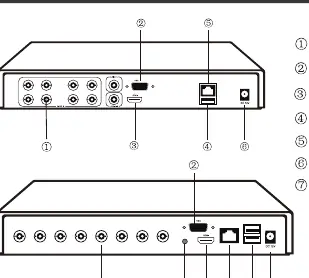
- Camera Ports: BNC inputs for connecting cameras.
- Monitor Ports: VGA and HDMI outputs for display.
- USB Port: For connecting the mouse and backup devices.
- Ethernet Port: For network/router connection.
- Power Input: DC 12V power supply connection.
- Audio Port: 3.5mm audio output.
Installation and Wiring
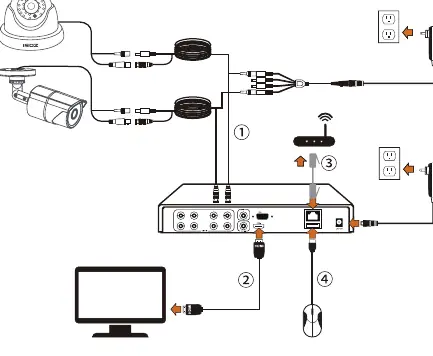
- Connect your cameras to the DVR using BNC cables.
- Connect a monitor to the DVR using an HDMI or VGA cable.
- Connect the DVR to your router using the provided Ethernet cable.
- Connect the USB mouse to the USB port on the DVR.
- Connect the power adapter to the DVR and cameras, then power on the system.
Accessing the System
Smartphone
Search for "ZOSI Smart" in the App Store or Google Play Store, or scan the QR code provided in the app section of the manual to download and install the application. Follow the in-app instructions to register an account.
PC
You can access the system via PC by visiting the download path: https://www.zositech.com/pages/app.
System Setup
Mouse Operation
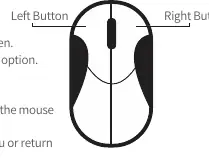
- Left Button: Used for selecting menu options. In preview/playback, double-click a channel to enter/exit full-screen mode.
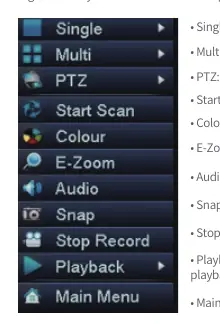
- Right Button: Used to open the main menu or return to the previous menu option.
System Password
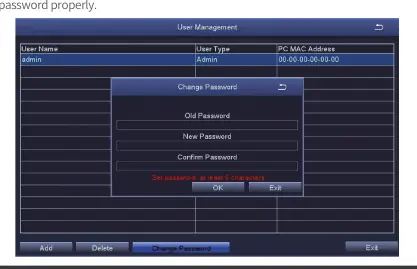
The factory default username is "admin" and the password is empty. It is highly recommended to change this password immediately for security.
Date & Time Setting
To set the date and time, right-click the mouse and navigate to: Main Menu > Setup > Basic > Date & Time. Select your region's time zone and click "Apply" to save.
Video Playback
To view recorded footage, right-click the mouse and select Playback. You can search for video clips via time search or event search. Quick playback allows you to view the last 30 minutes of video.
Backup
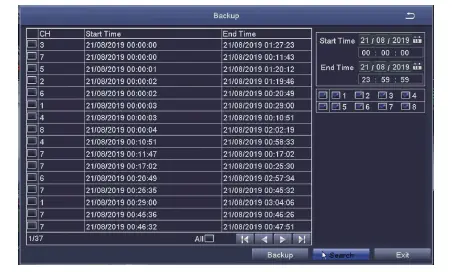
- Insert a USB drive into the USB 2.0 port on the DVR.
- Right-click the mouse and go to Main Menu > Backup.
- Select the desired channels and time period, then click "Search".
- Select the video clips you wish to back up and click "Apply".
Usage Specifications and Safety
- Use the product within the specified temperature, humidity, and voltage limits.
- Do not disassemble the product.
- Use only a regulated power supply to avoid damaging the device and voiding the warranty.
- Clean periodically using only a damp cloth; do not use harsh chemicals.
- Ensure the device is placed in a well-ventilated area.
Official resources from the manual
Practical help
Common problems
No video output on the monitor
Ensure the monitor resolution is at least 720p, check the HDMI/VGA cable connections, and verify the DVR is powered on.
Failed to access camera remotely
Ensure the DVR is connected to the network (check Menu-Network-Test), verify internet access on the same network, and reboot the DVR or router.
Before use
- Verify all package contents are present
- Connect cameras to DVR via BNC cables
- Connect monitor via HDMI or VGA cable
- Connect DVR to router via Ethernet cable
- Connect mouse to USB port
- Power on DVR and cameras
Specs in practice
- Default Username
- admin
- Default Password
- Empty (no password)
- Battery Type
- CR2032 (3V) for internal clock/settings
Images and diagrams
- Wiring diagram: Cameras connect to DVR via BNC; Monitor connects via HDMI/VGA; Router connects via Ethernet; Mouse connects via USB.
Model compatibility
- Monitor must support at least 720p resolution.
- Use only regulated power supplies.
- System supports motion detection and automatic image capture.

Manual page author
Michael Turner
Technical manual editor
Reviews PDF manuals for structure, safety notes, and practical product details so readers can find the right information quickly.