Electronics / Video Transmission
User Manual for Accsoon CineView Quad Wireless Video Transmission System
A comprehensive user guide for the Accsoon CineView Quad. Includes setup instructions, pairing procedures, app monitoring, firmware updates, and troubleshooting steps for this wireless video transmission system.
Quick answers from the manual
Quick answer
- The CineView Quad is a wireless video transmission system. To use it, mount the transmitter to your camera, connect your video source, set the transmitter and receiver to the same group, and power them on. p. 5, 8
Key actions
- Pairing devices p. 8
- Updating firmware p. 11
First start
- Unfold antennas, mount to camera, connect power, and connect video source. p. 8
Problems and fixes
Receiver cannot connect to transmitter
Ensure both are set to the same group and antennas are secure.
p. 14Maintenance and reset
- Network Reset: Use the menu to reset WiFi SSID and password to factory settings. p. 10
Technical specifications
| Parameter | Value | Meaning | Pages |
|---|---|---|---|
| Transmission Range | 500ft / 150m | Maximum distance without obstacles | p. 12 |
| Latency | <0.06s | Transmission delay | p. 12 |
Where to find it in the PDF
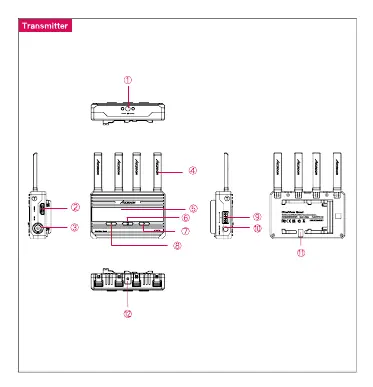
- Transmitter Diagram p. 5
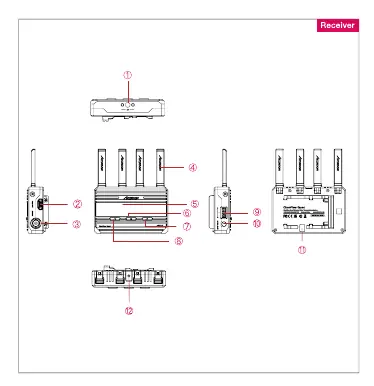
- Receiver Diagram p. 6
Table of contents
Manual images
Click an image to enlargeQuick Guide from the Manual
The Accsoon CineView Quad is a wireless video transmission system. To get started, unfold the antennas, mount the transmitter to your camera using the cold shoe adapter, and connect your video source via SDI or HDMI. Ensure both the transmitter and receiver are set to the same group number using the group setting knob. Power on the devices by clicking the power button, and hold for 2 seconds to power off.
Product Overview
The system features 2.4GHz/5GHz dual-band transmission with extremely low latency (less than 60ms) and a range of up to 500 feet (150m). It supports SDI and HDMI inputs/outputs and allows monitoring on up to 4 devices simultaneously via the Accsoon Go app.
Installation
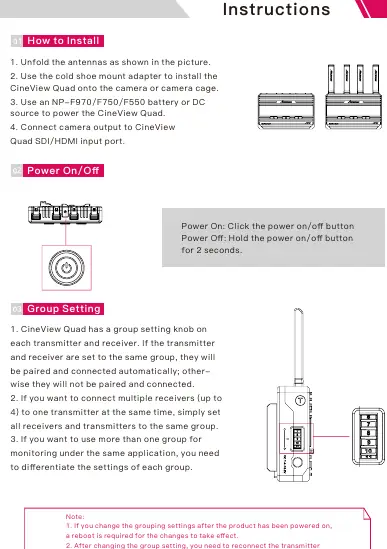
- Antennas: Unfold the antennas as shown in the product diagrams.
- Mounting: Use the included cold shoe mount adapter to attach the unit to your camera or camera cage.
- Power: Power the unit using an NP-F series battery or a DC power source (7.4-16.8V).
- Connections: Connect your camera's SDI or HDMI output to the corresponding input port on the transmitter.
Operation
Group Setting
The CineView Quad uses a group setting knob on both the transmitter and receiver. For the devices to pair and connect, they must be set to the same group number. If you are using multiple receivers, set them all to the same group as the transmitter. If you need to use more than one group in the same environment, ensure each group is set to a different number.
OLED Display
The OLED screen displays critical information, including the current group, input audio/video information, battery level/DC input status, connection status, and the current channel.
Data Rate and Channel Settings
You can adjust the data rate (High Quality, Normal, or Speed mode) via the menu. While the default channel setting is Auto (A), which is recommended, you can manually change the channel through the "Channel Setting" menu if interference occurs.
App Monitoring
Download the Accsoon Go app from the Google Play Store or iOS Apple Store. Connect your mobile device to the CineView Quad's WiFi signal (named "Accsoon_XXXX") using the default password "12345678". Once connected, open the app to monitor your video feed.
Firmware Update
Ensure your mobile device has internet access. Open the Accsoon Go app, select "CineView," and tap "Firmware Update." Follow the on-screen instructions to download and install the latest firmware. Ensure the battery level is above 50% during the update process.
Troubleshooting
- Receiver cannot connect: Verify that both units are set to the same group and that antennas are securely mounted.
- No video displayed: Check that the SDI/HDMI cable is correctly connected and that the camera is outputting a compatible video format.
- Choppy video: Ensure antennas are secure and clear of metal obstructions. Try manually switching to a different channel.
- Cannot find WiFi: Ensure your mobile device supports 5G WiFi.
Specifications
- Video Input: SDI/HDMI
- Latency:<0.06s
- Transmission Range: 500ft (150m)
- Power Consumption: 4.5W (Transmitter), 5W (Receiver)
- Dimensions: 105mm x 66mm x 31mm
- Weight: 225g
Practical help
Common problems
Receiver cannot connect to transmitter
Ensure both units are set to the same group number and antennas are securely mounted.
No video displayed
Check SDI/HDMI cable connections and ensure the camera is outputting a compatible video format.
Choppy video
Ensure antennas are secure and clear of metal obstructions. Try manually switching to a different channel.
Cannot find CineView Quad WiFi
Ensure your mobile device supports 5G WiFi.
Before use
- Unfold all antennas
- Mount the unit using the cold shoe adapter
- Connect power (NP-F battery or DC input)
- Connect video source (SDI/HDMI)
- Set transmitter and receiver to the same group
Specs in practice
- Transmission Range
- Up to 500ft (150m) without obstacles or interference
Images and diagrams
- Transmitter: SDI/HDMI In, Group Setting Knob, OLED Display
- Receiver: SDI/HDMI Out, Group Setting Knob, OLED Display
Model compatibility
- Requires 5G WiFi support on mobile devices for app monitoring
- Compatible with NP-F series batteries

Manual page author
Michael Turner
Technical manual editor
Reviews PDF manuals for structure, safety notes, and practical product details so readers can find the right information quickly.