Documents / Warranty Safety
Acurite 00594W Professional Wireless Weather Station User Guide
Quick start guide for the Acurite 00594W Professional Wireless Weather Station. Includes setup instructions, battery installation, mounting tips, and operation procedures for wind, temperature, and alarm settings.
Table of contents
Manual images
Jump to the sectionQuick guide from the manual
This document provides instructions for the Acurite 00594W professional wireless weather station. Key steps include installing batteries in the sensors first, then the main unit, and performing the initial altitude and forecast setup. The system uses a 433MHz wireless signal with a range of up to 100 feet in open areas.
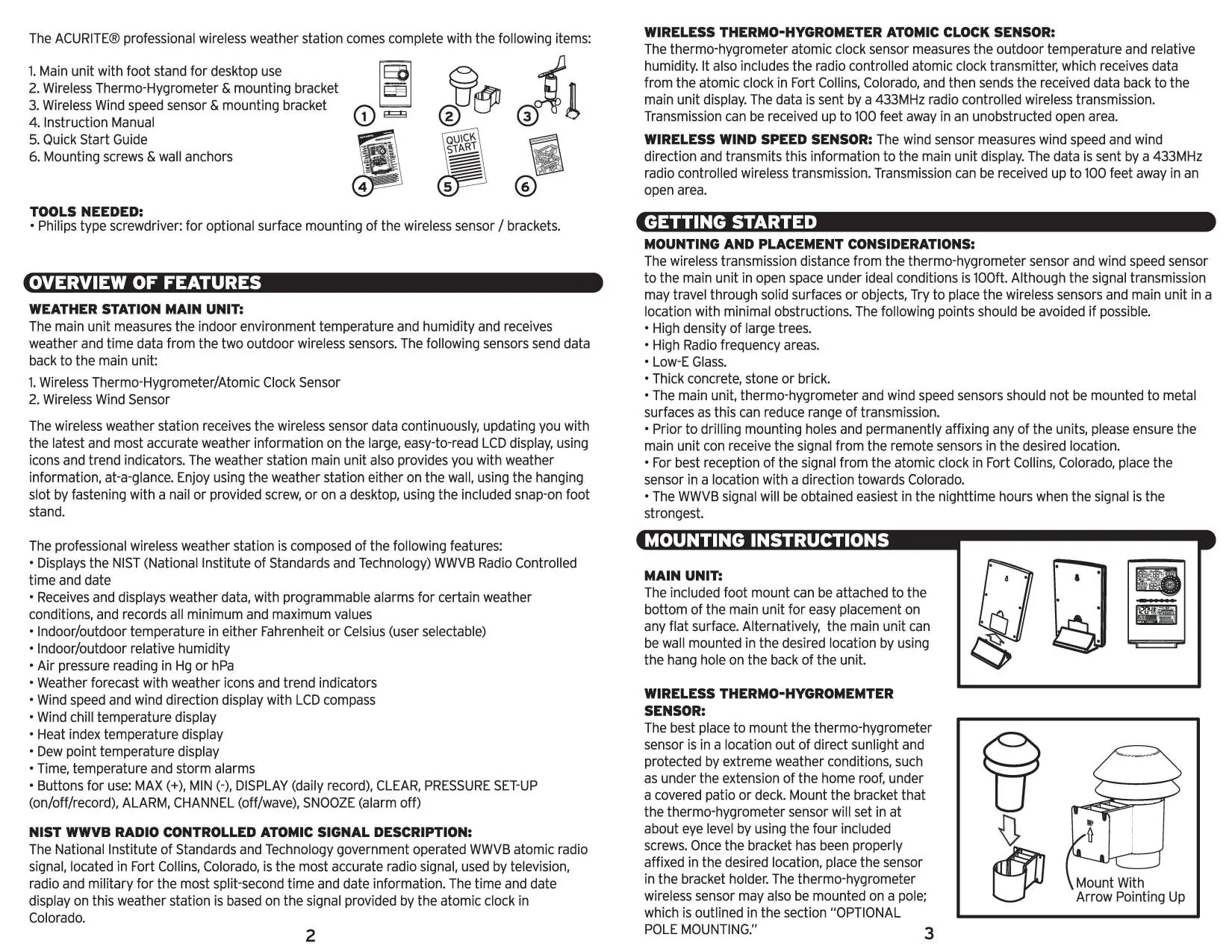
Mounting and placement
For optimal performance, avoid placing sensors near large trees, high radio frequency areas, Low-E glass, or thick concrete/brick walls. Do not mount units on metal surfaces. The wind sensor bracket must point North. Both sensors can be mounted on flat surfaces or 3/4 inch schedule 40 PVC pipe.
Battery installation
Important: Install batteries in the two wireless sensors before the main unit. Use fresh alkaline AA batteries. For outdoor units, lithium AA batteries are recommended if temperatures drop below -4°F. To replace batteries without losing data, ensure the main unit or sensors are not left without power for an extended period.
Initial set-up
Upon power-up, the unit enters the altitude and forecast setting mode for 30 seconds. You must have your local altitude ready to enter. Use the MAX(+) or MIN(-) buttons to set the altitude and weather forecast icon, confirming each step with the PRESSURE SET-UP button.
General operation
The main unit displays indoor/outdoor temperature, humidity, wind speed, wind direction, and barometric pressure. Use the DISPLAY button to toggle between wind chill, heat index, and dew point. The atomic clock automatically synchronizes with the WWVB signal from Fort Collins, Colorado.
Alarms and records
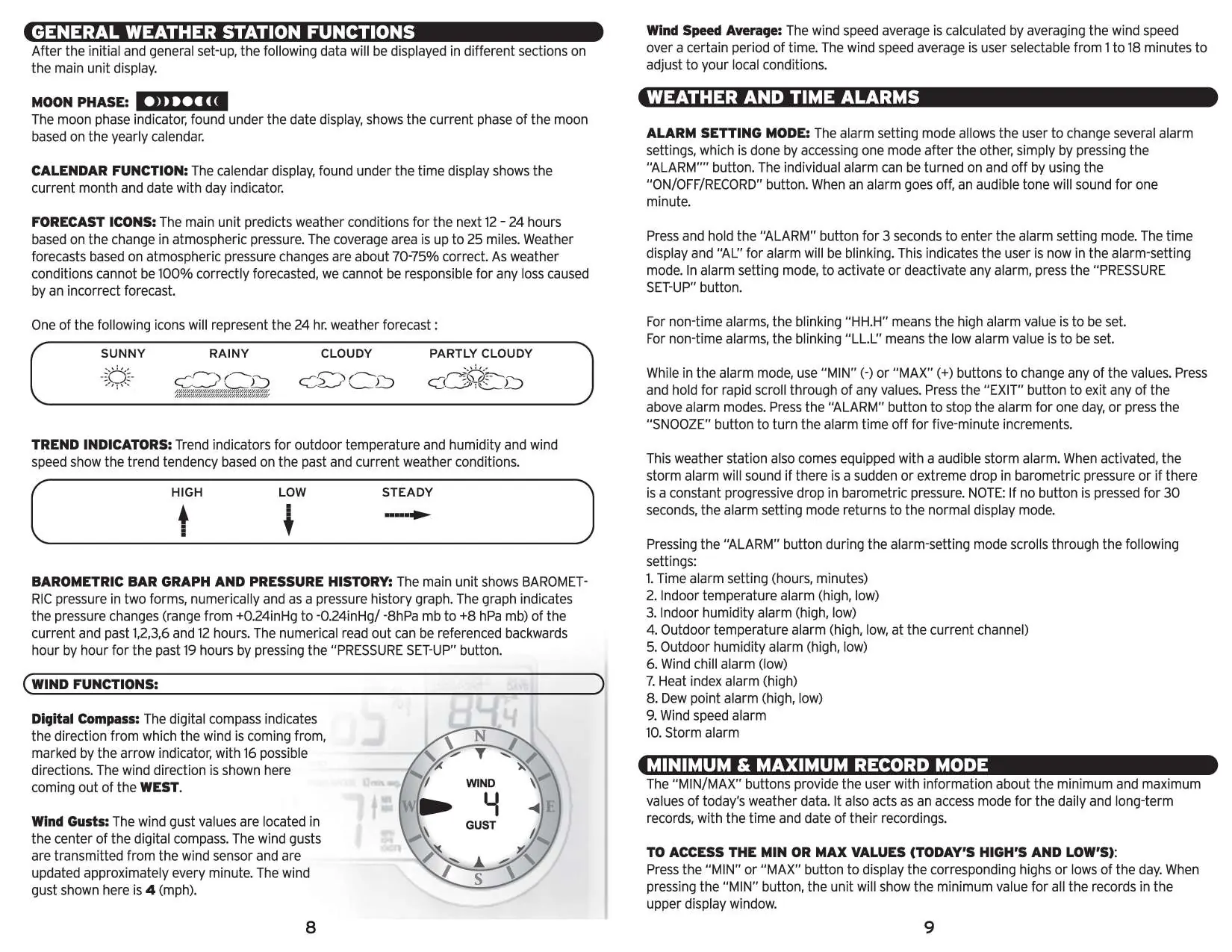
The device features programmable alarms for time, temperature, humidity, wind speed, and storm conditions. Press and hold the ALARM button for 3 seconds to enter alarm setting mode. The MIN/MAX buttons allow you to view daily and long-term weather records.
Maintenance
Clean the housing and screen with a soft, damp cloth. Do not use abrasives or solvents, and do not submerge any components in water. If the unit is damaged, do not attempt repairs; contact customer support at 877-221-1252.
Manufacturer information
AcuRite
Practical help
Common problems
Outdoor values show '---'
The main unit is searching for sensor signals. Ensure batteries are installed correctly and press/hold the CHANNEL button for 3 seconds to force a search.
Low battery indicator is present
Replace batteries in the affected unit with fresh alkaline AA batteries. If the main unit is left without power for too long, MIN/MAX data may be lost.
Atomic clock signal not received
Ensure the sensor is positioned towards Colorado. Signal reception is strongest during nighttime hours.
Before use
- Have your local altitude ready for initial setup.
- Ensure you have 7 fresh AA alkaline batteries (3 for main unit, 2 for each sensor).
- Test the wireless signal range before permanently mounting sensors.
- Check that the wind sensor bracket is pointing North.
- Verify that the wind-fan and wind-vane can rotate freely.
Specs in practice
- Altitude range
- -100 to 2500 meters (-330 to 8250 feet).
- Transmission frequency
- 433MHz radio controlled wireless transmission.
- Transmission range
- Up to 100 feet in an unobstructed open area.
- Wind speed average
- User-selectable averaging period from 1 to 18 minutes.
Images and diagrams
- The main unit features a large LCD display showing indoor/outdoor data, trend indicators, and a digital wind compass.
- The operation flow chart illustrates the menu structure for Setup, Alarm, and Min/Max modes.
- Mounting diagrams show the correct orientation for the wind sensor and the use of a pole mount.
Model compatibility
- Additional sensors are sold separately.
- Not for medical, commercial, or public purposes.
- Lithium batteries recommended for outdoor units in temperatures below -4°F.

Manual page author
Emily Carter
User documentation editor
Prepares concise manual descriptions and highlights the most useful setup, operation, and maintenance information for readers.