Documents / Warranty Safety
AcuRite 01098CDI Weather Forecaster Instruction Manual
Quick guide for the AcuRite 01098CDI Weather Forecaster. Learn how to set up the wireless sensor, configure the Intelli-Time clock, understand weather forecast icons, and troubleshoot common reception issues.
Table of contents
Manual images
Jump to the sectionQuick guide from the manual
This document provides essential instructions for setting up and operating your AcuRite 01098CDI Weather Forecaster. Key steps include installing batteries in both the display unit and the outdoor sensor, matching their wireless ID settings (A, B, or C), and placing the sensor within 330 feet (100 meters) of the display. The device features a 14-day learning mode for barometric pressure calibration.
Setup
Battery Installation: Install 3 AA batteries in the display unit and 2 AA batteries in the outdoor sensor. Ensure the A/B/C wireless ID switches in both battery compartments are set to the same position for successful communication.

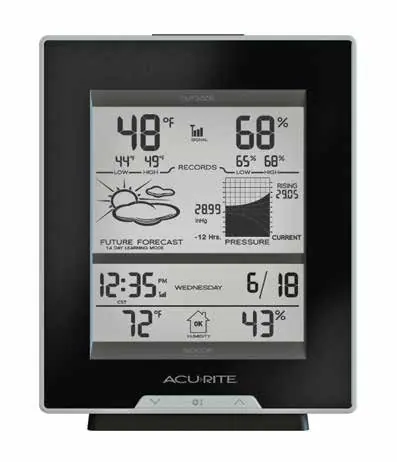
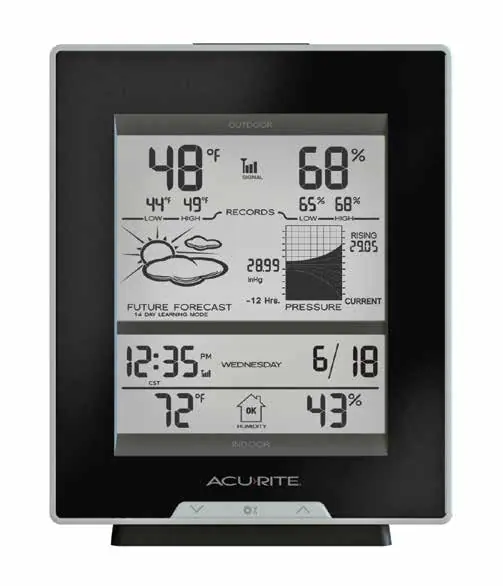

Intelli-Time Clock Setup: Press and hold the SET button for 3 seconds to enter setup mode. Use the arrow buttons to adjust settings and the SET button to confirm. The sequence is: Time Zone, DST, Clock Hour/Minute, Calendar Date, Temperature Scale, and Barometric Pressure Scale.
Placement
For accurate readings, place the display unit indoors away from direct sunlight and heat sources. The outdoor sensor must be placed outdoors, ideally in a protected area, within 330 feet of the display. Keep both units at least 3 feet away from appliances like TVs or microwaves that may cause radio frequency interference.
Operation
The device displays indoor/outdoor temperature and humidity, barometric pressure with a 12-hour history graph, and a weather forecast. The 14-day learning mode automatically calibrates altitude for forecast accuracy; the icon will disappear once complete.
Troubleshooting
If you experience no wireless reception, ensure both units are within range and the A/B/C switches match. If the display is unresponsive, press the reset button inside the battery compartment. Note that resetting will clear all date and time settings.
Specifications
The system operates on 5 AA batteries. Outdoor temperature range is -40°F to 158°F (-40°C to 70°C). Wireless range is up to 330 feet (100 meters) depending on construction materials.
Manufacturer information
AcuRite
Practical help
Common problems
Low or no wireless sensor reception
Ensure units are within 330 feet, at least 3 feet away from interference sources, and that A/B/C switches match.
Forecast seems inaccurate
Allow the 14-day learning mode to complete; ensure the outdoor sensor is placed correctly outdoors.
Display console screen not working
Check battery installation or press the reset button inside the battery compartment.
Before use
- Install 3 AA batteries in the display unit.
- Install 2 AA batteries in the outdoor sensor.
- Set the A/B/C switch in both units to the same position.
- Place the sensor outdoors within 330 feet of the display.
- Keep units 3 feet away from electronic interference.
Specs in practice
- Wireless Range
- Maximum 330 feet (100 meters) line-of-sight.
- Outdoor Temperature Range
- -40°F to 158°F (-40°C to 70°C).
- 14-Day Learning Mode
- Calibration period for barometric pressure and altitude calculations.
Images and diagrams
- The A/B/C switch is located inside the battery compartments of both the sensor and display unit.
- The reset button is located inside the battery compartment of the display unit.
Model compatibility
- Use lithium batteries in the outdoor sensor if temperatures drop below -4°F (-20°C).
- Rechargeable batteries are not recommended.

Manual page author
David Miller
Documentation analyst
Organizes user manual content into clear summaries, with attention to model details, product context, and everyday usability.